Roles and permissions
dooer has four roles — MEMBER, MANAGER, DIRECTOR, and HEAD. Each role unlocks specific things. If you're wondering "can my teammate do this?" or "why can't I see that screen?", this page has the answer.
The four roles
MEMBER — the default for every new user. Members create tasks, accept tasks assigned to them, and own projects when an admin makes them the project owner. Most of the people in your workspace are MEMBERs.
MANAGER — has one or more direct reports. A MANAGER can create users in their own team and sees the Manager Reports screen for the people who report to them. They cannot edit or delete users at DIRECTOR or HEAD level.
DIRECTOR — heads a department. In addition to everything a MANAGER can do, a DIRECTOR sees the Audit Log, can run bulk-import from an xlsx file, and sees reports for their whole department tree — not just their direct reports.
HEAD — top of the org. Same powers as DIRECTOR, but scoped to the entire workspace rather than a single department. Every HEAD sees every user, every project, and every report. HEADs also manage Settings → Invitations — approving invitation requests and managing trial accounts. The first person to claim a workspace is automatically set to HEAD.
The permissions matrix
A tick means the role can do the action. An empty cell means it cannot.
| Capability | MEMBER | MANAGER | DIRECTOR | HEAD |
|---|---|---|---|---|
| Create / edit tasks | ✓ | ✓ | ✓ | ✓ |
| Accept tasks | ✓ | ✓ | ✓ | ✓ |
| Be assigned tasks | ✓ | ✓ | ✓ | ✓ |
| Create projects | ✓ | ✓ | ✓ | ✓ |
| Create users | ✓ | ✓ | ✓ | |
| Create departments | ✓ | ✓ | ||
| Bulk-import xlsx | ✓ | ✓ | ||
| View Audit Log | ✓ | ✓ | ||
| Manager Reports — own direct reports | ✓ | ✓ | ✓ | |
| Manager Reports — whole department tree | ✓ | ✓ | ||
| Manager Reports — workspace-wide | ✓ | |||
| Reset another user's password | ✓ | ✓ | ✓ | |
| Promote a user to MANAGER / DIRECTOR / HEAD | ✓ ¹ | ✓ ² | ✓ | |
| Approve invitations / manage trial users | ✓ |
¹ A MANAGER can promote a user up to, but not above, their own role — so a MANAGER can make someone a MANAGER, but not a DIRECTOR.
² A DIRECTOR can promote up to DIRECTOR. Only a HEAD can promote someone to HEAD.
How roles get assigned
Roles are set from Settings → Users. Click any user in the list. A panel opens on the right with a Role drop-down. Change the value and save.
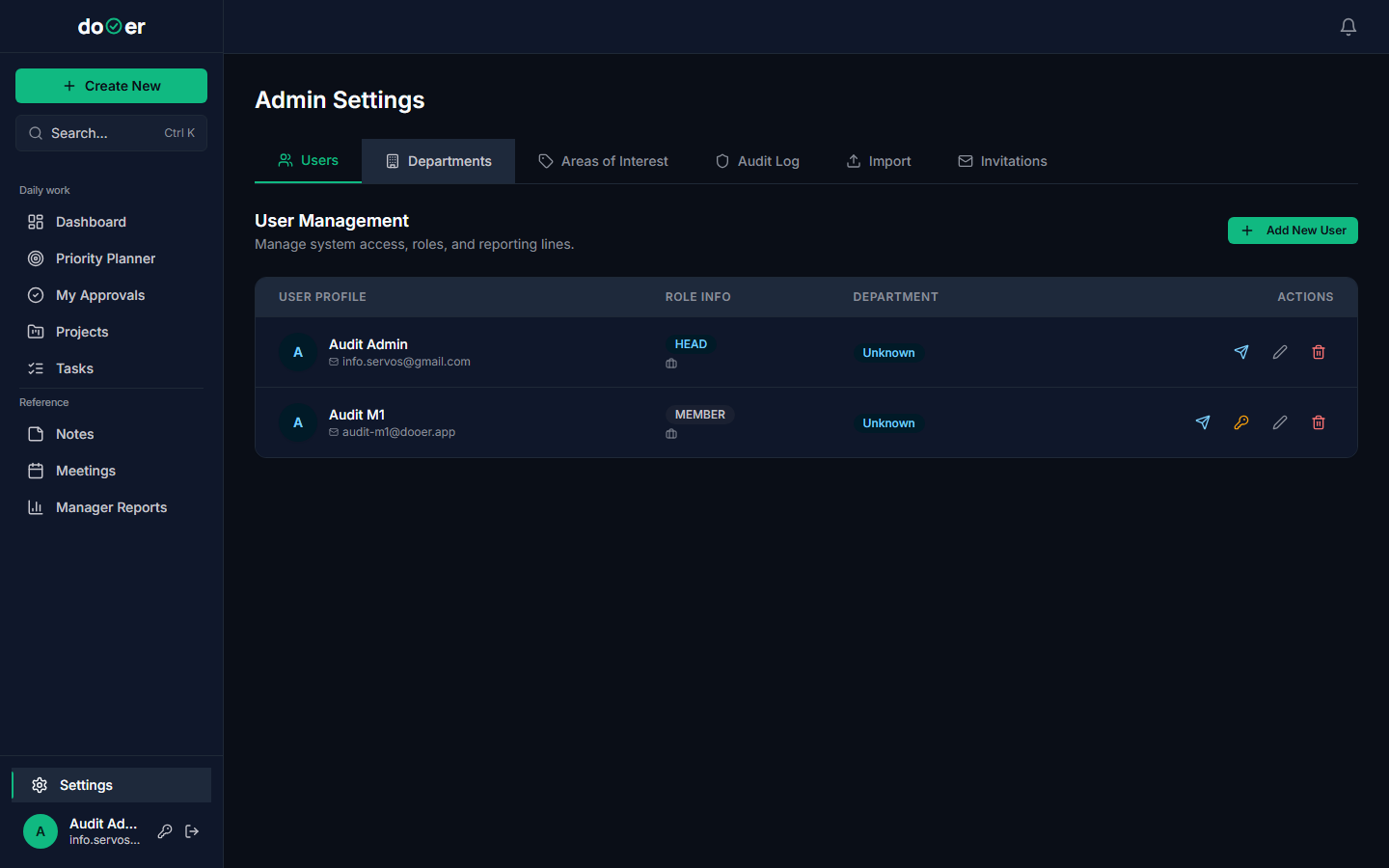
You must be at MANAGER level or above to edit users. You cannot assign a role higher than your own.
Reporting chains
Every user has an optional managerId — the user they report to. That link is what MANAGER and DIRECTOR use when scoping reports and user-management access.
The chain is recursive. If Ana reports to Ben, and Ben reports to Clara, then Clara sees both Ana and Ben in her reports view. dooer walks the full chain down — there is no depth limit.
This means: - A MANAGER sees their direct reports plus anyone who reports to those reports. - A DIRECTOR sees the entire tree under their department. - A HEAD sees the entire workspace.
If a user has no managerId set, they do not appear in anyone else's reporting tree. Admins set the managerId from the same Settings → Users panel as the role.
What gated screens look like
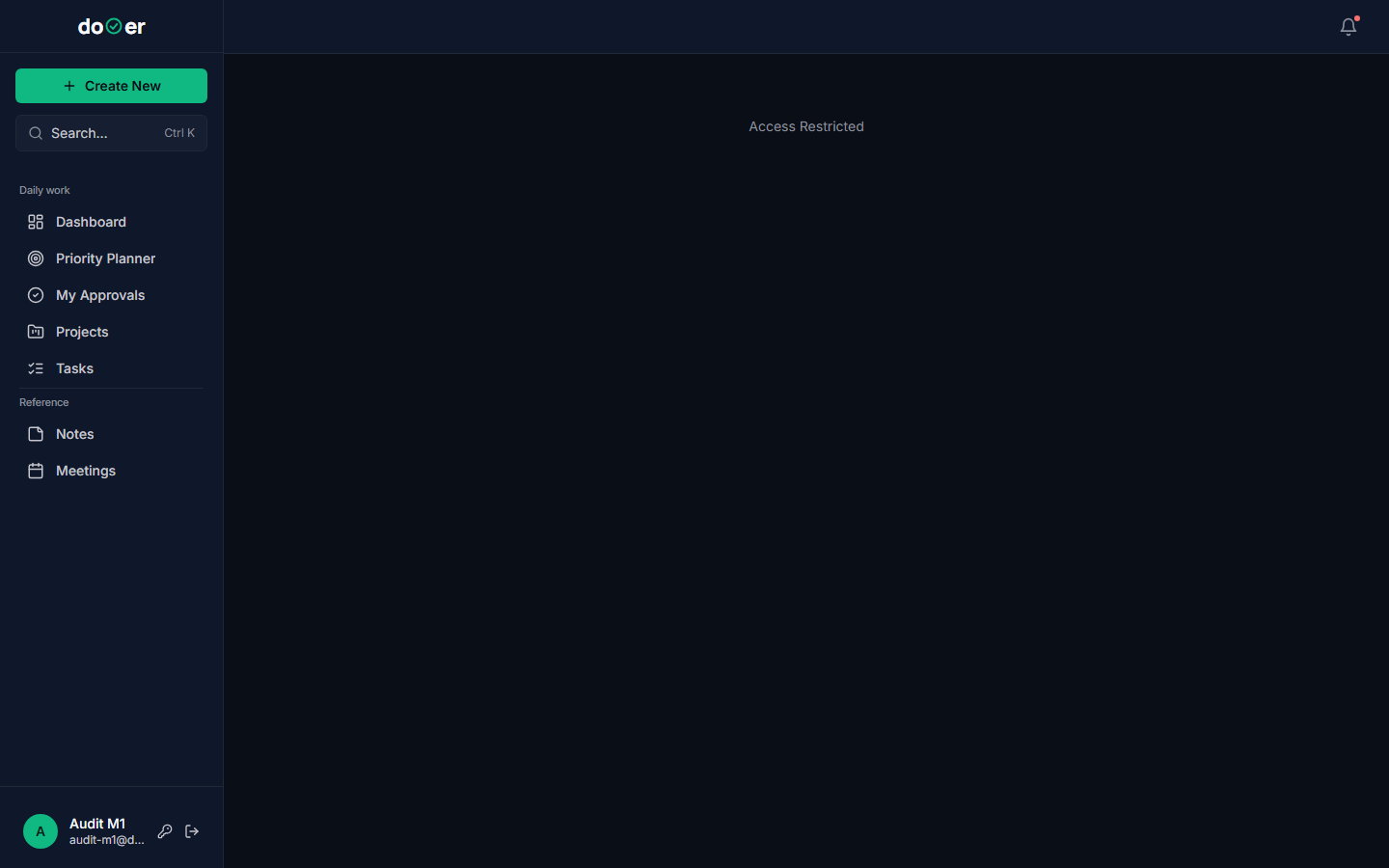
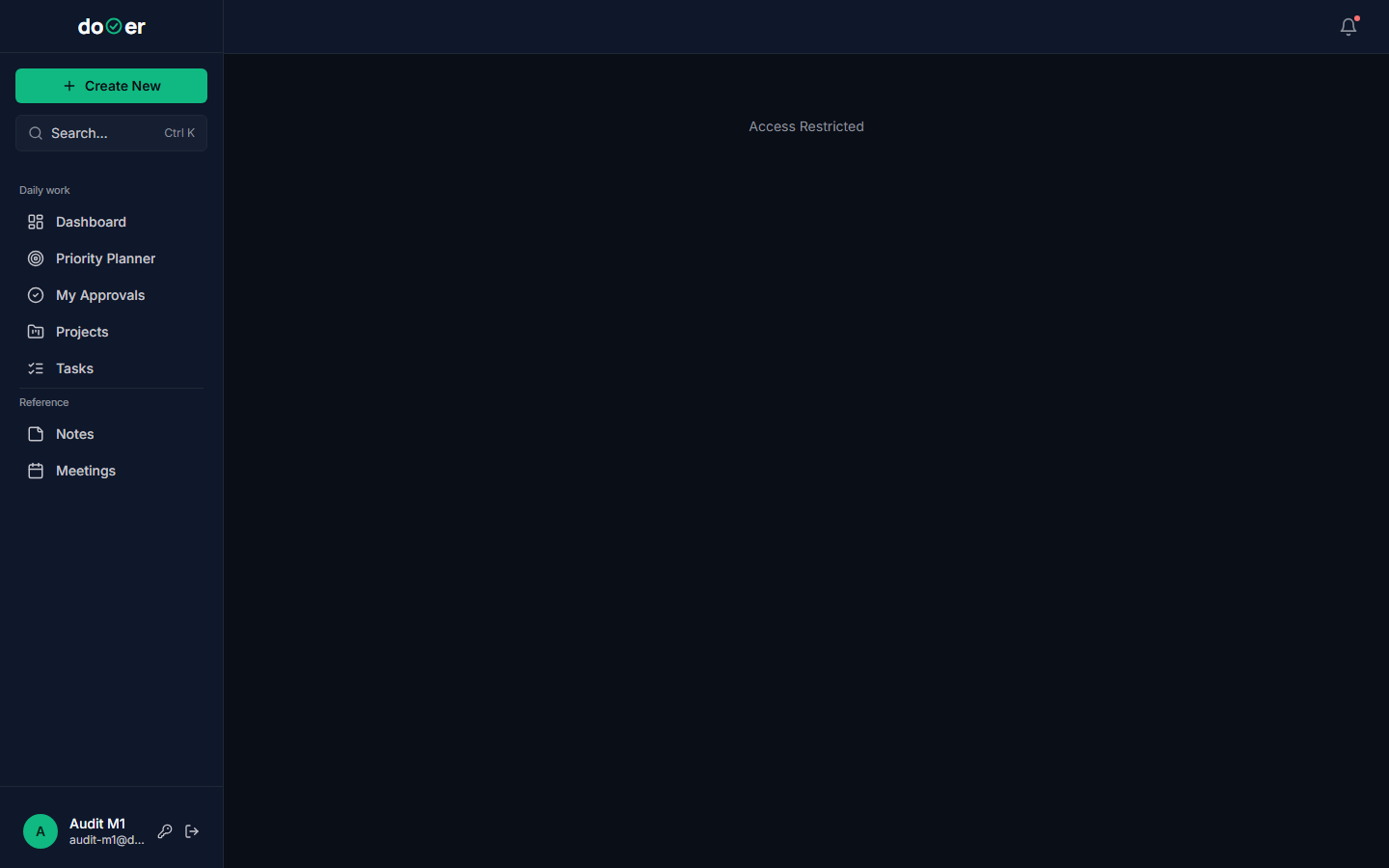
When a MEMBER navigates to a screen their role cannot access, dooer shows a "403" screen rather than hiding the nav link silently. That way it's clear the feature exists — it just requires a different role.
Here's what a MEMBER sees when they navigate directly to the Audit Log:
The same block appears on bulk-import and on the Invitations tab:
What's next
For admins — set up your team → How to invite users, set departments, and manage trial accounts.
Notifications → Every email dooer sends, what triggers it, and what the recipient needs to do.