Solo Advanced — prioritize and plan the week
Goal: stop being reactive. Use the Eisenhower 2×2 and the 5-day planner to choose where today's effort goes — instead of letting whoever shouts loudest set your agenda.
You arrive here after Basic. You can capture and complete. Now you start asking the hard question: of all the things I could do, which ones matter?
Why this tier matters
There is a famous quote attributed to General Eisenhower in a 1954 speech at Northwestern University:
"I have two kinds of problems: the urgent and the important. The urgent are not important, and the important are never urgent."
Stephen Covey turned this into a 2×2 matrix in 7 Habits (1989). On one axis: how important is this? On the other: how urgent is this? Most of life happens in the urgent-and-important corner — fires you have to fight. The trick is to spend more time in the important-but-not-urgent corner, which is where the long-term-payoff work lives.
dooer has this matrix built in. It is the Priority Matrix screen. Most users glance at it and move on. The Advanced tier is when you start actually living in it.
The 9 journeys
S-2.1 — Drag tasks across Eisenhower quadrants
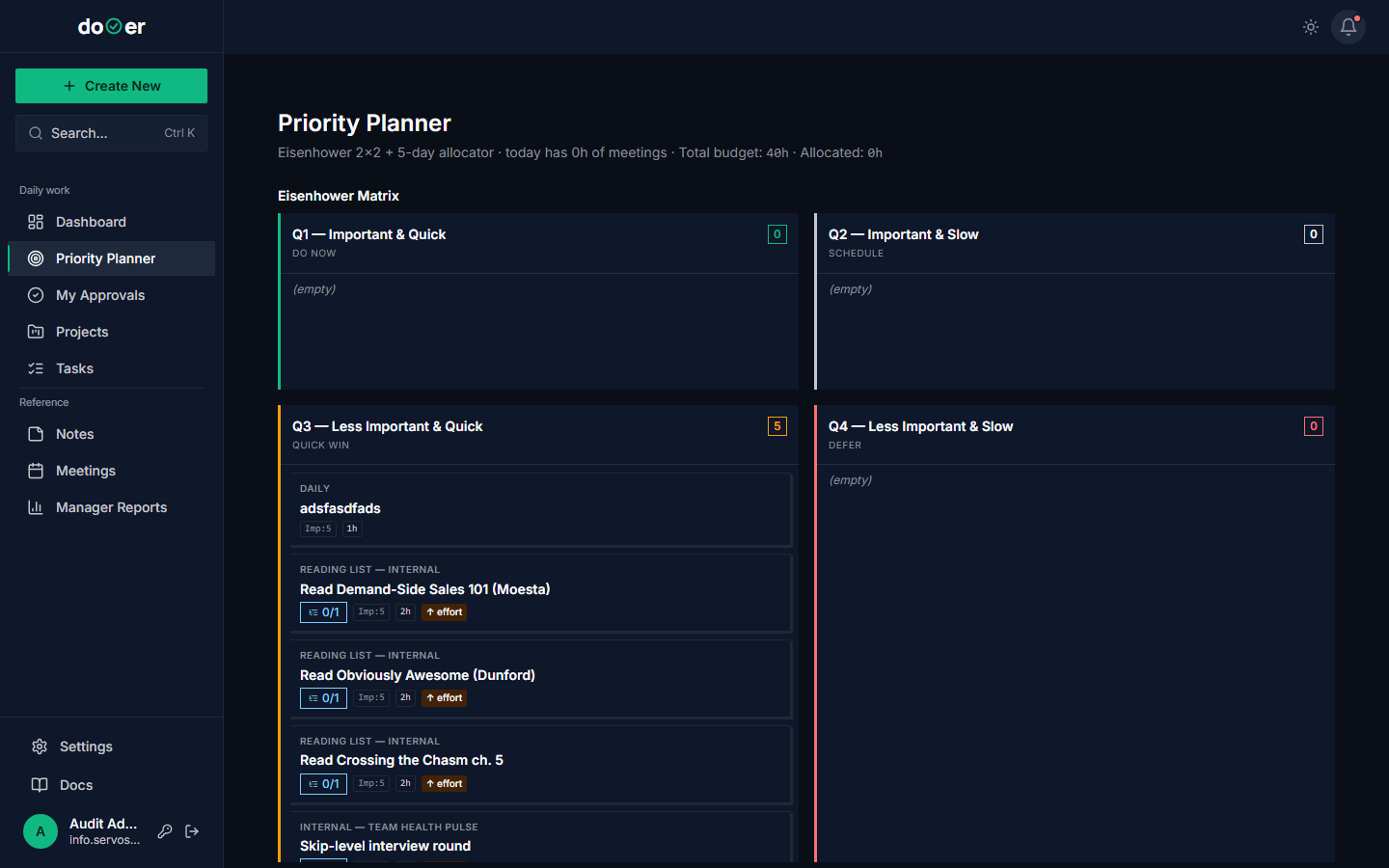 The Priority Matrix view. Four quadrants by impact × urgency, plus a 5-day plan strip below.
- Open Priority Matrix (
/priority). - Drag your top 5 open tasks into the quadrants where they really belong — not where you wish they were.
- Be honest. Most things are not in the top-right.
What just happened
- Each drag fired a
PATCH /api/work-items/{id}/updating the priority field. - The 5-day strip below recalculated based on which tasks now have higher priority.
- The audit log got a row for each change.
Concept: importance vs urgency. The skill is not "doing the matrix once" — it's catching yourself, on Wednesday afternoon, working on something in the urgent-not-important box and asking why. The four quadrants — Do / Schedule / Delegate / Delete — each have a discipline behind them. If you do nothing else in the Advanced tier, read The Priority Matrix end to end. That single page is the difference between people who use dooer like a to-do list and people who use it like an operating system.
S-2.2 — Use the 5-day planner and respect the daily workload gauge
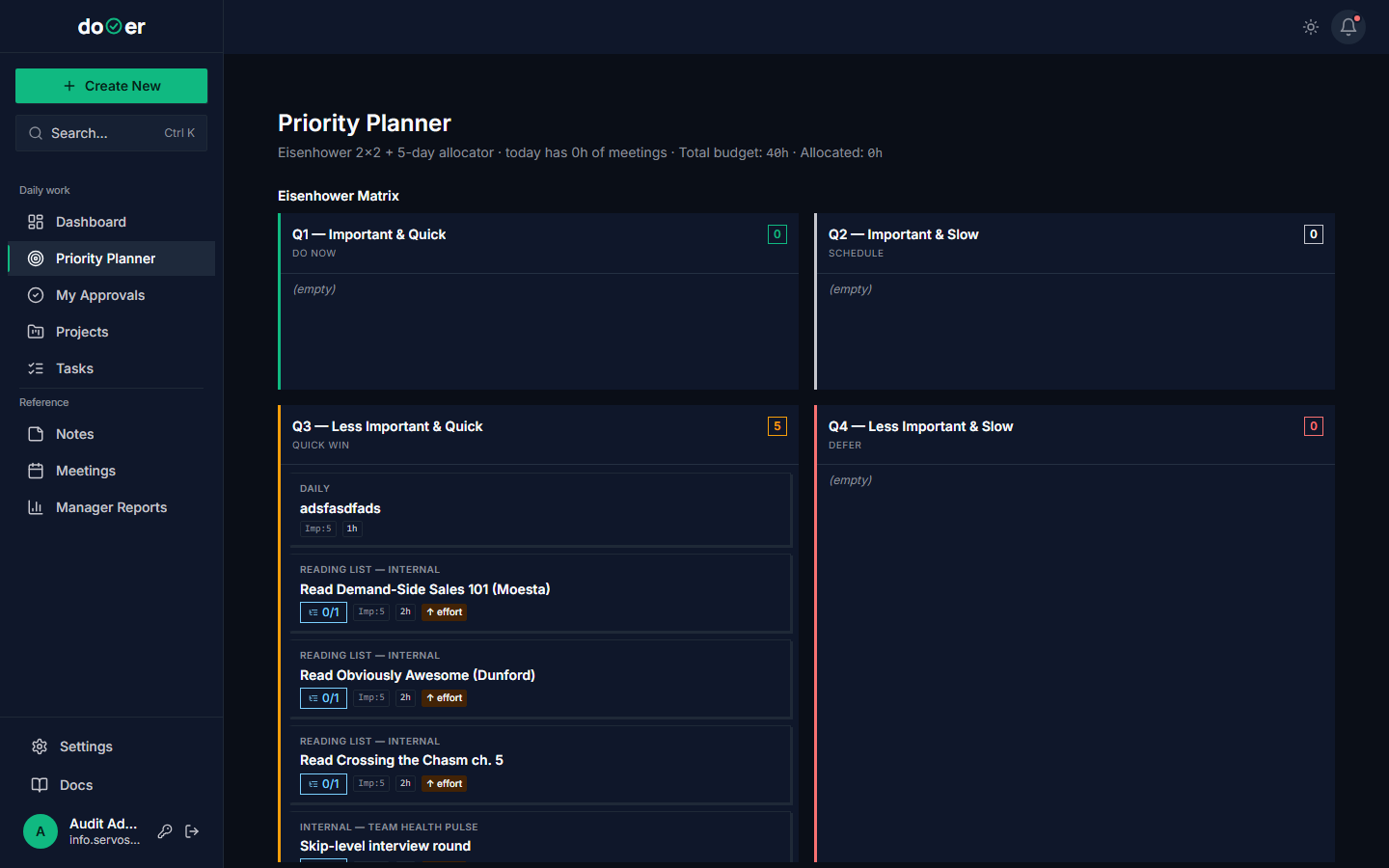 The 5-day planner. Each column shows total effort booked into that day. Red means you've overcommitted.
- On the Priority Matrix screen, look at the five columns (Mon–Fri) below the quadrants.
- Drag a task into Tuesday.
- Watch the workload gauge on Tuesday update.
- If Tuesday turns red, you have overbooked. Move something off.
If you ignore the red day
You will arrive at Tuesday already behind. The gauge is not yelling at you for fun. It is doing the math you avoided.
Concept: capacity vs commitment. This is the personal version of what programme managers do at the portfolio level — they limit work in progress so the system doesn't choke (Anderson, 2010). The number you can sustain is much smaller than you think. See WIP and flow.
S-2.3 — Add a predecessor (blocker)
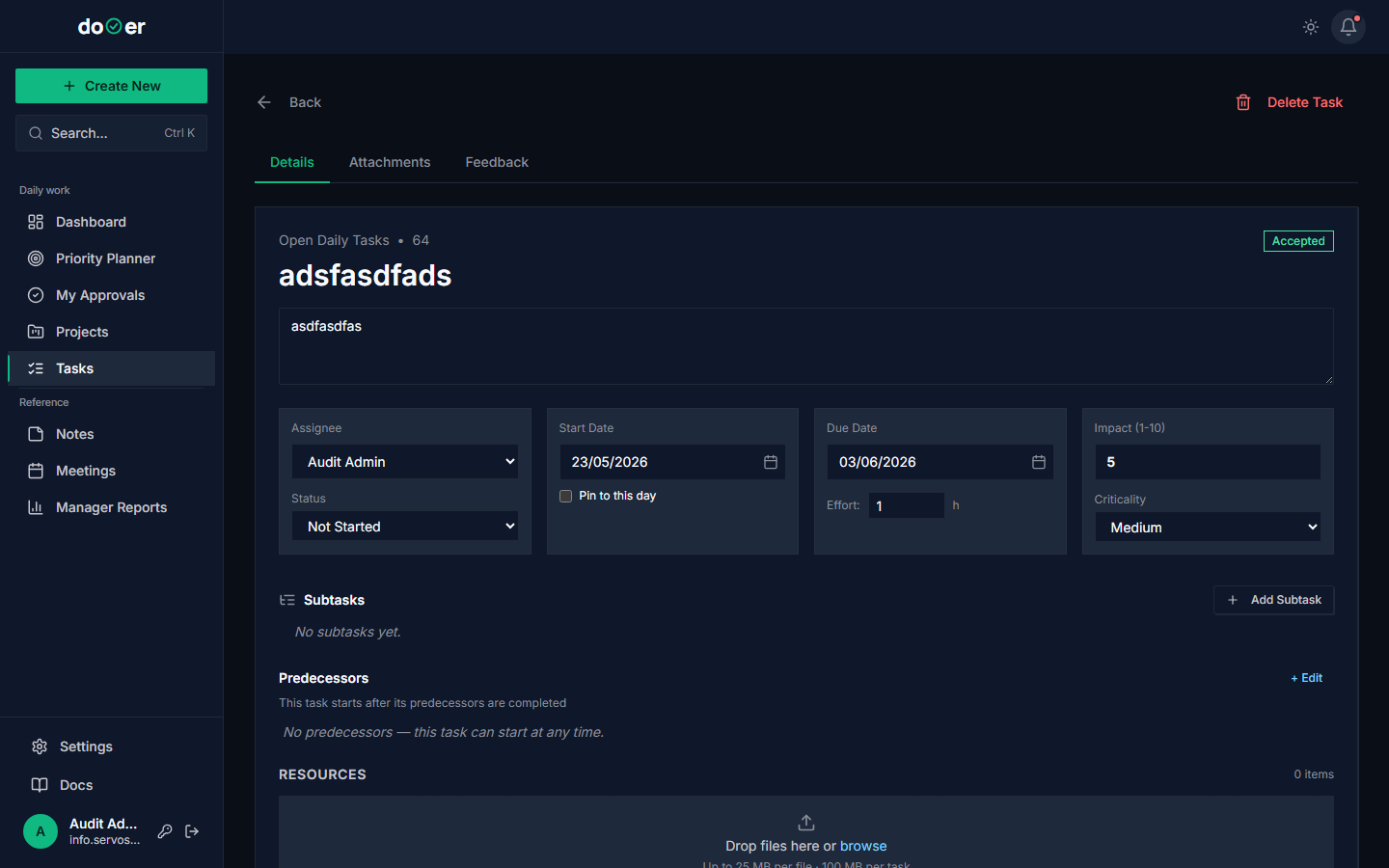 Predecessors are tasks that must finish before this one can start.
- Open a task that depends on another.
- Click Edit Predecessors in the right rail.
- Search and select the blocking task.
- Save.
What just happened
- A
Dependencyrow got created linking blocked → blocker. - The blocked task now shows a small "blocked" badge on the board.
- When the blocker completes, the badge clears (you can act).
Concept: dependency mapping. This is the personal-scale version of a Gantt chart's predecessor lines. The PMBOK Guide (PMI, 2021) calls it "schedule network analysis." For solo work, you only need a few — but having even one explicit blocker stops the "why am I waiting?" loop.
S-2.4 — Write a full brief on a meaningful task and earn +10
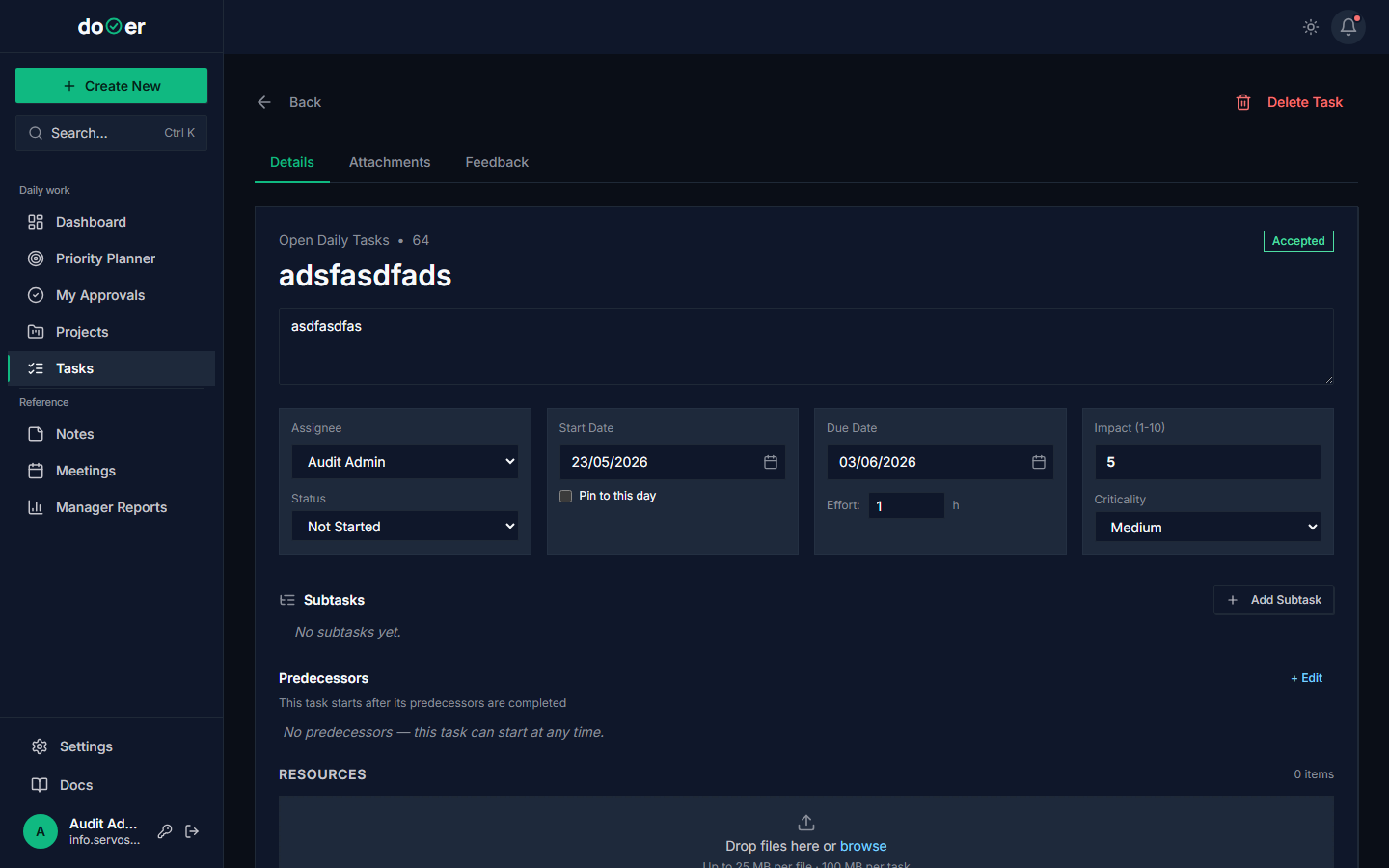 A task with
 is_full_brief=true gets a brief ID like BR-PRK-WEBSITE-2026-014 and is worth twice the points on completion.
- Pick a task that is bigger than a 30-minute job.
- Open it. Click Add full brief.
- Fill in: what is this, why does it matter, what does done look like, what could go wrong.
- Save.
What just happened
is_full_briefwas set to true.- A brief ID was auto-generated using the project slug, year, and a sequence:
BR-{ORG}-{PROJECT}-{YEAR}-NNN. That ID is now permanent. You can cite it in emails. - The brief is downloadable as a Word file.
- When you complete this task, you will get +10 points instead of +5.
Concept: charter. A project charter is a one-page statement of what a thing is, why it exists, and what done looks like. PMBOK 7 (PMI, 2021) calls it the "project authorization document." For a solo operator, briefs save you from your own forgetfulness three weeks from now.
S-2.5 — Link a note to a task
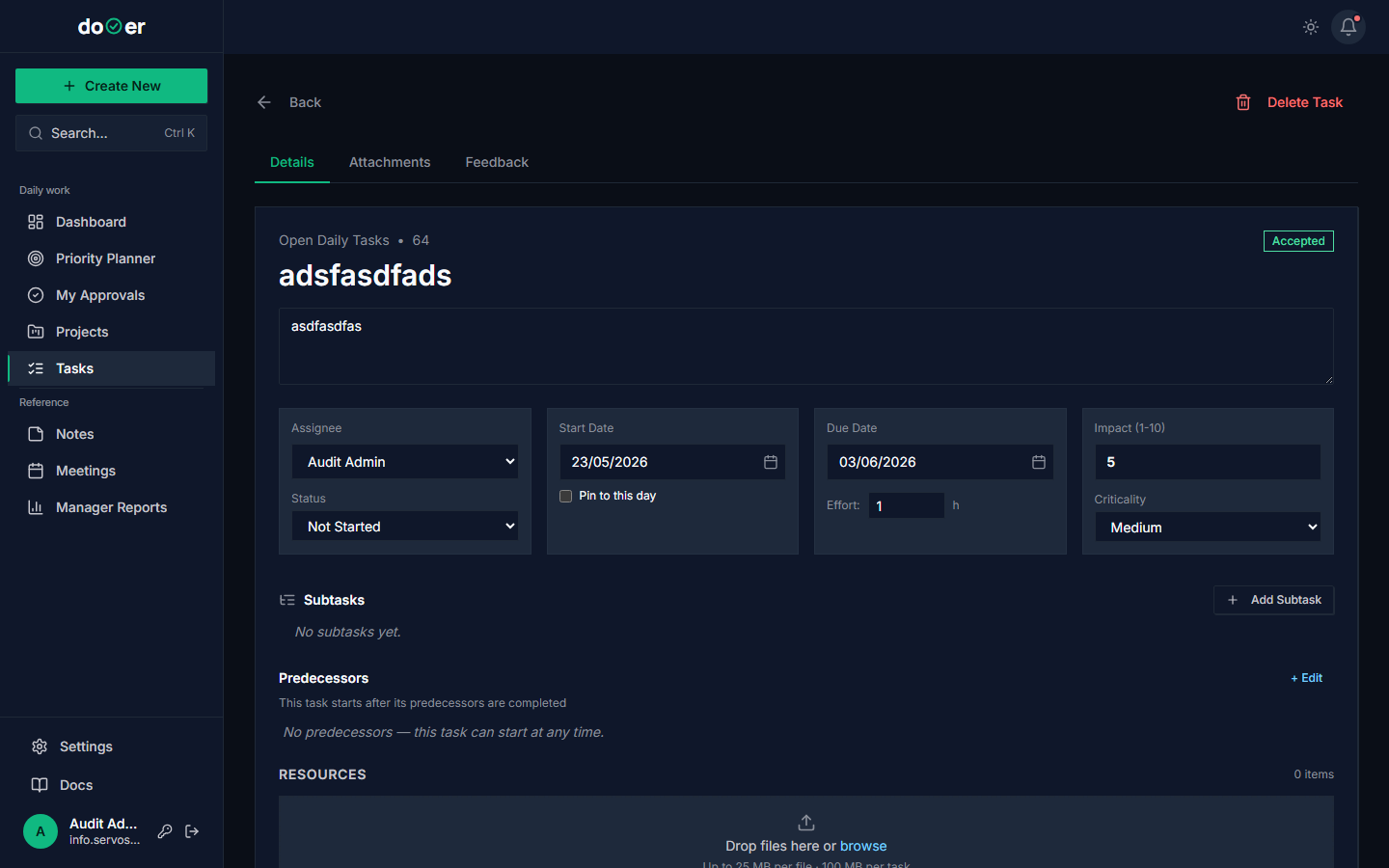 The note shows up in a panel on the task; the task shows up as a back-link on the note.
- Open a task.
- In the right rail, find Related Notes. Click search.
- Find or create a note.
- Save.
What just happened
- A
WorkItemBriefNotejunction row was created. - The note appears in the task's panel.
- Open the note — the task is back-linked there too.
Concept: single source of truth. Notes are where the rationale lives ("I picked vendor X over vendor Y because..."). Linking them to tasks means you don't have to remember where you wrote the reason. This is the same logic as git commit messages pointing back at an issue.
S-2.6 — Add personal feedback and convert it to a follow-up
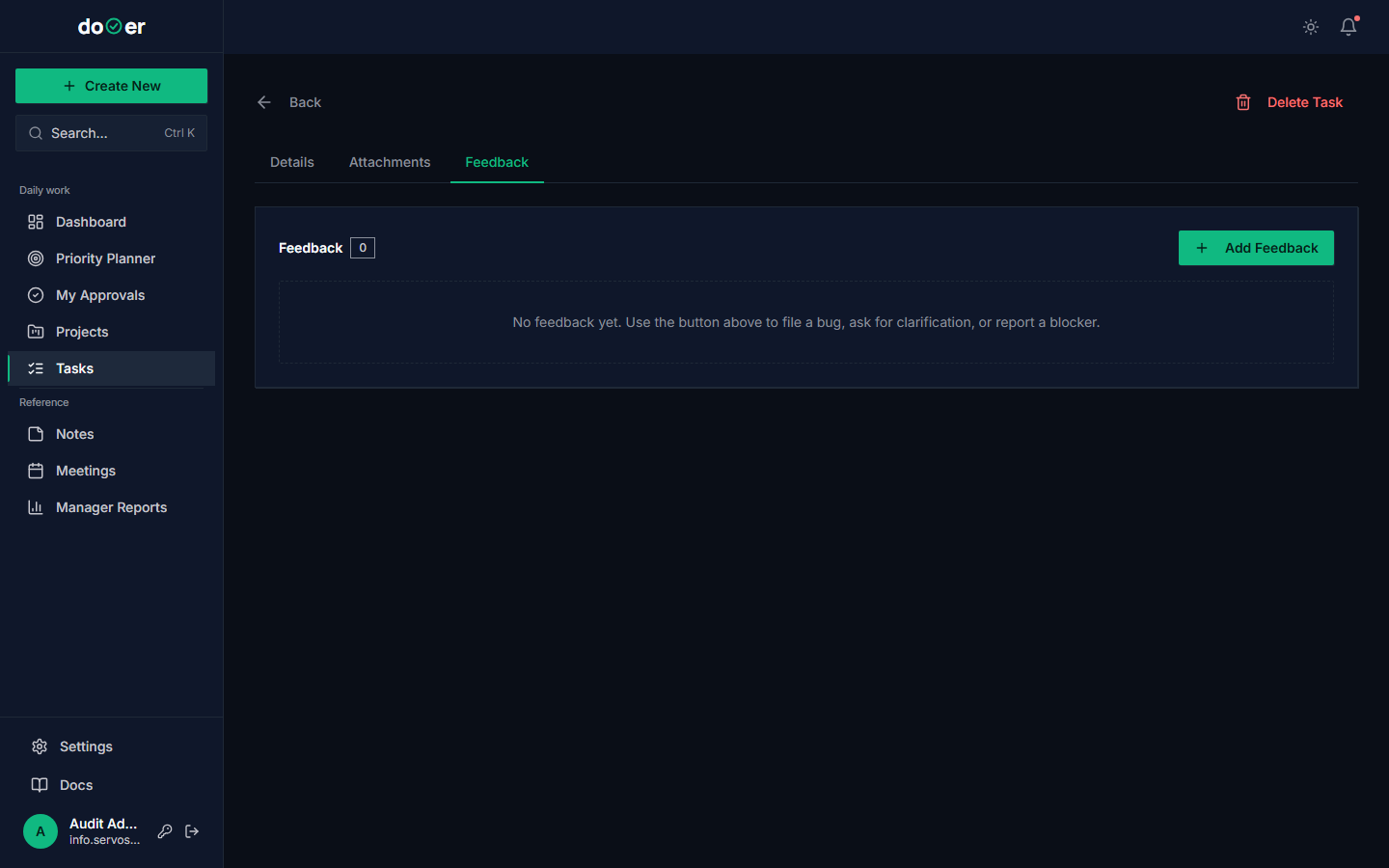 Even on your own tasks, capturing post-hoc feedback teaches you what to change next time.
- After completing a task, open it.
- Click the Feedback tab.
- Click Add Feedback. Write what you noticed: "Spent 2 hours longer than estimated. Underestimated review time."
- Click Convert to task to spin a follow-up: "Bake review time into next similar task."
What just happened
- A
Feedbackrow was created on the closed task. - Then a new
WorkItemwas spawned from that feedback (origin=feedback). - The original feedback was marked Approved.
- The audit log shows the chain.
Concept: retrospective + feedback process. This is a retro of one. Norm Kerth wrote the canonical book on retros (Kerth, 2001). The personal-scale version is: when something goes wrong, write down what you'd do differently before you forget. The feedback object has its own lifecycle (Pending → Approved/Rejected, or Convert to Task) — see The feedback process for how to use it well. See also Retrospectives.
S-2.7 — Use Area of Interest tags to scope focus blocks
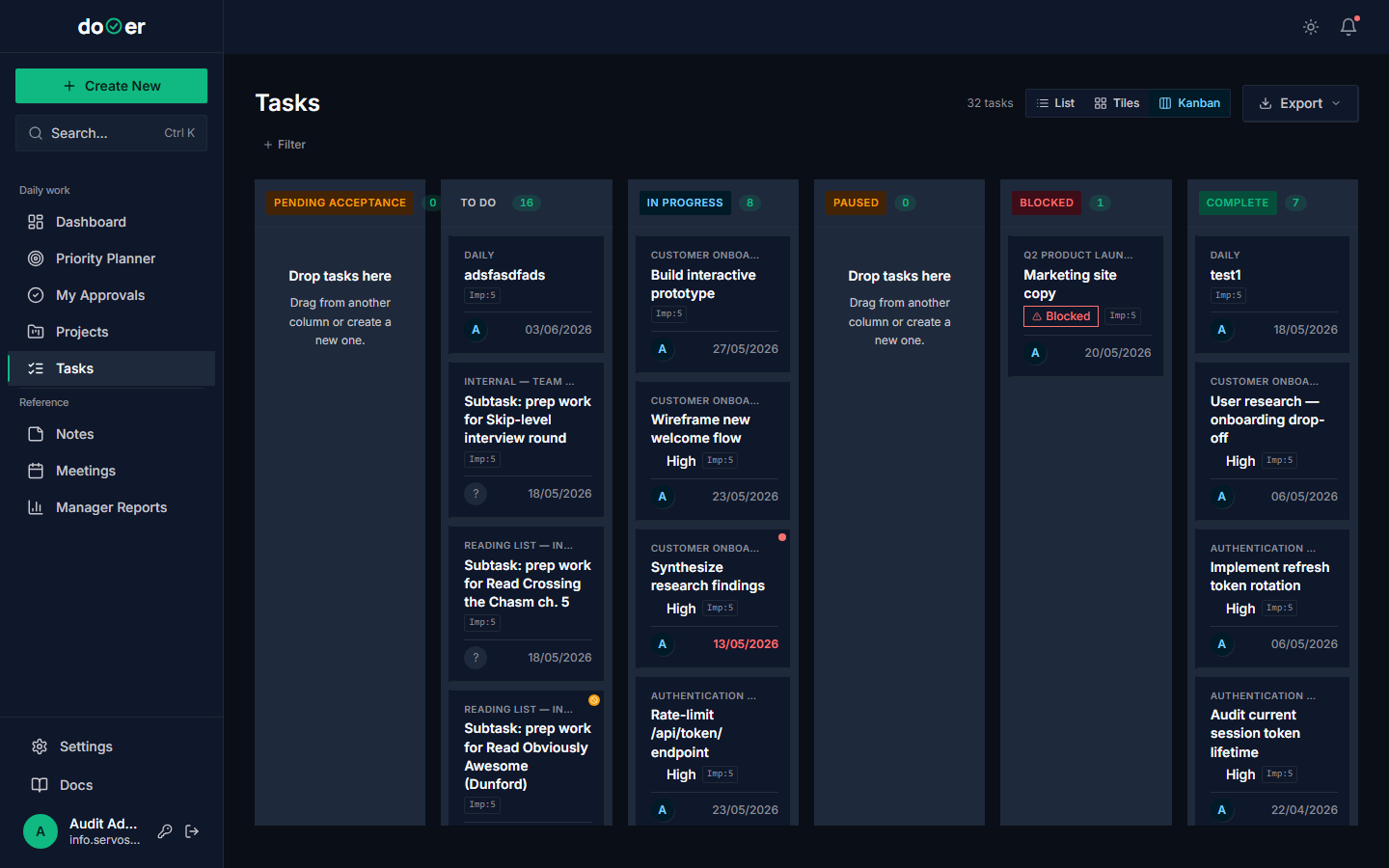 Areas of Interest are private to you. They let you cut the noise and focus on one domain at a time.
- Go to Settings → Profile and create three Areas of Interest. Examples: "Personal admin", "Deep work", "Learning".
- On the task board, open the filter bar.
- Select one Area of Interest. The board narrows to just those tasks.
Pair this with calendar blocks
Cal Newport (Newport, 2016) calls these deep work blocks. The combination — a calendar slot plus a filtered task view — is the closest you can get to giving your future-self a focused environment.
S-2.8 — Set up recurring tasks to protect your repeating commitments
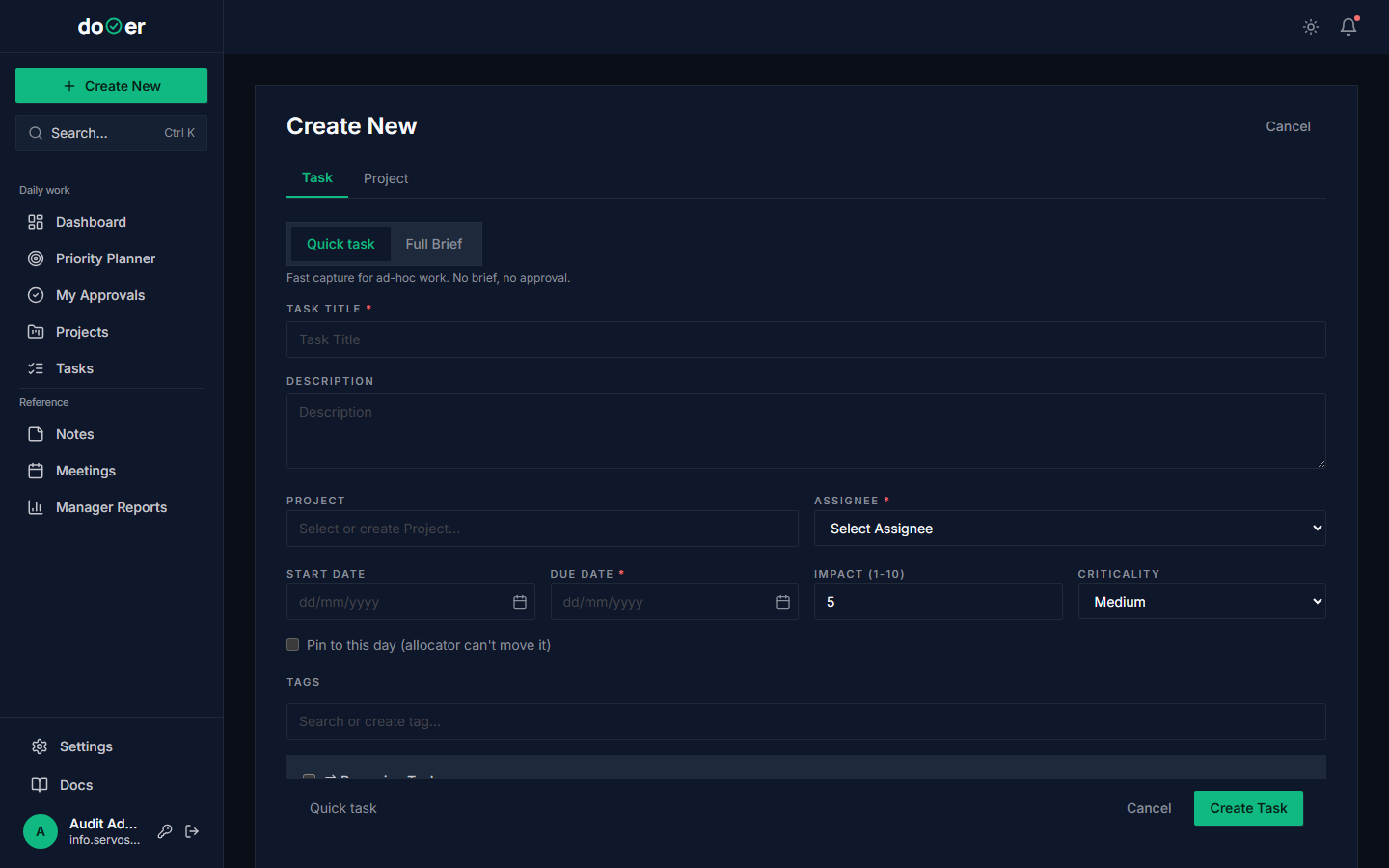 The recurrence picker. Pick the weekdays, set the frequency, and dooer auto-generates the next instance each cycle.
A surprising amount of your week is the same week: weekly review, expense report, status update, daily stand-up, monthly billing, Sunday-night planning. If these don't live in dooer, they live in your head — and "in your head" is the worst place to store anything (Allen, 2001).
The fix is recurring tasks. dooer auto-creates the next instance once you complete the current one, so the commitment never falls off.
- Create a task in the Intake form.
- Open the Recurrence section.
- Pick the weekdays it should repeat on (e.g., every Mon/Wed/Fri).
- Pick the frequency (weekly is most common).
- Save.
What just happened
- The task got saved with a
recurrenceconfig attached. - When you mark this instance Complete, dooer spawns the next one for the next configured date.
- The "Stop Recurrence" button on the task detail lets you end the chain when the commitment no longer applies.
The bigger reason: visible available time. When you put your repeating commitments into the 5-day planner (S-2.2) as recurring tasks, you finally see how much of your week is already booked before you commit to anything new. Most people think they have 40 hours of discretionary time per week. After accounting for status meetings, ops work, recurring reviews, and admin, the actual number is often under 10.
That gap between perceived and actual capacity is the single biggest reason people miss commitments.
Concept: level of effort (LOE) — the steady-drumbeat work that fills your calendar regardless of projects. PMBOK 7 (PMI, 2021) lists it as one of three work types. Knowing your LOE is the foundation of saying no with confidence. (You will revisit this at Proficient with S-3.4.)
Common misuse: putting aspirational tasks on a recurring schedule ("meditate daily", "exercise 3x a week") and then ignoring them for a month. If a recurrence is constantly being skipped, it isn't a commitment — it's a wish. Delete it and decide later if it's real.
S-2.9 — Run a Friday weekly review
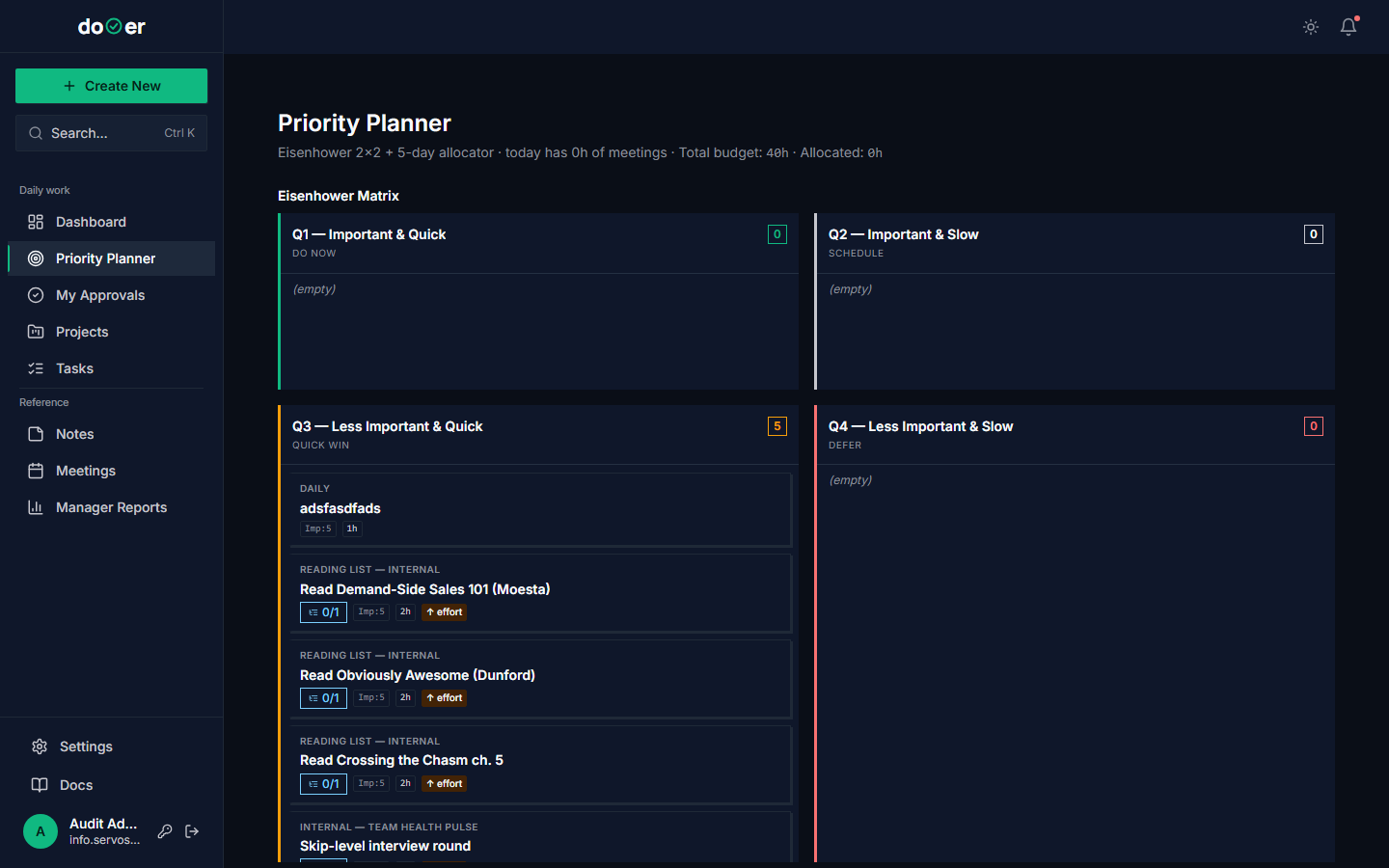 The end-of-week pass. Carry forward what matters, kill what doesn't.
Once a week (Friday afternoon works for most people), spend 30 minutes:
- Open Priority Matrix.
- Walk through each quadrant. Anything still in "urgent-and-important" you didn't get to? Why?
- Delete or roll forward unfinished tasks. Be ruthless. If it didn't matter for 5 days, it probably doesn't.
- Move anything from "important-but-not-urgent" into next week's plan.
- Open your closed tasks for the week. Pick one. Add a feedback note (S-2.6) about what you'd change.
Why this works
The weekly review is the single highest-leverage habit Allen identified (Allen, 2001). It is the moment your system rebuilds your trust in itself. Skip it and within three weeks your task list starts feeling like a haunted house — full of things you don't want to look at.
When you're ready for Proficient
dooer will show a "ready for Proficient" hint when:
- You have at least 4 consecutive weeks with a non-empty 5-day planner.
- At least 30% of your created tasks have
is_full_brief = true.
These two signals say you're not just doing tasks anymore — you're governing your own week.
Where the ideas come from
- Covey, S. (1989). The 7 Habits of Highly Effective People. Free Press. — the urgent/important matrix popularization.
- Anderson, D. (2010). Kanban: Successful Evolutionary Change for Your Technology Business. Blue Hole Press. — WIP limits.
- PMI (2021). A Guide to the Project Management Body of Knowledge (PMBOK Guide), 7th Edition. — charter, schedule network analysis.
- Kerth, N. (2001). Project Retrospectives: A Handbook for Team Reviews. Dorset House. — the prime directive of retros.
- Newport, C. (2016). Deep Work: Rules for Focused Success in a Distracted World. Grand Central. — deep work blocks.
- Allen, D. (2001). Getting Things Done. — weekly review.
Full bibliography: bibliography.