From invite to first task done — ten minutes
You got an invitation email. You've never used dooer before. That's fine.
In ten minutes you'll be signed in, you'll have a real task sitting on the board, and you'll know how to find it tomorrow. This page covers exactly that. Nothing more.
1. Open your invitation email
Check your inbox. Look for an email from dooer — the subject line will say which workspace you've been invited to.
Here's what that email looks like:
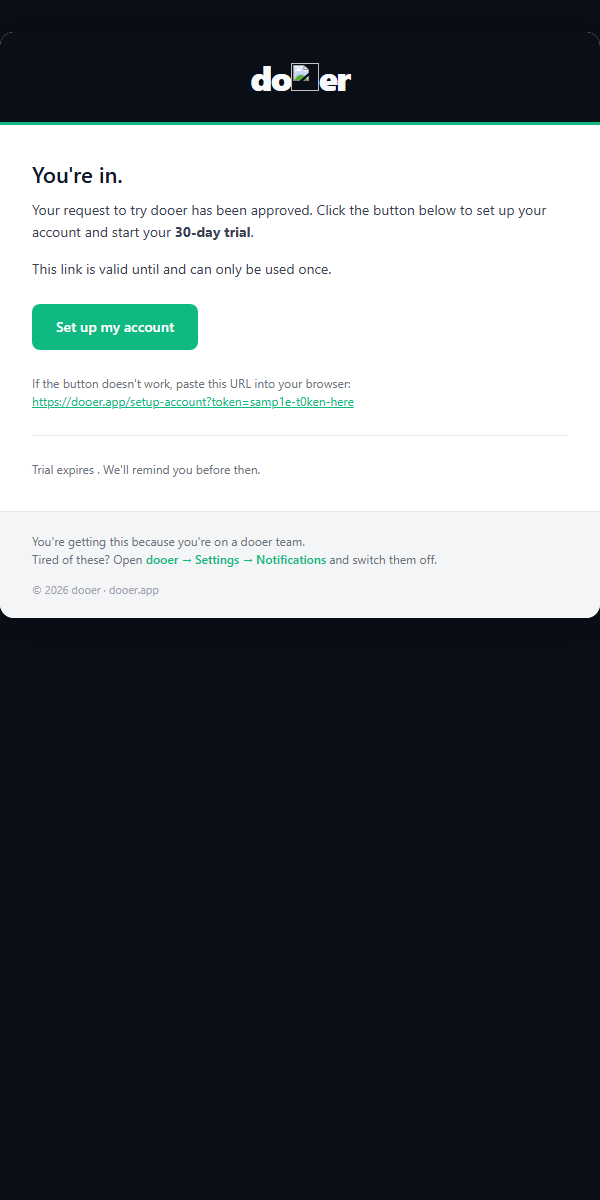
Open it and click Accept invitation. That button is the only thing on the page that matters. It opens a set-password screen in your browser.
Heads up
Invitation links expire after 7 days. If yours has already expired, ask your admin to resend it from Settings → Invitations.
2. Set your password and sign in
The set-password screen asks you to type a new password twice. Pick something you'll remember — dooer doesn't have single sign-on yet, so this is how you get in every time.
Submit the form. dooer signs you in automatically.
Here's the login screen you'll see if you ever get signed out:
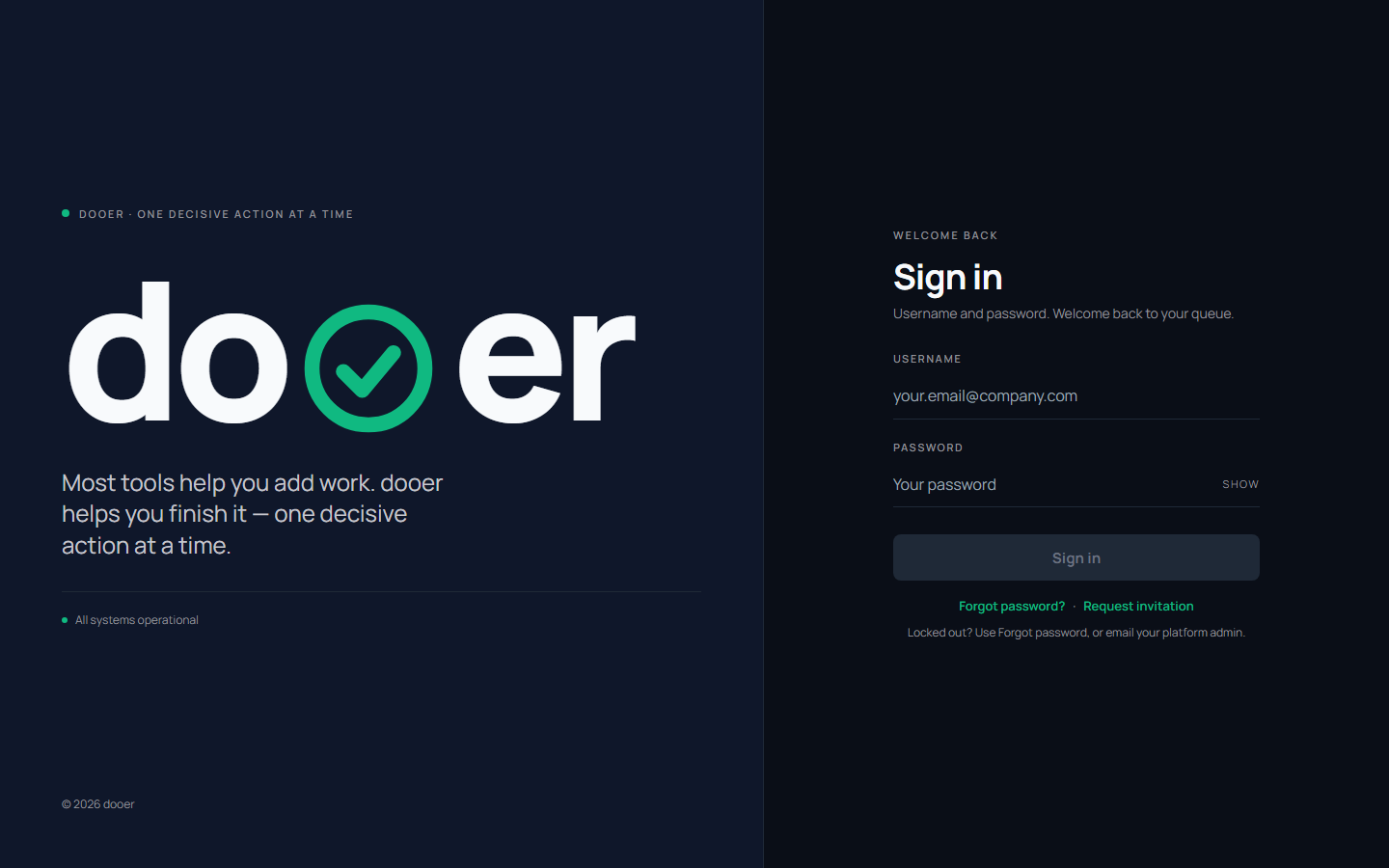
Your username is the email address your admin used to invite you. If you forget your password, the Forgot password? link is at the bottom of the login screen. Yes, that one. Right there.
Remember
Username = the email you were invited with. If login fails, that's the first thing to check.
3. The first thing you see — your Dashboard
After you sign in, dooer takes you to the Dashboard. If you just joined, it will look empty. That's normal.
Here's what a fresh Dashboard looks like:
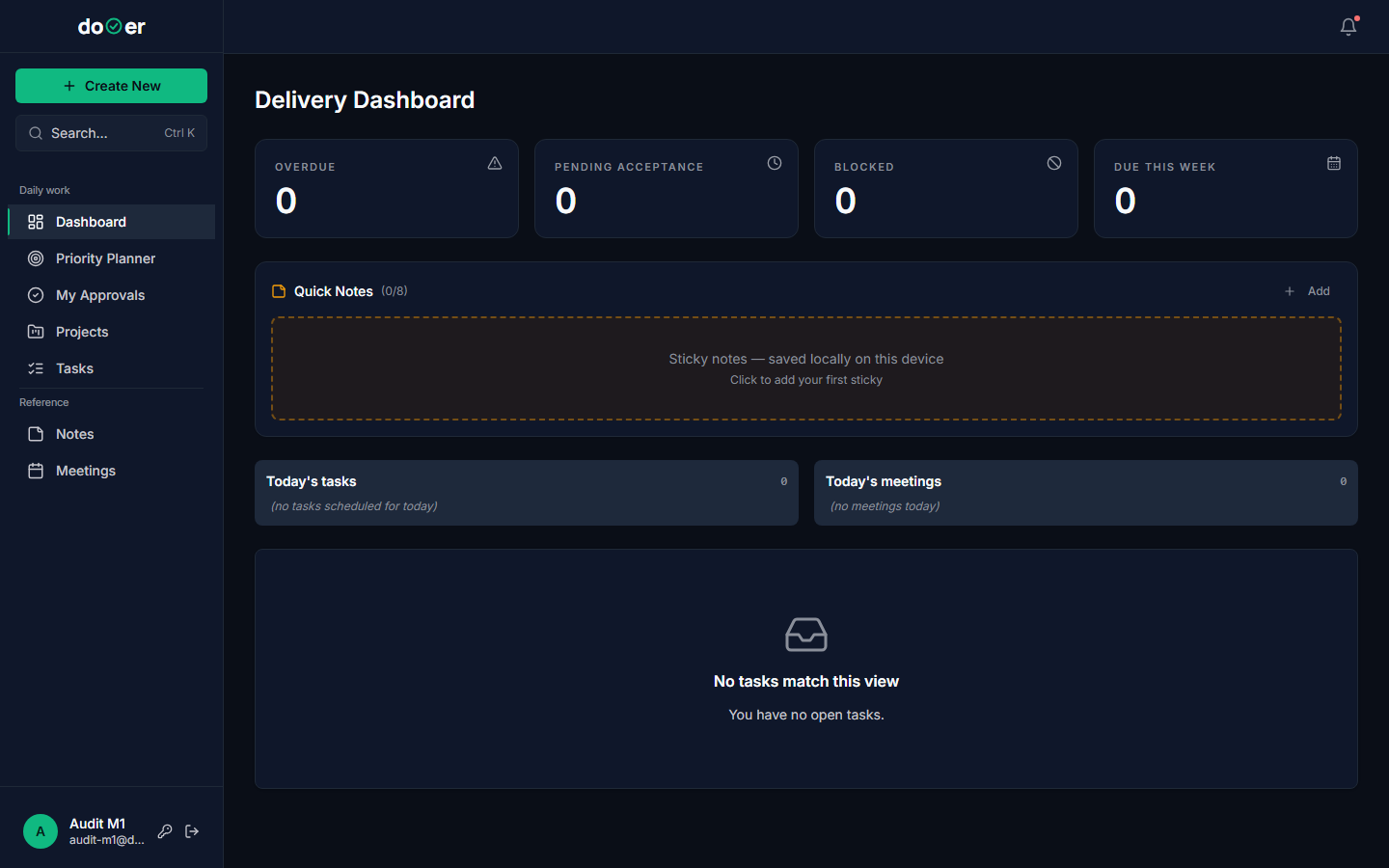
Think of the Dashboard as your morning briefing. It shows today's tasks, today's meetings, and a row of filters for things that need attention right now — overdue, blocked, due this week. Right now there's nothing there. That changes once work gets assigned to you.
The left sidebar is your map of everything in dooer. It has two groups:
- Daily work — Dashboard, Priority Planner, My Approvals
- Reference — Notes, Meetings, Manager Reports (stuff you look at, not act on daily)
Don't go exploring yet. Make your first task first.
One thing
The Dashboard fills up as work gets assigned. An empty Dashboard on day one means you set it up correctly — not that something went wrong.
4. Capture your first task
See the green Create New button in the top-left corner? That one. Click it.
Here's the window that opens:
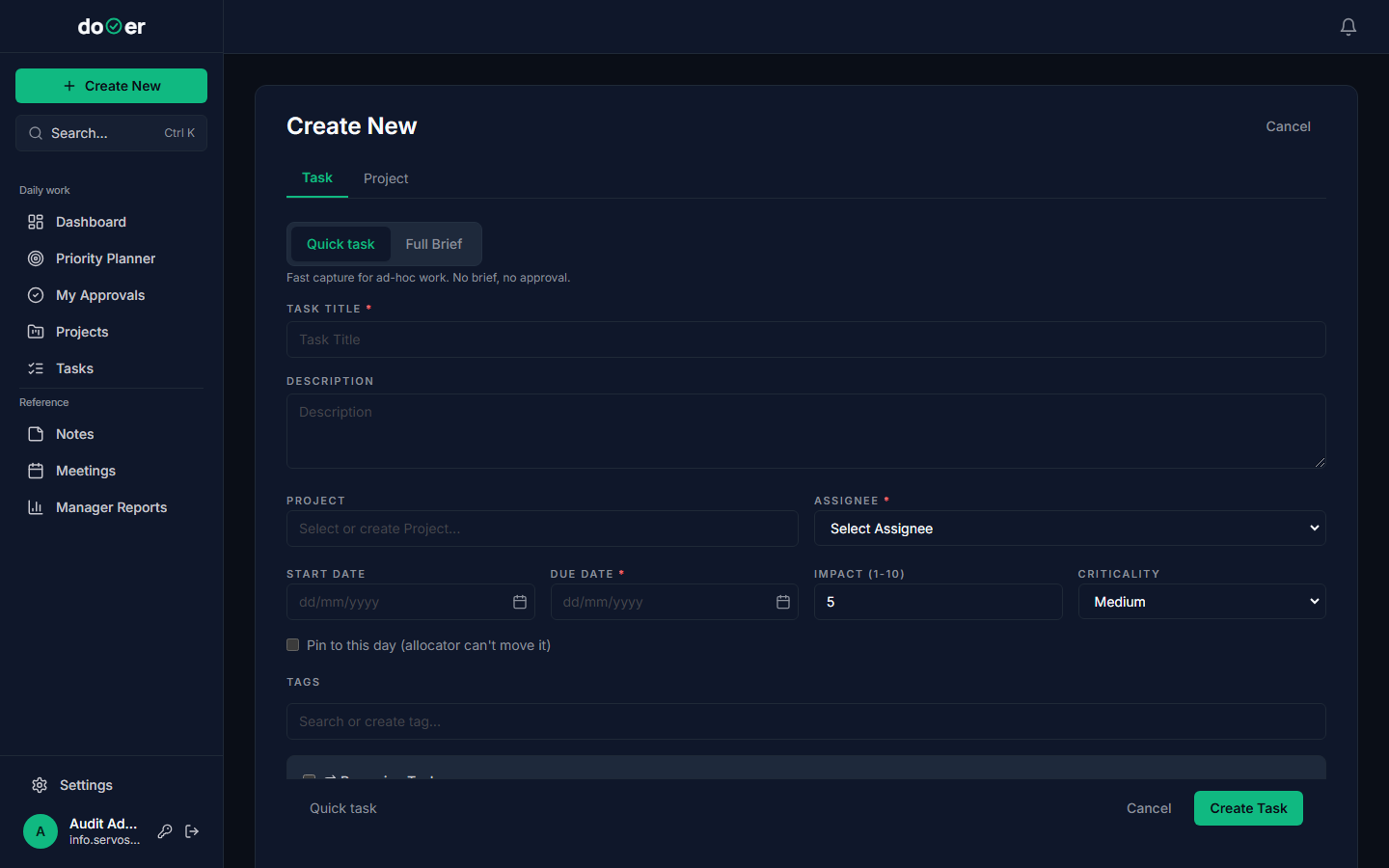
It opens on the Task tab. You'll notice two sub-tabs at the top: Quick task and Full Brief. The default is Quick task. Stay there.
Fill in three things — these are the only required ones:
- TASK TITLE — be specific enough that you'll know what it means next week. "Website copy review" beats "copy stuff".
- ASSIGNEE — pick yourself for now.
- DUE DATE — use the real date. Not the optimistic one.
Everything else (description, project, impact score) is optional. You can add it later from inside the task.
Click Create Task. The button goes blue once all three required fields are filled.
Tiny rule
Tasks need three things to exist: a title, an assignee, and a due date. Everything else is optional and can be added later.
5. Find it again — the Task Board
Click Tasks in the left sidebar. This is where every task in your workspace lives, all in one place.
Here's what a populated Task Board looks like:
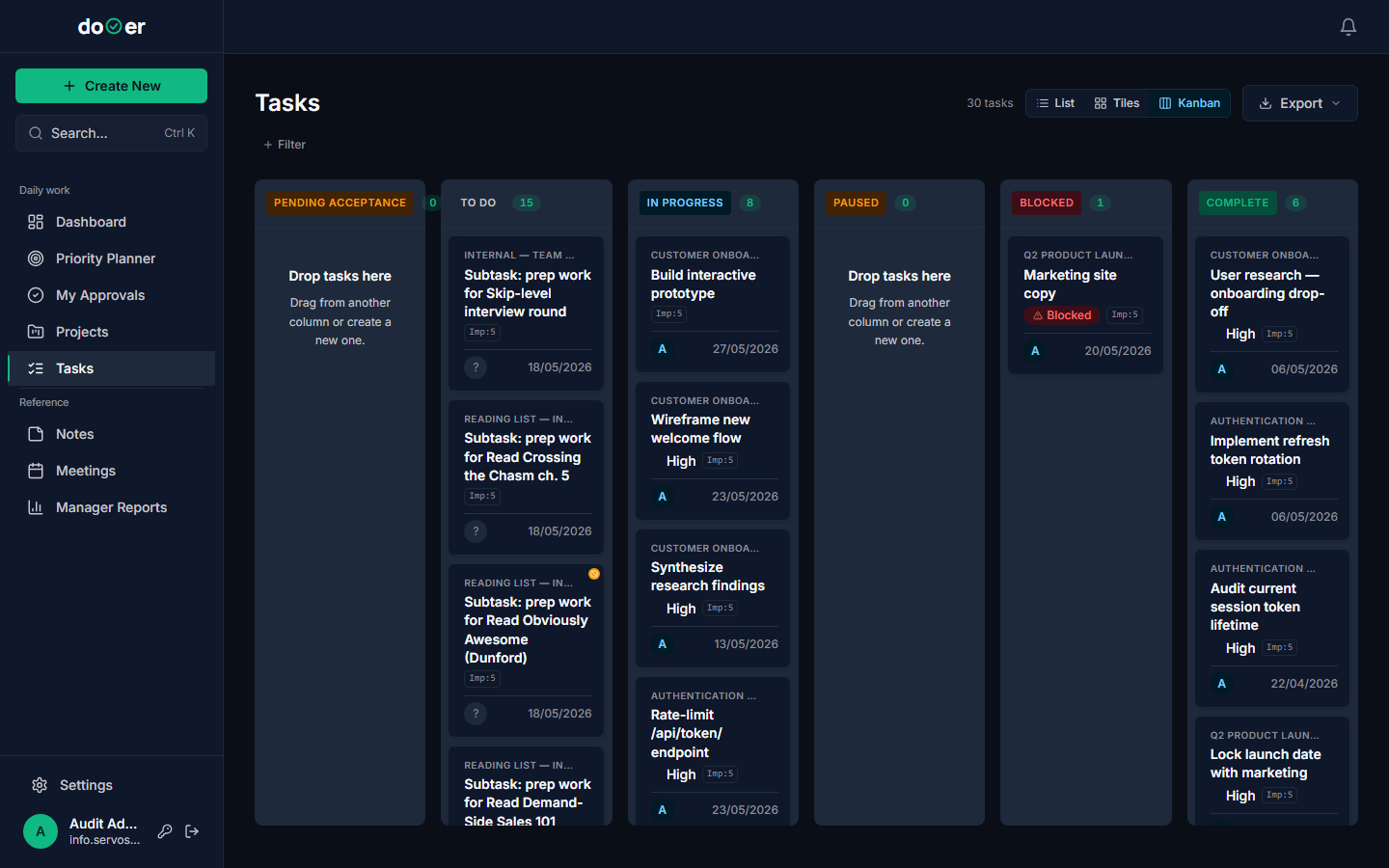
The default view is Kanban — a set of columns, one per status. Three columns do most of the work:
| Column | What it means |
|---|---|
| TO DO | Accepted, not started yet |
| IN PROGRESS | Someone is working on it right now |
| COMPLETE | Done |
The other three — Pending Acceptance, Paused, Blocked — handle the awkward in-between states. You'll use them, but not on day one.
Your new task should be sitting in TO DO. If you assigned it to yourself, it skips the acceptance step and lands there directly.
You can switch between Kanban, List, and Tiles views using the tabs at the top. Same tasks, different shapes. Use Filter to narrow by assignee, project, or due date.
Remember
Three columns matter most: TO DO, IN PROGRESS, COMPLETE. The other three handle the awkward middle states — you'll know them when you need them.
6. Open the task — the Task Detail screen
Click any task card to open it. Yes, the whole card. The whole thing is a button.
Here's the Task Detail screen:
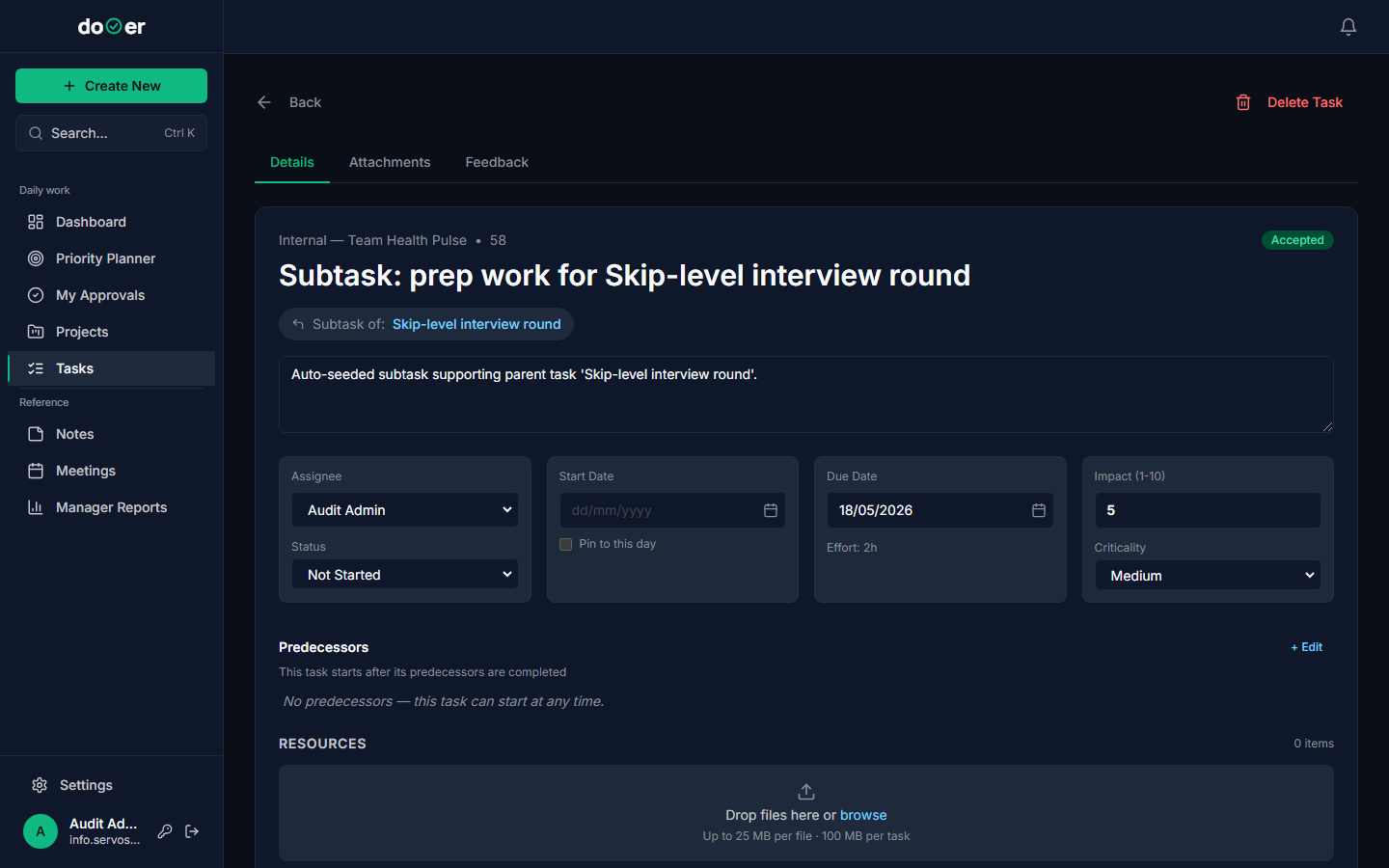
This is where the work happens. There are three tabs:
- Details — status, dates, assignee, files, dependencies
- Attachments — everything attached to this task, all in one view
- Feedback — comments from reviewers (used on Full Brief tasks)
The Status dropdown is the most important control on this screen. Change it to Working when you start. Change it to Complete when you finish. That one action moves the card across the board and tells everyone watching that something changed.
At the bottom, Activity & Comments logs every status change, every reassignment, every comment. You don't have to do anything — it records itself.
Tiny rule
Reassign a task and the new person has to accept it before it's officially theirs. Nothing lands silently on someone's plate.
What's next
You signed in. You made a task. You found it on the board. You opened it. That's the full loop.
Two pages worth reading next:
Capturing work → When to make a task vs. a project, when Quick task is enough vs. when to use Full Brief, and how assignee and due date affect dooer's scheduling.
Your daily flow → How the Dashboard and Priority Planner work together to answer "what am I actually doing today" — which is the question dooer is built around.