Working a task
Click any task card and this screen opens. It's the most important screen in dooer.
Three tabs sit at the top — Details, Attachments, Feedback — and each one does a different job. Details is where you move the work. Attachments is where files live. Feedback is where problems get logged before they become invisible blockers.
The Details tab — where the work lives
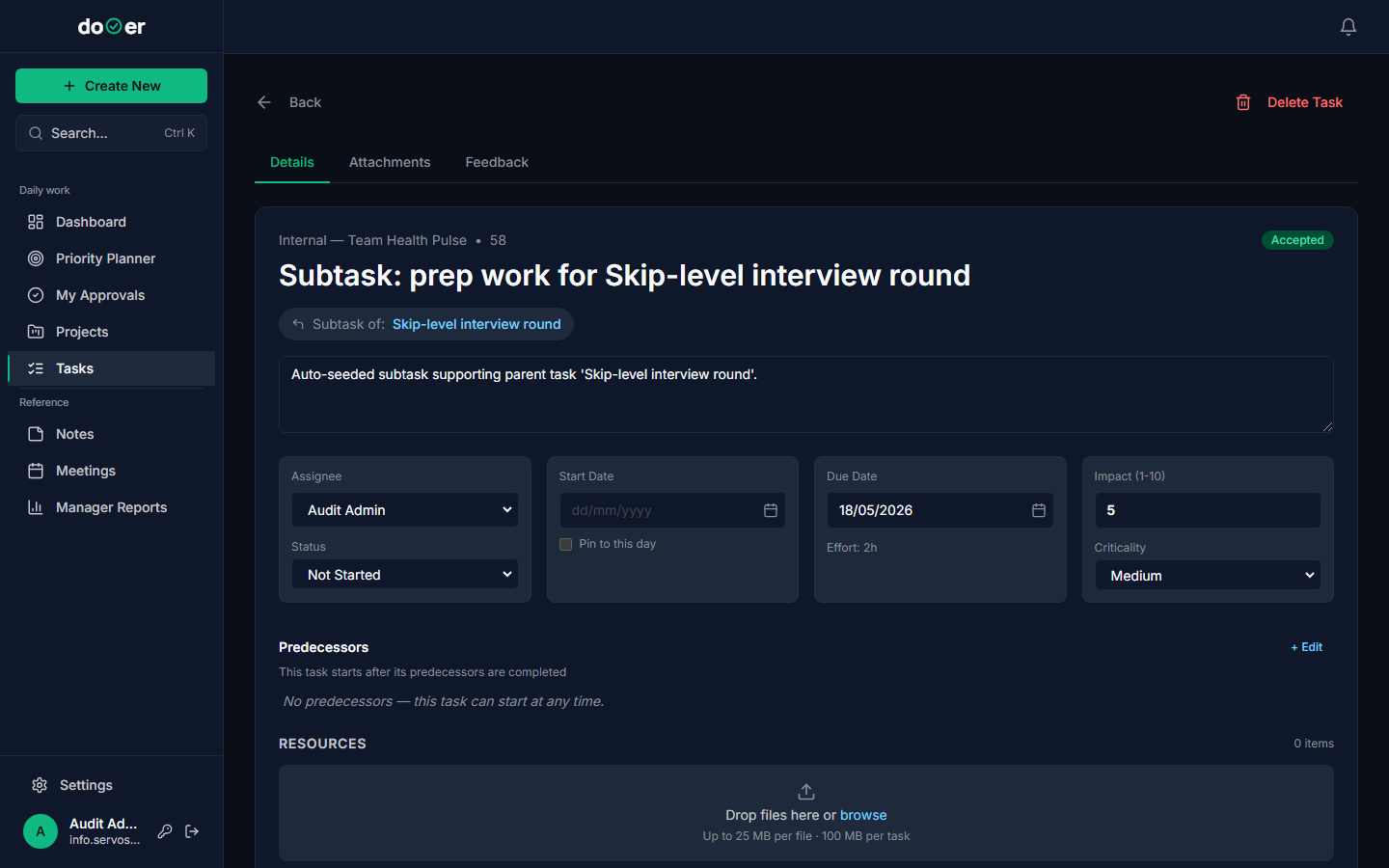
Details is the default tab. Everything that defines the task — who owns it, what state it's in, what it's waiting on — lives here.
Status
The Status dropdown is the most important control on this screen. It has six working values:
| Status | What it means |
|---|---|
| Not Started | Accepted, but nobody has touched it yet |
| Working | Someone is actively on it right now |
| Paused | Work stopped temporarily — comes back later |
| Blocked | Can't move forward until something external is resolved |
| Complete | Done |
| Canceled | Not happening |
Change Status and two things happen at once: the card moves to the matching column on the Task Board, and everyone watching the task gets a notification. One dropdown, instant broadcast.
Assignee
You can reassign a task by changing the Assignee field. There's a catch: the moment you save a new assignee, their acceptance resets to Pending Acceptance. The task sits in that column — and they get an email — until they accept it. Nothing lands silently on anyone's plate.
Predecessors
Predecessors are other tasks this one waits on. If Task B can't start until Task A is done, you add Task A as a predecessor to Task B. Click + Edit next to the Predecessors heading to add one.
Predecessors must come from the same project. You can't link a task in "Marketing Q3" to a predecessor in "IT Infrastructure". Cross-project chains have to be managed another way — a shared note, a meeting action item, or just a comment.
Heads up
Predecessors only work within the same project. If you try to link across projects, dooer won't allow it.
Resources
The RESOURCES section at the bottom of the form is for files and URLs that are part of the task's brief — the inputs someone needs to do the work. Drop a file in, or paste a link and hit Add link. Think of it as the "read before you start" shelf.
Activity & Comments
Scroll past Resources and you hit Activity & Comments. Every change to the task — status update, reassignment, date edit — gets stamped here automatically. You don't have to do anything. It's also the comment thread: type a message and it lands in the same chronological log. One place for the whole story of the task.
Tiny rule
The activity log records itself. You never need to write "I changed the status to Working" — dooer already did.
The Attachments tab — files attached to this task
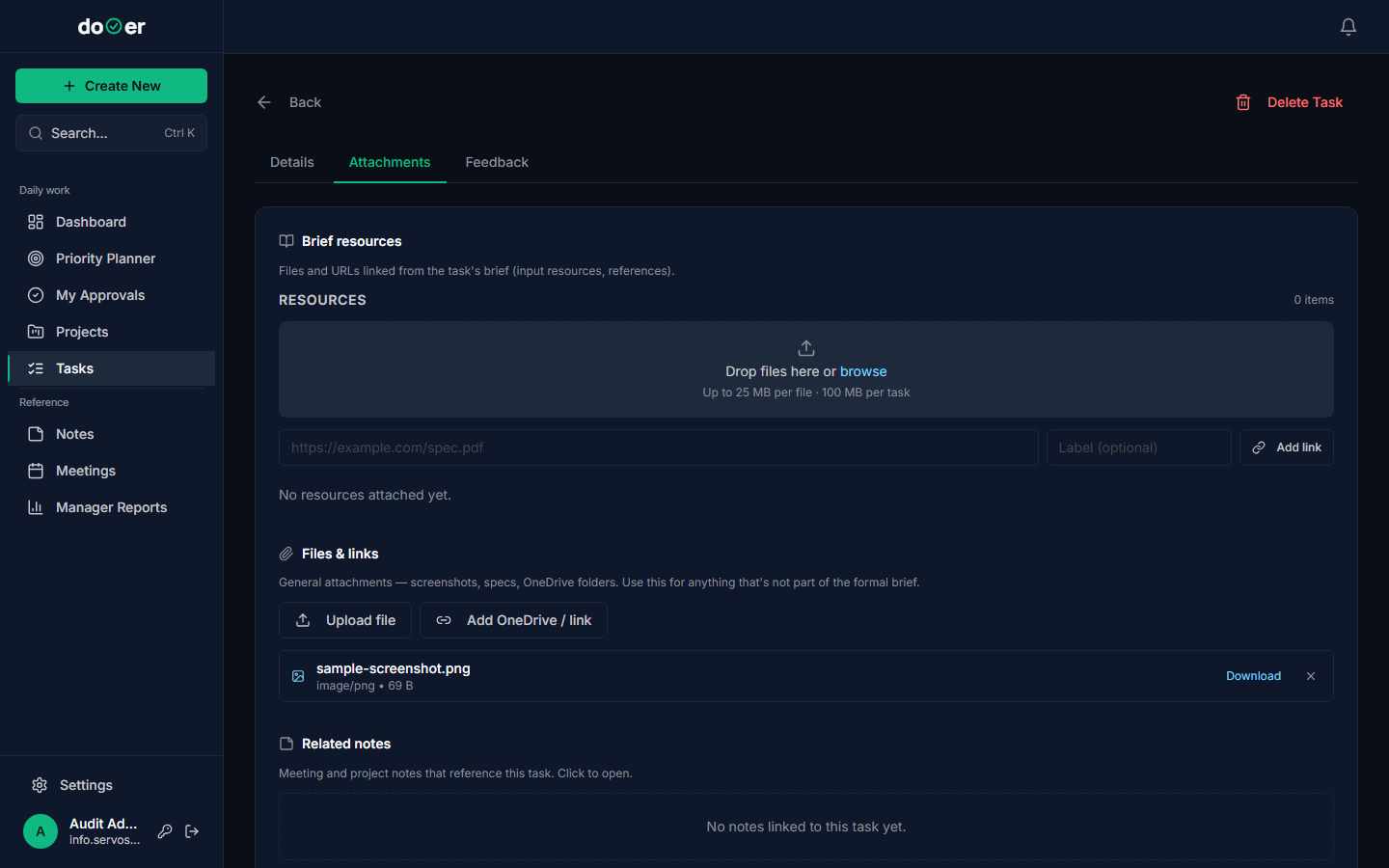
The Attachments tab collects everything attached to this task in one view. It has two distinct panels — they sound similar but they mean different things.
Brief resources
Brief resources holds files and URLs that came from the task's brief. These are the formal inputs — a spec doc, a design file, a reference URL the task creator attached when writing the brief. They're not random uploads; they're what the task was built around.
You can add more here too. Drop a file into the drag zone or paste a URL into the link row and click Add link.
Files & links
Files & links is for everything else. Screenshots, rough drafts, exported reports, a OneDrive folder, a Figma link — anything that's relevant but wasn't part of the original brief goes here.
To add a file: drag it in or click Upload file.
To add a OneDrive or SharePoint folder (or any URL): click Add OneDrive / link and paste the address.
Size limits apply to both panels: 25 MB per file, 100 MB per task. If a file is too big, upload it to OneDrive and link it instead — that counts against neither limit.
Remember
Brief resources = formal inputs from the task spec. Files & links = everything you collect while doing the work. Same tab, different shelves.
The Feedback tab — when something's off
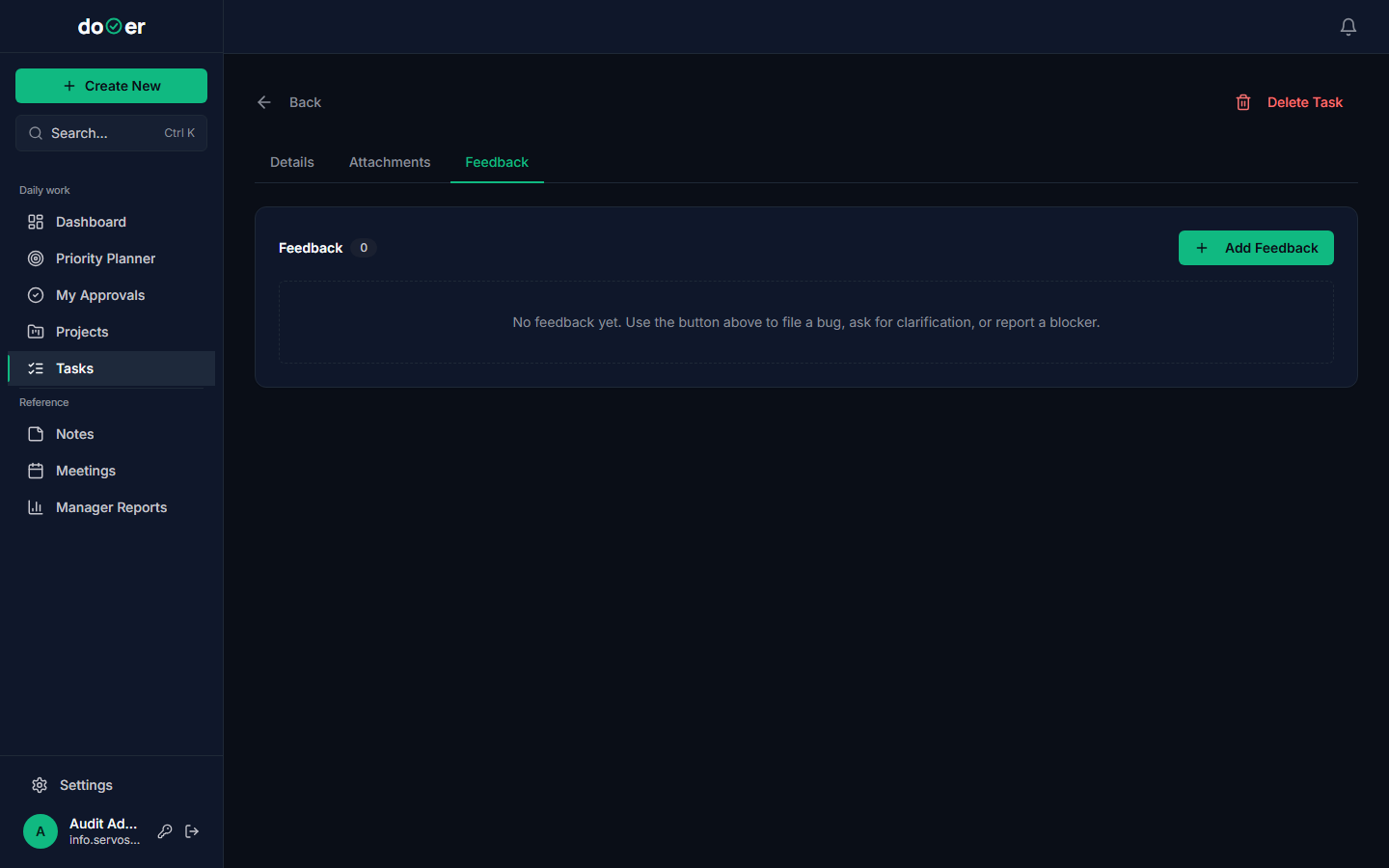
Things go wrong. Specs are unclear. Dependencies get missed. Feedback is where you put that — in writing, with a type, with a status — so it doesn't disappear into a Slack thread that nobody can find in three weeks.
Click + Add Feedback to open the form. You pick a type first.
Feedback types
Bug — something is broken. The output exists but it's wrong.
Clarification — a question that needs an answer before work can continue. "The brief says 'send to all users' — does that include suspended accounts?"
Blocker — this task cannot move forward until something else is done. When you pick Blocker, dooer asks you to select a dependency task — the specific task that has to be resolved first. Bug and Clarification don't need that; they're self-contained.
Feedback status
Each feedback entry travels through its own lifecycle:
Open → InProgress → Resolved → Won't Fix
The person responsible for fixing it moves it forward. Everyone watching the task can see the current state. Nothing gets lost by accident — it either gets resolved or it gets explicitly closed as Won't Fix.
Turning feedback into a task
If a Bug or Blocker is serious enough to be real work — not just a quick fix — there's a button on the feedback entry to convert it into a standalone task. That new task goes into the normal workflow: assignee, due date, status. The feedback entry stays linked so the trail doesn't break.
One thing
Feedback isn't a chat. It's a structured record. Open feedback on a task shows up on the Dashboard as something that needs attention — so ignoring it doesn't make it invisible.
What's next
Your daily flow → How the Dashboard and Priority Planner work together to answer "what am I doing today" — and where tasks with open feedback show up automatically.
Projects → How tasks roll up into projects, how project-level status works, and why predecessors are scoped to a single project.