Your daily flow
dooer is built around one question: "What am I actually doing today?" Two screens answer it. The Dashboard tells you the state of things — what's overdue, what's blocked, what's due. The Priority Planner tells you what to pick first and where to put it on the calendar. Open both every morning and you'll never spend the first half-hour wondering where to start.
The Dashboard — your morning briefing
This is the first screen you see when you sign in.
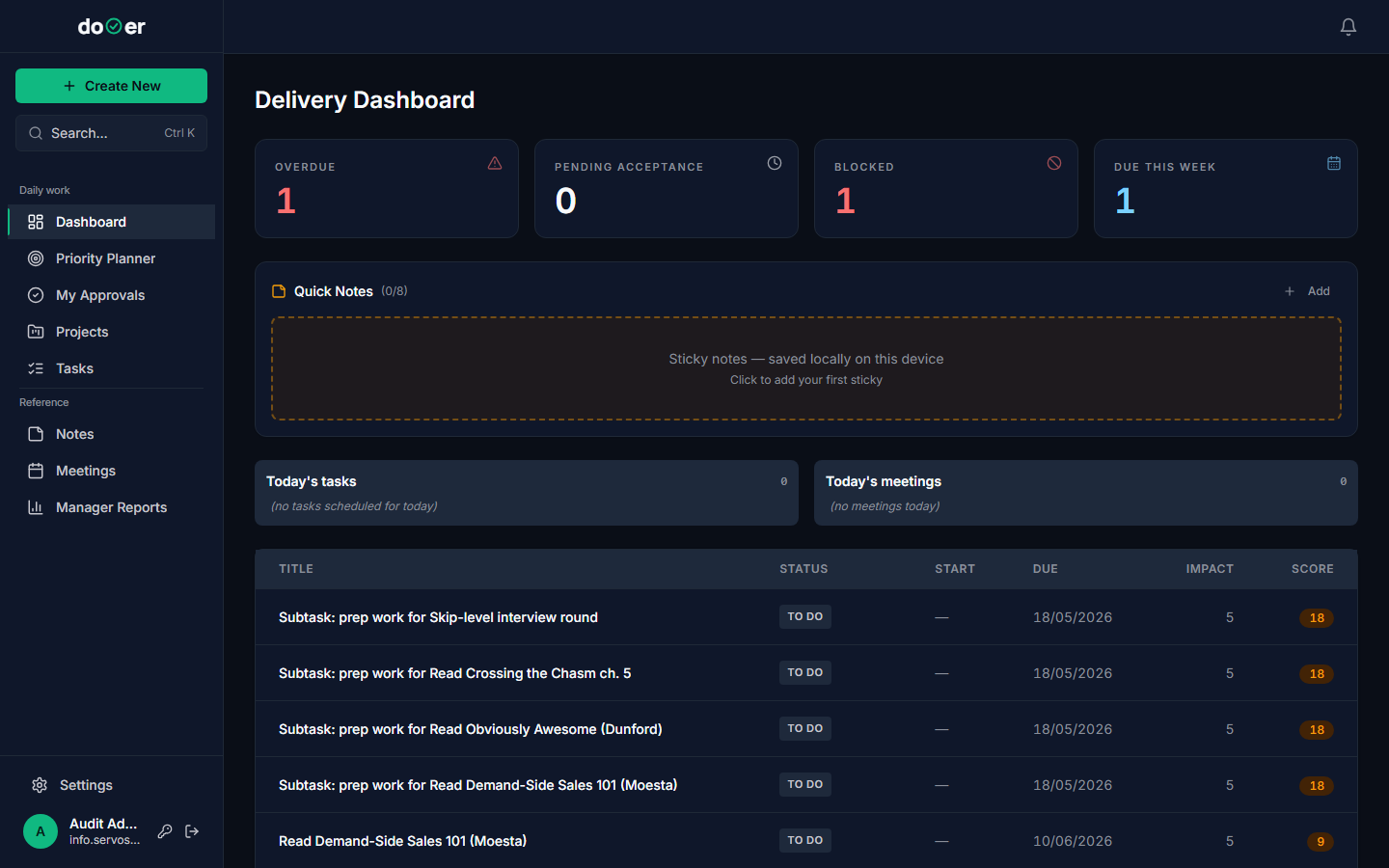
The four tiles at the top
OVERDUE, PENDING ACCEPTANCE, BLOCKED, DUE THIS WEEK — four numbers, each one a filter. Click any tile and the task table below updates to show only the tasks behind that number. So if BLOCKED reads 3, click it and you'll see exactly which three tasks are stuck and need attention before anything else can move.
Each tile has a colour. Red means the number needs your attention now. Blue or grey means it's informational.
Quick Notes
Below the tiles is your Quick Notes board. Think of it as a sticky-note pad that travels with your account. Type a note, click Add, and it's saved — on the server, tied to your user, not the device you're sitting at. It shows up the same way whether you're on your work laptop or someone else's machine.
Tiny rule
Quick Notes are personal. Nobody else on your team sees them. Use them for anything you need to remember before your next standup — a number, a name, a thing you don't want to forget to say.
Today's tasks and Today's meetings
Two cards sit side by side below Quick Notes. Today's tasks shows everything scheduled for today — tasks with a start or due date of today that are assigned to you. Today's meetings shows what's on your calendar for the day.
If both cards say zero, that's fine. It means nothing is formally scheduled for today yet. That's what the Priority Planner is for.
The task table
Below those cards is a table of every task visible to you, sorted by priority score. The SCORE column is a number dooer calculates from each task's Impact and Criticality fields. Higher score = higher up the list. You can't change the sort manually — the score does the sorting for you.
One thing
When you first sign in, everything reads zero. That's correct. The Dashboard fills as tasks get assigned to you and as your team adds work.
The Priority Planner — what to pick first
Click Priority Planner in the left sidebar. This screen has two parts. They're designed to be used together.
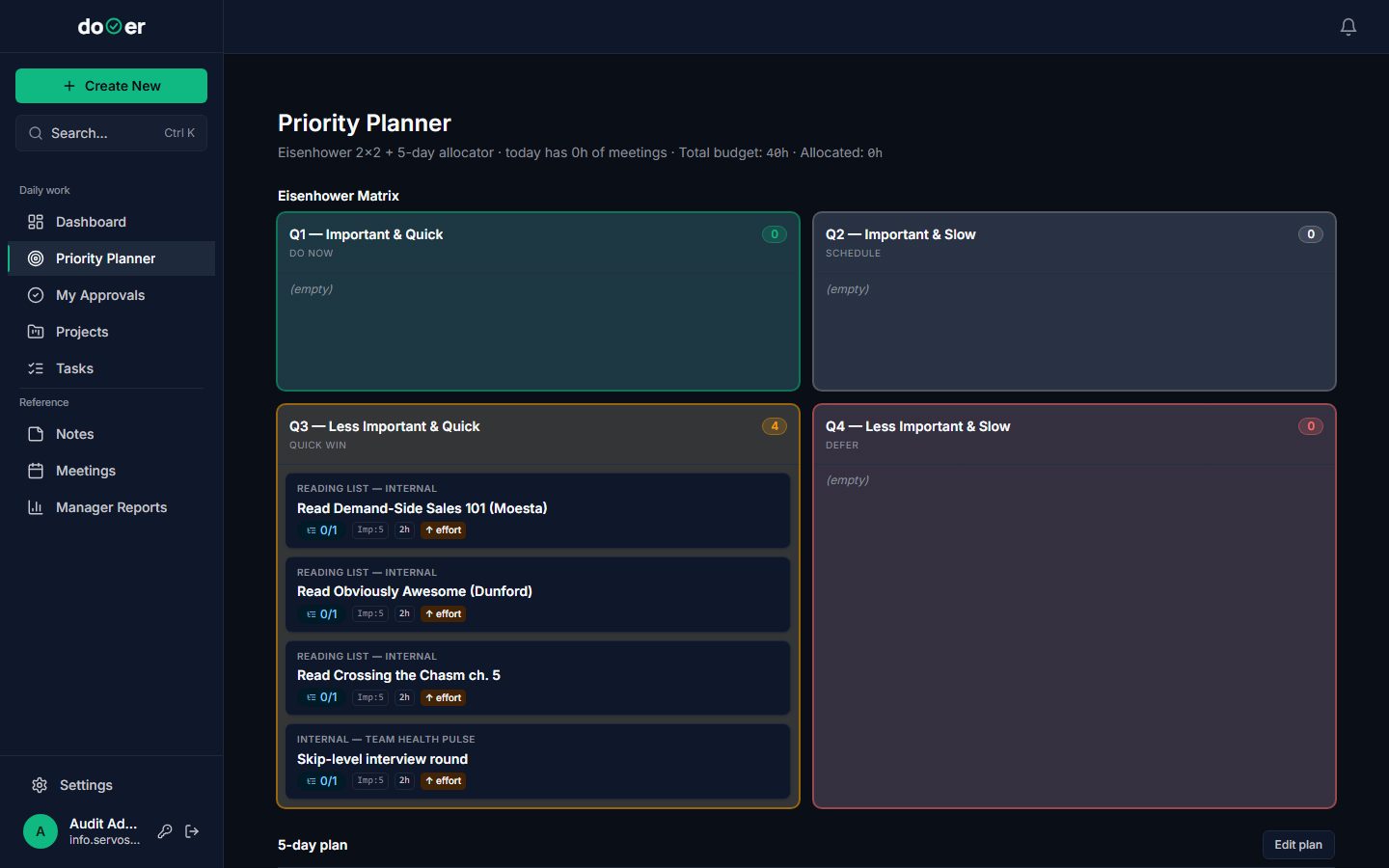
The Eisenhower 2×2
The top half of the page is a grid of four boxes — one for each type of work.
Q1 — Important & Quick (DO NOW). This is your highest priority. Tasks here are both high-impact and fast to complete. Start here every morning. If Q1 has anything in it, that's your first job.
Q2 — Important & Slow (SCHEDULE). These tasks matter but they take time. You can't finish them today in a spare 20 minutes. Block time on your calendar for them — that's exactly what the 5-day plan below is for.
Q3 — Less Important & Quick (QUICK WIN). Lower importance, but fast to knock out. Good for filling a spare 30-minute gap in your day. Don't ignore Q3 — small things pile up.
Q4 — Less Important & Slow (DEFER). These tasks are low value and take a long time. Push them to next week or skip them entirely unless something changes their priority.
dooer places your tasks into quadrants automatically. It reads the Impact and Criticality scores on each task and uses those to decide which box each task belongs in. You set those scores when you create a task (or fill them in later from the task detail). The Planner does the rest.
Remember
Q1 first. Always. If Q1 is empty, move to Q3 for quick wins while you block time for Q2. Q4 can usually wait.
The 5-day plan
Below the matrix is the 5-day plan — a planner showing your five working days ahead. Each day shows how many hours are allocated vs. available, based on your total weekly budget.
The header bar at the top of the Priority Planner tells you the picture at a glance: today's meeting hours, your total budget for the week, and how many hours are already allocated. In the capture above, it reads "Total budget: 48h · Allocated: 0h" — nothing scheduled yet.
To put a task on a day, drag it from a quadrant and drop it onto the day you plan to work on it. dooer adds its estimated hours to that day's total and shows you what's still free. If a day is already full, the hour count changes colour to warn you.
Click Edit plan in the top-right corner of the 5-day plan section to open a focused view where you can make larger adjustments.
Using both together
The two screens are a loop, not a list. Here's the flow:
- Open Dashboard. Scan the four tiles. If OVERDUE or BLOCKED is non-zero, click it and deal with those tasks first — they're already past due or stuck.
- Open Priority Planner. Check Q1. Those tasks go on today's slot first. If Q1 is empty, pick from Q3 to fill any short gaps.
- Drag tasks onto the 5-day plan so you're not guessing how full your week is. That's how you stop committing to more hours than you have.
- Work. At the end of the day, come back to the Dashboard. The tile numbers will have changed — completed tasks drop out, new ones may have appeared.
Heads up
If you skip the 5-day plan and only use the matrix, you'll know what to do but not when to do it. The plan is what turns a priority list into a schedule.
What's next
Working a task → How to move a task through its statuses, add comments, attach files, and mark it done — the actions that keep the Dashboard numbers moving.
Projects → How tasks group into projects, and how the project board gives you the same state-of-things view at the project level that the Dashboard gives you at the personal level.