Working with your team
dooer is built around handing work cleanly between people. Not "put it in the chat and hope someone picks it up" — explicit, trackable handoffs where the receiver actually has to say yes.
Three patterns do most of the work: assignment, mention, and approval. Learn these three and you can move work to the right person, pull someone's attention without stealing the task, and keep your acceptance queue clear.
Assigning a task to someone else
Open any task. On the Details tab, find the Assignee field. Click it, pick a teammate, save.
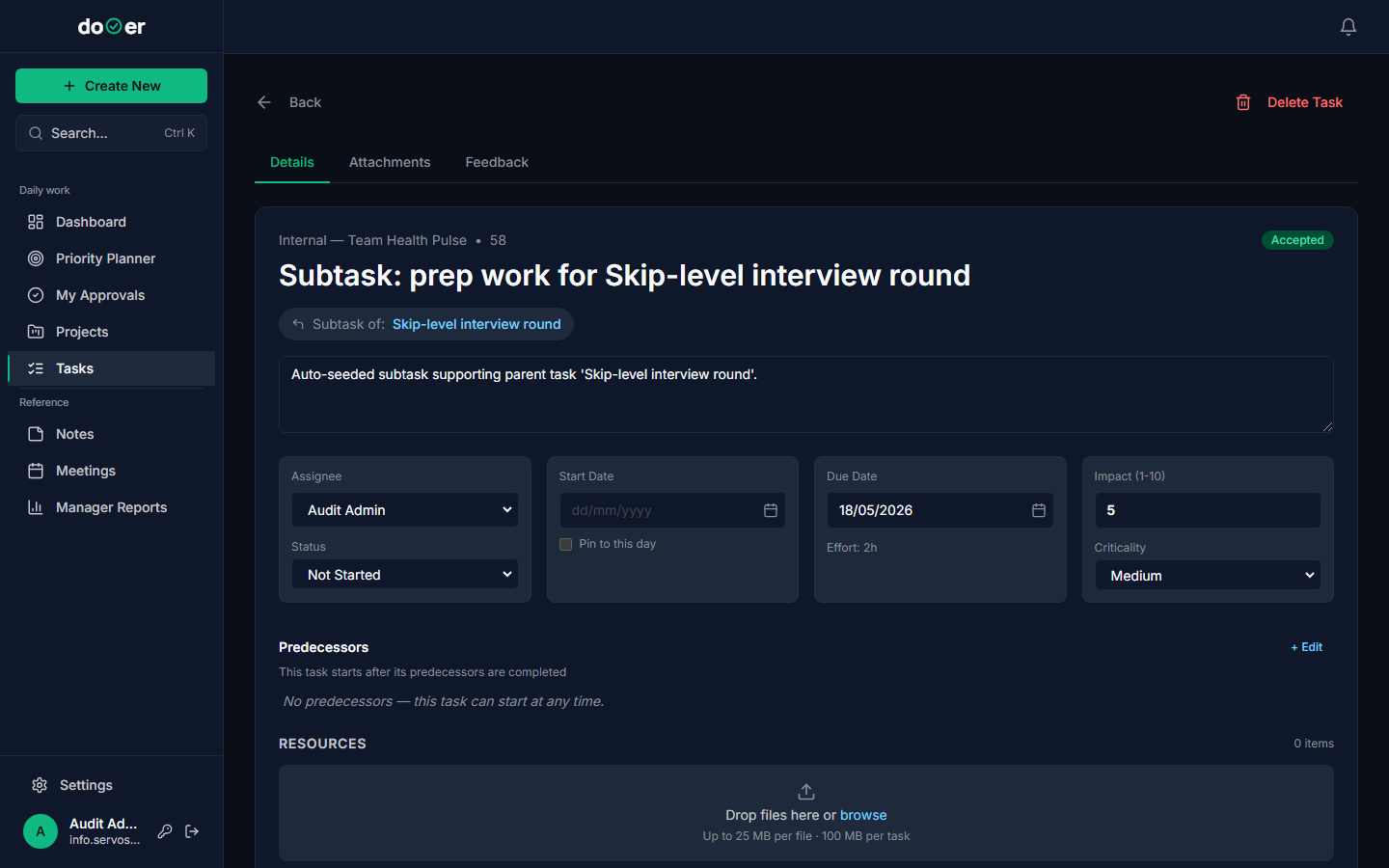
That one change sets three things in motion:
- The task moves to Pending Acceptance on the Task Board.
- The new assignee gets an email telling them a task is waiting on their plate.
- The activity log records the reassignment — who changed it, when, and from whom.
The task stays in Pending Acceptance until the new person accepts it. Until they do, it's not officially theirs. Nothing lands silently on anyone's plate.
If the task doesn't belong to them, they can reassign it straight back to you — or to someone else. That also resets to Pending Acceptance, and the next person gets the same email. The chain keeps going until someone accepts.
Tiny rule
Every reassignment resets the clock. The task stays in Pending Acceptance — and stays visible to everyone — until the new person accepts or pushes it on.
@-mentioning teammates in comments
Sometimes you need a second opinion. Sometimes you need to say "did you see this?" without moving the task. That's what @-mentions are for.
In any task's Activity & Comments section, type @ followed by your teammate's name. A dropdown appears — pick them from the list and finish your comment. Submit it the same way you'd submit any comment.
Two things happen the moment you save:
- They get an email with your comment and a link straight to the task.
- The bell icon in their top-right corner shows a new notification. They can see it without leaving whatever screen they're on.
The task does not change assignee. The status does not change. The mention pulls their attention to a specific thread — it does nothing else.
Use @-mentions when you need eyes on something, not ownership. If the work actually needs to move to them, use the Assignee field, not a comment.
Remember
@name in a comment = email + bell notification. It does not reassign the task. If you want to transfer ownership, change the Assignee field instead.
My Approvals — your inbox of pending decisions
The My Approvals page lives in the left sidebar under Daily work. It lists every task currently sitting in Pending Acceptance where YOU are the assignee — work that's waiting on your decision before it can move.
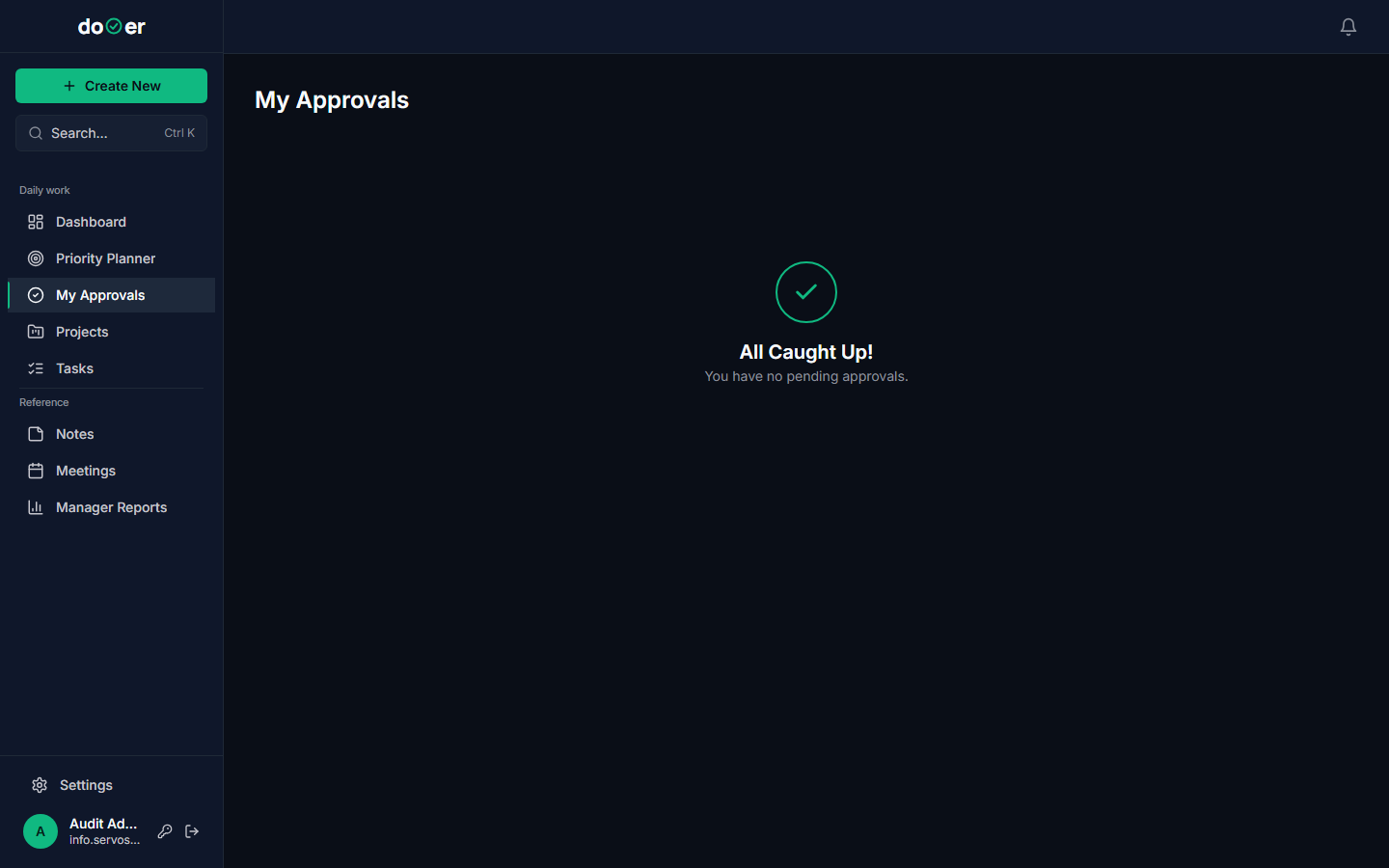
Each row shows you: the task name, the project it belongs to, who assigned it, and the due date they've set. Click the task title to open the full detail screen and read the brief before you decide.
From the Approvals page, you have two options:
| Action | What it does |
|---|---|
| Accept | Task moves to TO DO. It's officially yours. |
| Open and reassign | Open the task, change the Assignee field to the right person. They get the same Pending Acceptance treatment. |
You can also add a comment before accepting or rejecting — useful if you want to flag a concern or ask a clarifying question before the work starts.
Check this page at the start of each day. Tasks sitting in Pending Acceptance are not moving. The person who sent the work is waiting.
One thing
My Approvals is personal. It only shows tasks where YOU are the assignee and haven't yet accepted. It is not a team view of all pending tasks — that's the Task Board with a Pending Acceptance filter.
Reassign etiquette
Reassigning a task to someone who didn't ask for it is a normal part of work. dooer doesn't make it invisible — it makes it explicit.
When you reassign, the receiver sees:
- An email saying work has landed on their plate.
- The task in their Approvals queue, not silently in their TO DO list.
- The full activity log showing who had it before and when it moved.
They have a genuine choice. They can accept it, reject it back to you, or redirect it to a third person. None of those options is sneaky. All of them leave a record.
That's a feature, not a limitation. Teams that can push back on misrouted work keep their queues honest. Teams that can't push back end up with tasks sitting in "accepted" status that nobody is actually working.
Two habits that help:
- Write a comment when you reassign. "Routing this to you because you own the vendor relationship" takes ten seconds and saves a three-message back-and-forth.
- Check your own Approvals page before assuming someone got your task. If they haven't accepted, it hasn't landed yet.
Heads up
A task in Pending Acceptance is not being worked on. If something is overdue and you notice it's still in Pending Acceptance, find out what's blocking the acceptance — don't just wait.
What's next
Working a task → The full tour of the task detail screen — status changes, predecessors, feedback, and the activity log that records everything automatically.
Your daily flow → How the Dashboard and Priority Planner work together to answer "what am I actually doing today" — and where tasks waiting on your acceptance show up automatically.