Projects
A project bundles related tasks under one owner and one deadline. Think of it as the container — the tasks inside are the actual work. Open a project and you see who owns it, when it's due, every task that belongs to it, plus a shared space for files and project-level feedback.
The Project Board — every project in one place
This is where all your projects live.
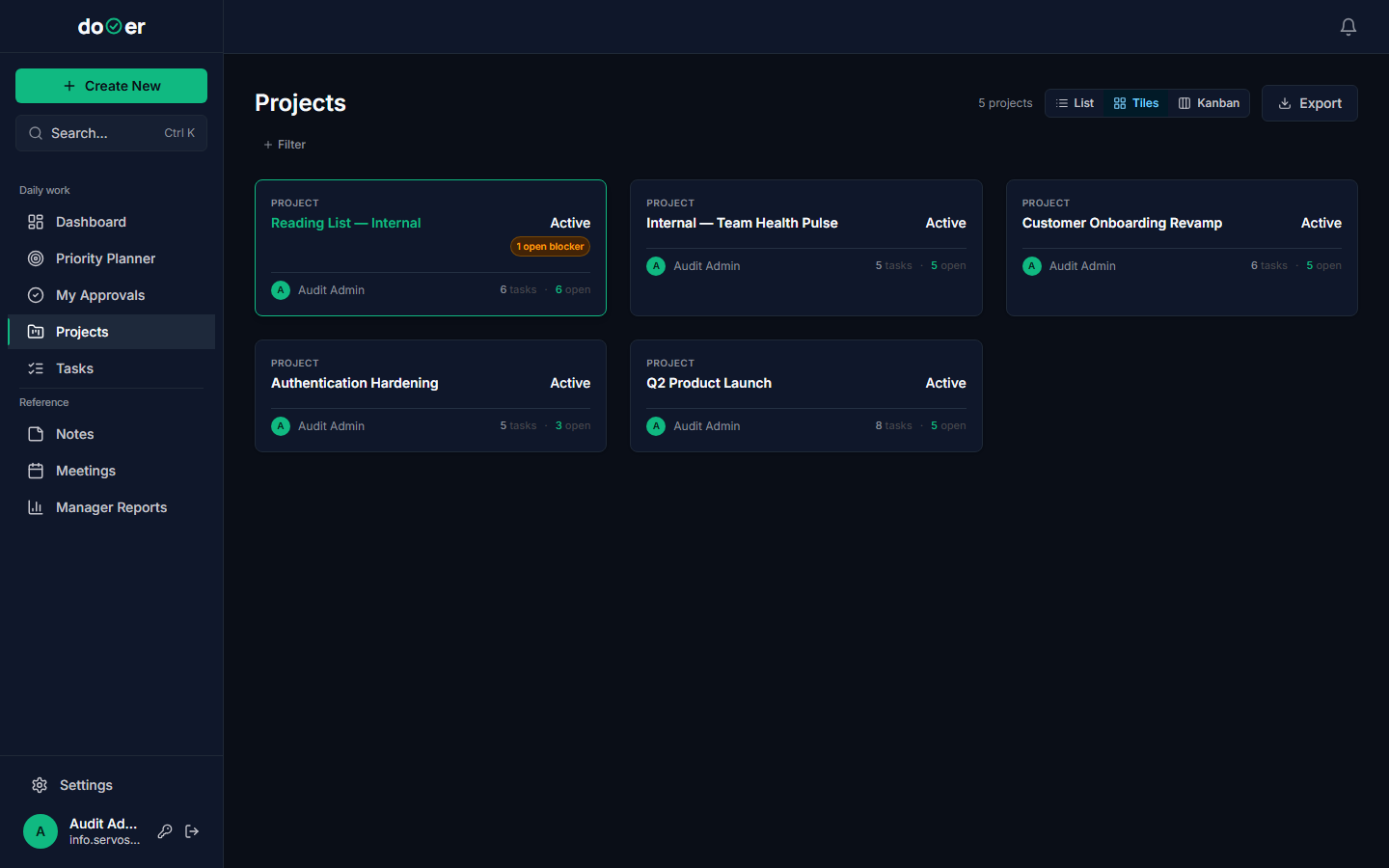
Each card is one project. The card shows the project name, its current status, the owner, and the department it belongs to. That's enough to scan a list of twenty projects and know what's moving and what isn't.
Filter by department, status, or owner using the buttons across the top. If you manage one department, filter to it and stop seeing everything else.
Click any card to open that project's detail page.
Status options you'll see on the board:
| Status | What it means |
|---|---|
| Planning | Work hasn't started yet |
| Active | In progress |
| OnHold | Paused, waiting on something external |
| Blocked | Cannot move forward right now |
| Completed | Done |
| PendingAcceptance | Finished work waiting for sign-off |
Tiny rule
A project's status doesn't update automatically. Someone has to change it. When a project moves from Active to Blocked, change it on the board — that's the signal everyone else reads.
The Details tab — who owns what, when it's due
Click a project card and you land on the Details tab by default.
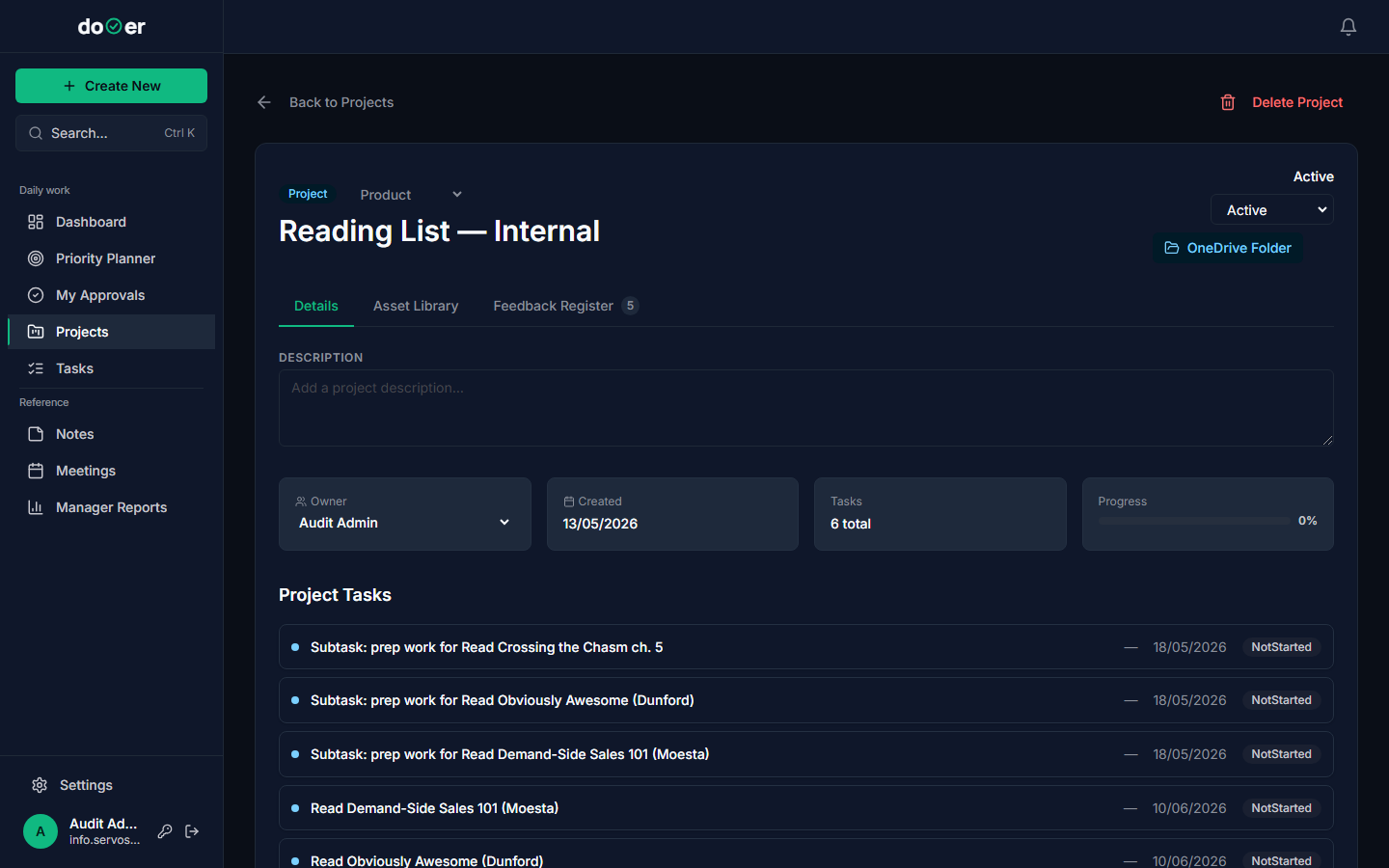
Here's what each field does:
Department — which part of the organisation owns this project. Click the field to change it. This is also how projects show up in department-filtered views on the board.
Owner — the one person responsible for the project. Not a committee. One person. Click to change. When something needs a decision, this is who gets asked.
Sponsor — optional. The person above the owner who's accountable for the outcome but not in the day-to-day work. Leave it blank if there's no one in that role.
Status — the same six options as on the board. Changing it here updates the card on the board immediately.
Start date and Target end date — when the project runs. These dates don't enforce anything automatically. They're the reference point the team plans against.
OneDrive / asset URL — a single link to the project's external folder. Point it at a SharePoint folder, a Google Drive, a Notion page — wherever your team stores the real files. This isn't a file upload; it's a bookmark so the whole team reaches the same place without hunting through DMs.
Below the fields, the Tasks list shows every task that has this project set on it. Click any task to open it directly. This list is how you see the full scope of work without switching to the Task Board and filtering.
Remember
The Tasks list at the bottom of Details is a live view — every task linked to this project appears here automatically the moment it's created with the project set. You never have to add tasks to the list manually.
The Assets tab — files and resources for this project
Click the Assets tab at the top of the project detail page.
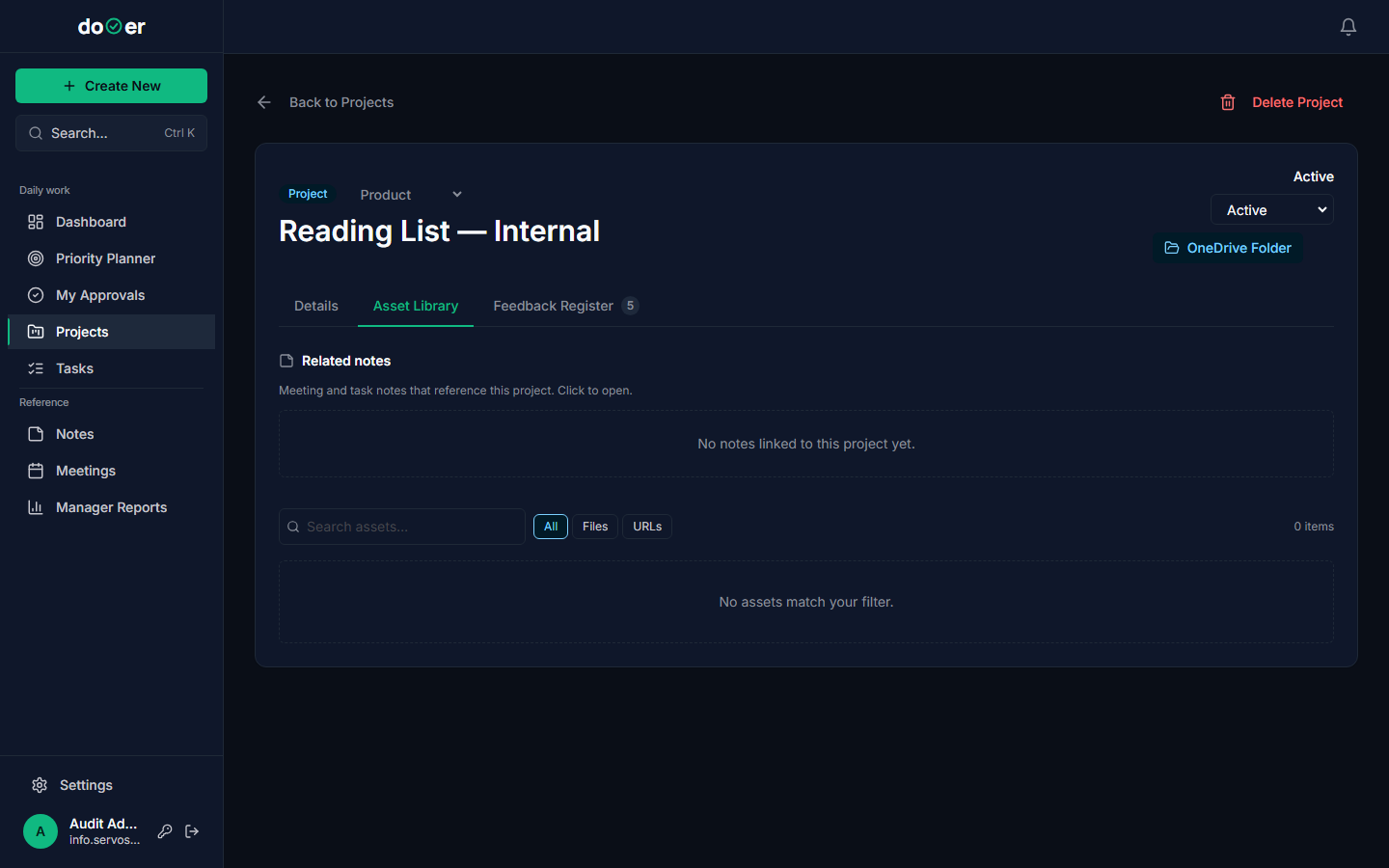
This works like the attachments view on a task, but scoped to the whole project.
There are two sections:
- Brief inputs — formal reference documents. Specs, briefs, contracts, anything that defined the project from the start.
- General files and links — everything else. Working drafts, exported reports, links to shared docs.
The point of both sections is the same: one place. If a new person joins the project on day ten, they come here instead of asking five colleagues to forward them the brief and the latest design file and the link to the shared sheet.
One thing
Anything you upload here is visible to everyone with access to this project. Don't put anything here you wouldn't share with the full team.
The Feedback tab — questions, blockers, bugs at project level
Click the Feedback tab at the top of the project detail page.
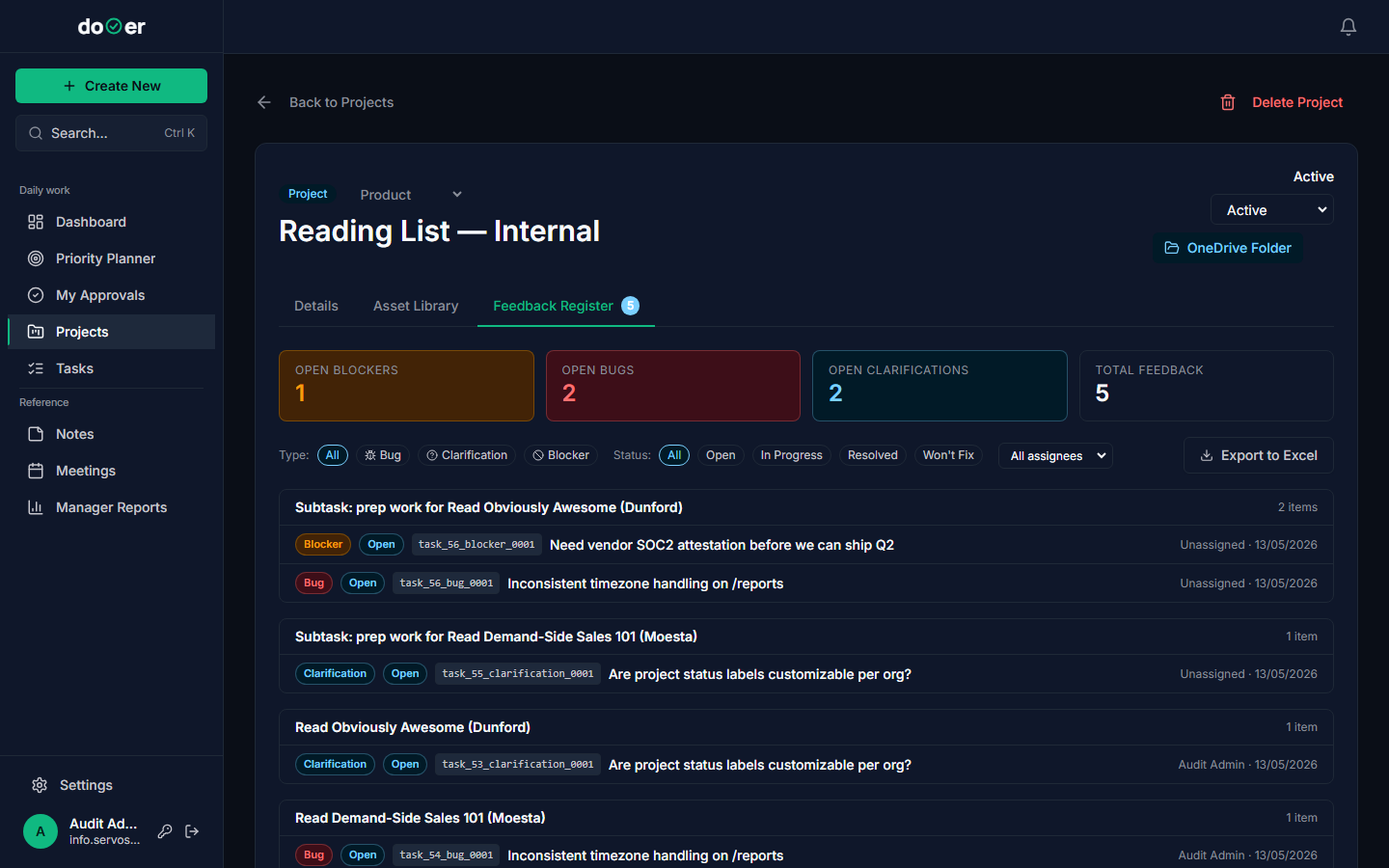
Tasks have their own feedback tab for issues tied to one piece of work. This tab is for issues that affect the whole project — the things too big to pin on a single task.
Same three types as task feedback:
- Bug — something is broken at the project level
- Clarification — a question that needs an answer before work can continue
- Blocker — the project cannot move forward until this is resolved
Concrete examples of what belongs here rather than on a task: "The design system isn't ready — nothing can be built until it ships" or "We don't have legal approval yet — the whole launch is on hold." Those are project-level problems. Logging them here keeps them visible to everyone, not buried in a comment on one task.
Heads up
Feedback items here don't automatically change the project's status. If a Blocker appears, you'll need to update the project status to Blocked yourself so it shows correctly on the board.
What's next
Working a task → How to move a task through its stages, what each status means, and when to use Paused vs. Blocked.
Your daily flow → How the Dashboard and Priority Planner answer "what am I actually doing today" — which is the question dooer is built around.