Bulk import from a spreadsheet
If you're starting dooer with work that already lives somewhere else, you don't have to retype it. The Import tab accepts one xlsx file and turns it into real projects and tasks — all in one go.
This page is for admins who have a spreadsheet ready and want to bring it in cleanly.
Who can use this
Only users with the HEAD or DIRECTOR role can run an import. Everyone else hits a 403.
To get there: Settings → Import.
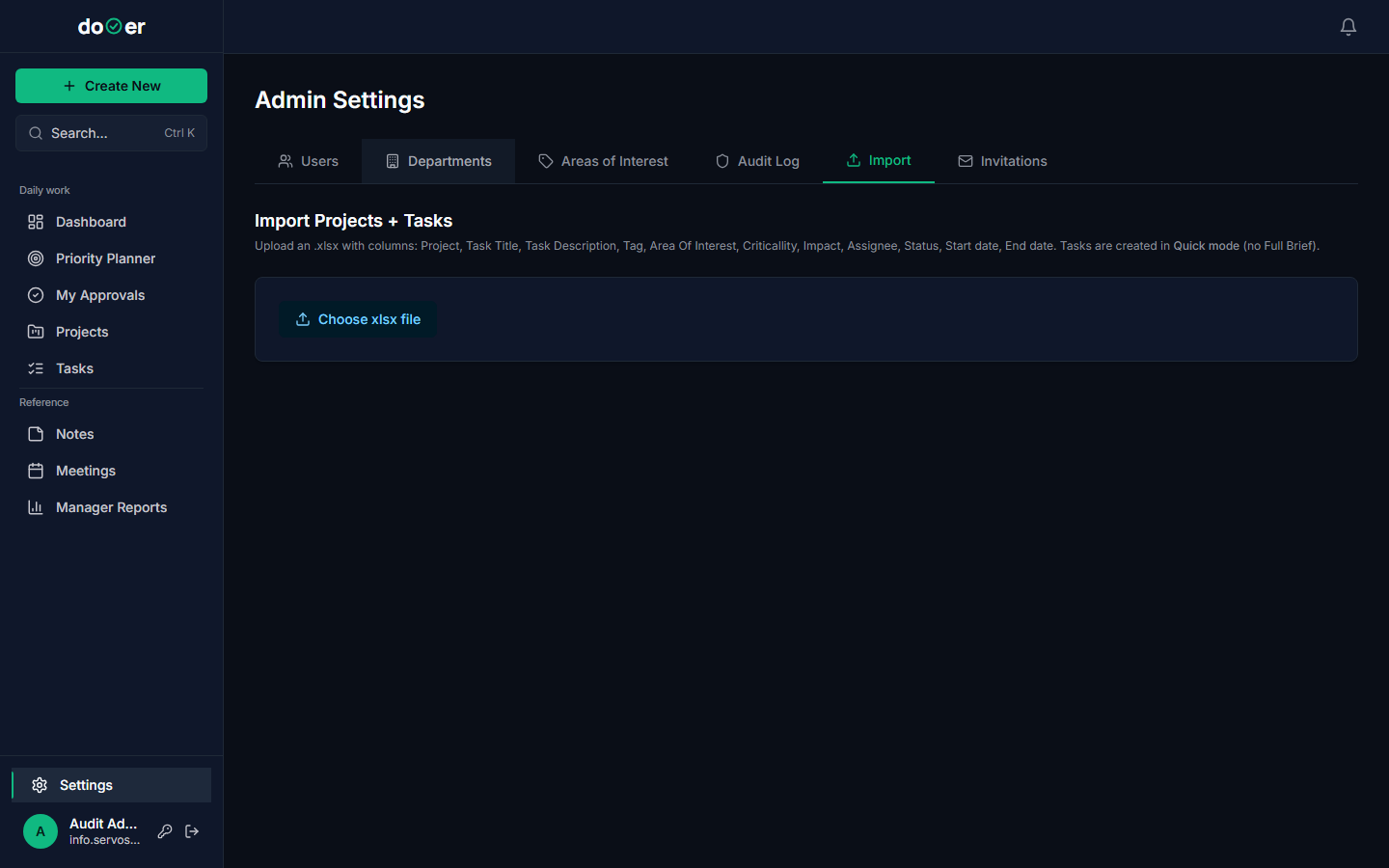
If you don't see the Import tab at all, your account doesn't have the right role. Ask your workspace HEAD to either run the import for you or upgrade your role first.
Role check
No Import tab in Settings? You're not HEAD or DIRECTOR. The tab is invisible at lower roles — it isn't just locked.
The required columns
Your spreadsheet needs to be an .xlsx file with one header row on the
first sheet. Column order doesn't matter. Column names are case- and
whitespace-insensitive. dooer reads them by name, not by position.
Here are all the columns dooer looks for:
| Column | Required? | What it accepts |
|---|---|---|
| Project | Yes | Project name. Auto-creates the project if it doesn't exist. Reuses the project if it already does. |
| Task Title | Yes | The task name. A row with no title is skipped. |
| Task Description | No | Free text. Can be left blank. |
| Tag | No | One tag per row. Auto-creates the tag if it doesn't exist. Tags belong to you (the importer). |
| Area Of Interest | No | Auto-creates in the workspace if it doesn't exist. The value is stored on the task but is not yet displayed on the task detail screen — it is useful for filtering notes today and will appear on tasks in a future release. |
| Criticality | No | Low, Medium, or High. Defaults to Medium if blank or unrecognised. |
| Impact | No | A number from 1 to 10. Defaults to 5 if blank. |
| Assignee | No | Full name of a workspace member. If no match is found, the task is assigned to you (the importer). |
| Owner / Κάτοχος | No | Greek alias for Assignee — either column name works. |
| Status | No | See table below. Defaults to PendingAcceptance if blank or unrecognised. |
| Start date | No | YYYY-MM-DD or DD/MM/YYYY. |
| End date | No | Same formats. Defaults to 14 days from today if blank. |
Status values dooer accepts:
| What you type | What dooer sets |
|---|---|
NotStarted, Not Started, To Do, todo |
Not Started |
Working, In Progress, Ongoing |
Working |
Paused |
Paused |
Blocked |
Blocked |
Complete, Completed, Done |
Complete |
Canceled, Cancelled |
Canceled |
Pending, Pending Acceptance |
Pending Acceptance |
Status matching is case-insensitive. IN PROGRESS, in progress, and
In Progress all work.
One thing about Assignee
If a name in your Assignee column doesn't exactly match a workspace member's full name, that task goes to you — not to no one. Check the dry-run report for mismatch warnings before you commit.
Doing the import safely
Run a dry run first. Always.
Here's the exact sequence:
- Open Settings → Import.
- Tick the Dry run checkbox.
- Upload your file.
- Read the report. dooer tells you: rows total, projects that would be created, projects that already exist and would be reused, tasks that would be created, tasks that would be skipped, and every error it found.
- Fix the errors in your spreadsheet.
- Untick Dry run.
- Upload the file again. This time dooer writes to the database.
A dry run parses the entire file and validates every row — it just doesn't save anything. The moment you untick dry run and upload, the import is live and cannot be undone from the UI.
No undo button
Once you run a live import, dooer has no bulk-delete. If 300 tasks land in the wrong project, you're removing them one at a time. Dry run is not optional.
What doesn't import
The xlsx import covers the flat task and project layer only. It does not import:
- Subtasks — dooer's task model is flat at import time. Subtasks need to be added after, inside each task's Detail screen.
- Predecessors / dependencies — add these from the Predecessors field in Task Detail after the import.
- Comments — copy them in manually, or leave them behind. Activity history from another tool doesn't transfer.
- Attachments — upload them from the Attachments tab inside each task.
- Feedback — feedback on Full Brief tasks is added after the import.
If your old tool has deep dependency chains or comment threads that matter, plan a second pass after the import to recreate those connections.
Flat layer only
Think of the import as building the skeleton. You add the connective tissue — dependencies, comments, attachments — once the skeleton is in.
Common errors and what to fix
These are the errors that show up most often in the dry-run report:
"Required columns missing: 'Project' and 'Task Title' must be present."
Your header row is missing one of those two columns. Check spelling. The
parser is case-insensitive (task title, Task Title, and TASK TITLE all
work), but it must find both headers somewhere in row 1.
"Row N: missing Task Title, skipped." A row has a Project name but no task name in that row. Either fill in the title or delete the empty row.
"Row N: missing Project, skipped." A row has a task title but no project name. Every task must belong to a project.
Impact defaults to 5 / Criticality defaults to Medium with no error.
These aren't errors — they're silent fallbacks. If you want specific values,
check that your Impact column contains integers 1–10 and your Criticality
column uses Low, Medium, or High. Anything else is silently replaced.
Dates come through blank.
The date wasn't in one of the four accepted formats: YYYY-MM-DD,
DD/MM/YYYY, MM/DD/YYYY, or DD-MM-YYYY. If Excel stored the date as a
serial number rather than a string, dooer still reads it correctly —
but if you exported from another tool as CSV and re-saved as xlsx, check
that the date cells are formatted as dates, not plain text.
Assignee falls back to you on every row. The names in your Assignee column don't match the full names on the workspace member profiles. Open Settings → Members, check exact spelling of each person's full name, and update your spreadsheet to match.
Faster debugging
Run the dry run, copy the errors list, fix your spreadsheet, run dry run again. Two dry runs before a live import is normal. Three is fine too.
What's next
Your tasks are in. Two things to do next:
Capturing work → How to add the things that don't import — subtasks, dependencies, full briefs — and when to use Quick task vs. Full Brief.
Admin setup → Roles, member management, and the other settings that control what your team can see and do.