Notifications you'll receive
dooer doesn't spam you. Every email maps to a real event — something in the workspace changed, and it involved you. There are 15 email types in total. That's the full list below.
dooer sends email notifications and shows them in the in-app bell in the top navigation. No browser push notifications. This page covers the email side — what triggers each message and what to do when it lands.
One rule
Every email maps to something that actually happened and involved you. Got an email? Something real changed. If you're getting too many, ask your admin to check notification settings.
Account emails
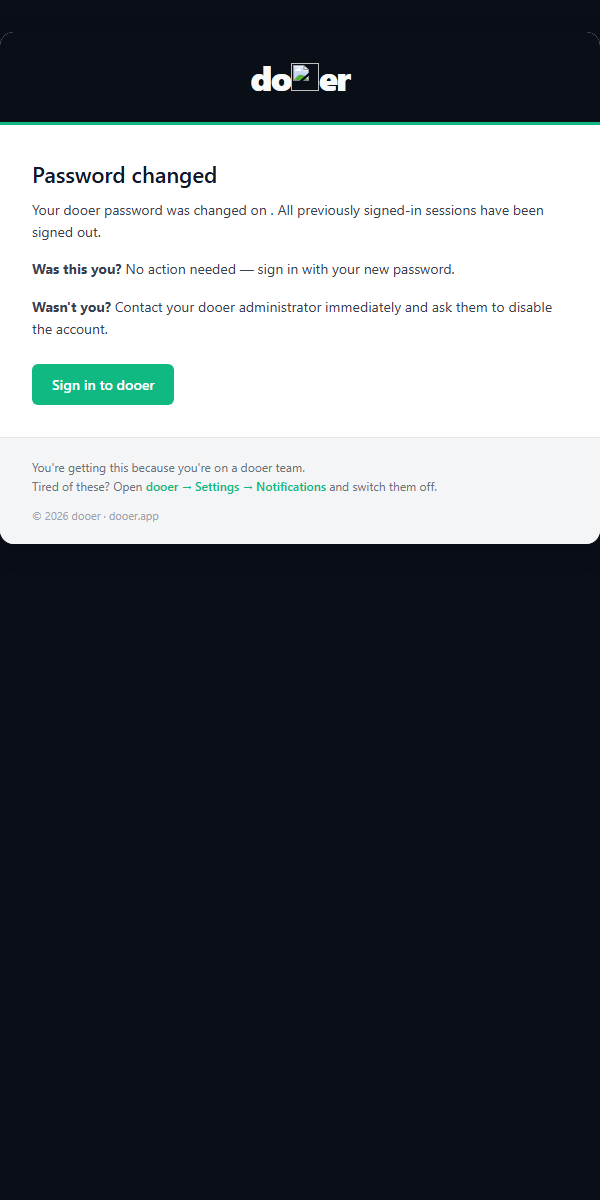
Welcome
Triggered by: your first sign-in after accepting an invitation.
No action needed. This is a "you're in" confirmation with quick links back to dooer.
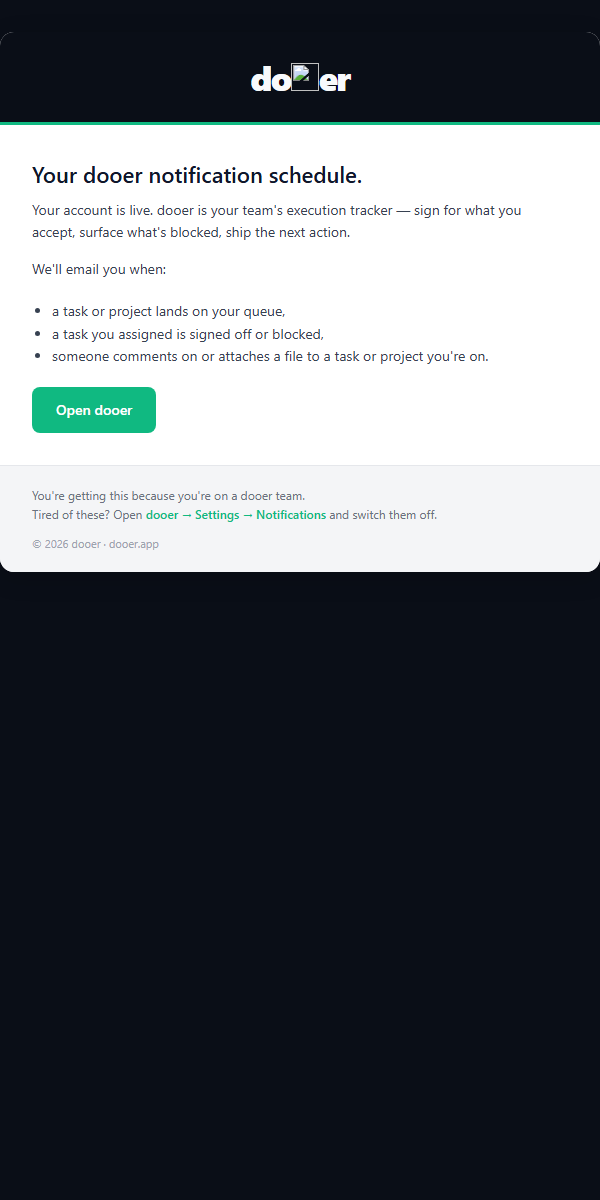
Invitation link
Triggered by: an admin adding you to a workspace.
Click Accept invitation inside the email. The link expires in 7 days. If it's already gone, ask your admin to resend from Settings → Invitations.
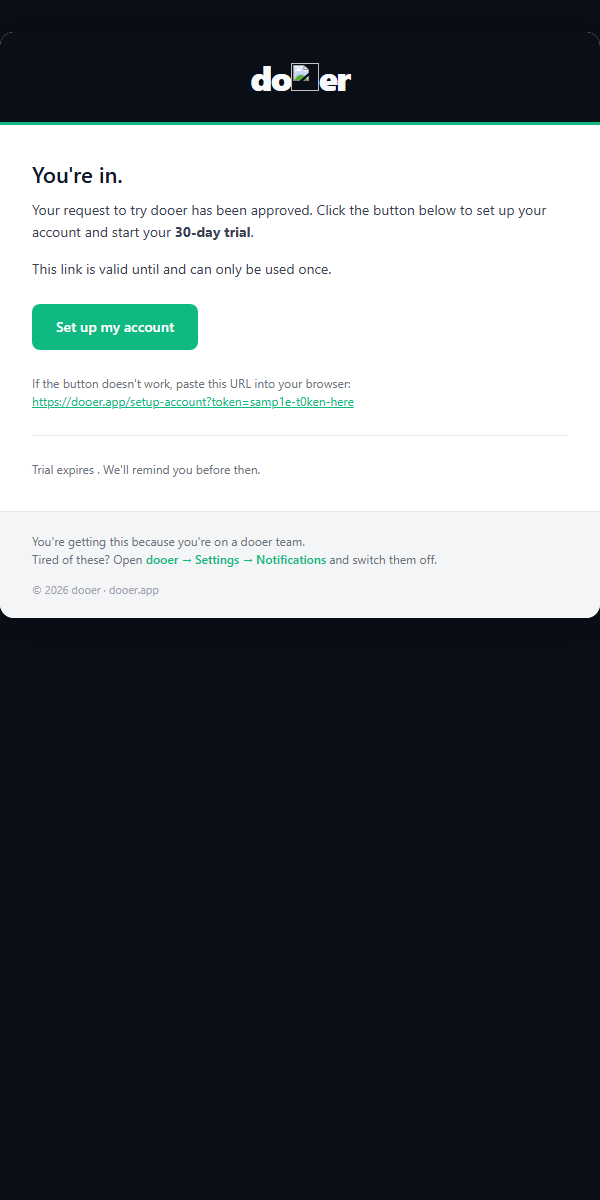
Password reset
Triggered by: clicking Forgot password? on the login screen.
Click the link and set a new password. If you didn't request this, ignore it — your password hasn't changed yet.
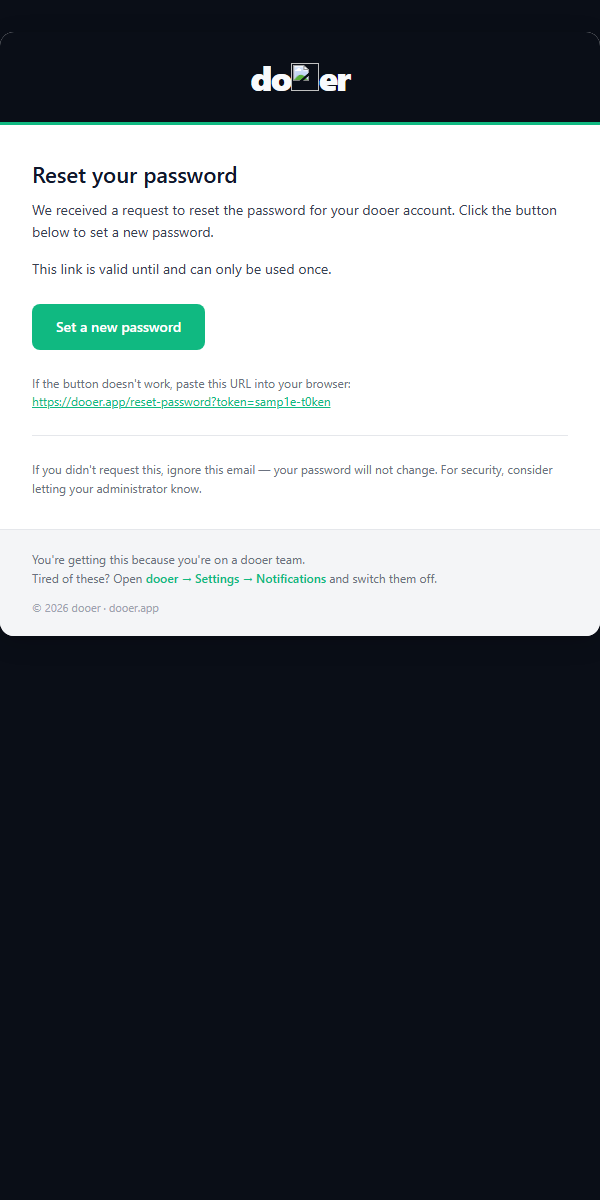
Password changed
Triggered by: a successful password change on your account.
Confirmation only. If you didn't change your password, contact your admin immediately.
Task emails
Task assigned
Triggered by: a task being assigned to you.
Open it. Move it to In Progress when you start. If it shouldn't be yours, reassign it.
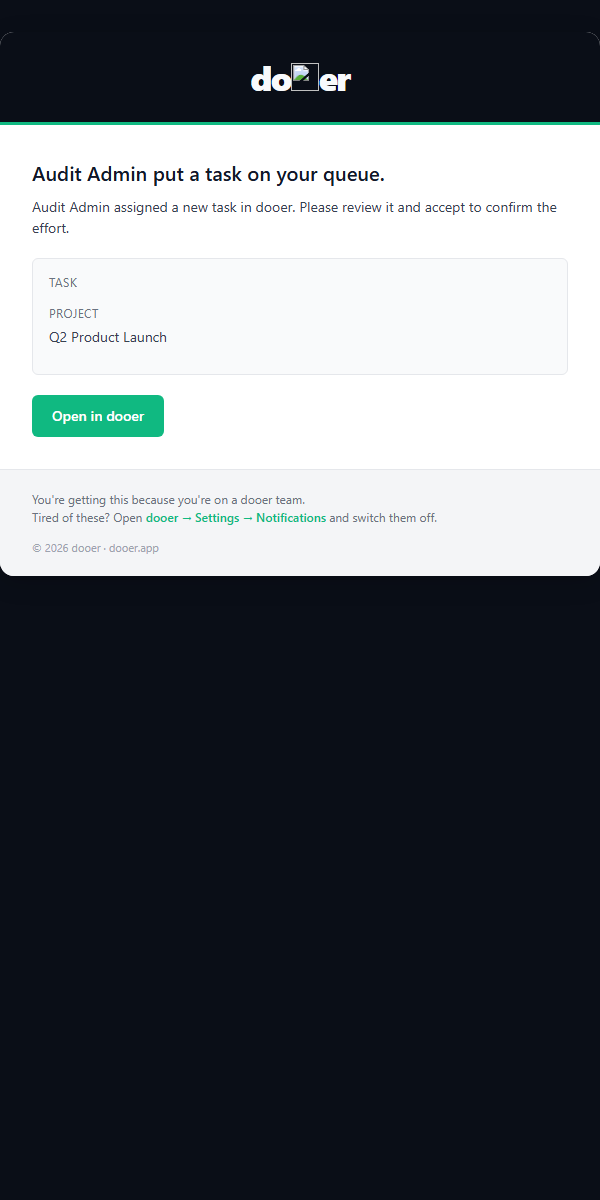
Task reassigned
Triggered by: a task being moved to you from a previous owner.
Same action as assigned — open it and take it. The difference: this task already has a history.
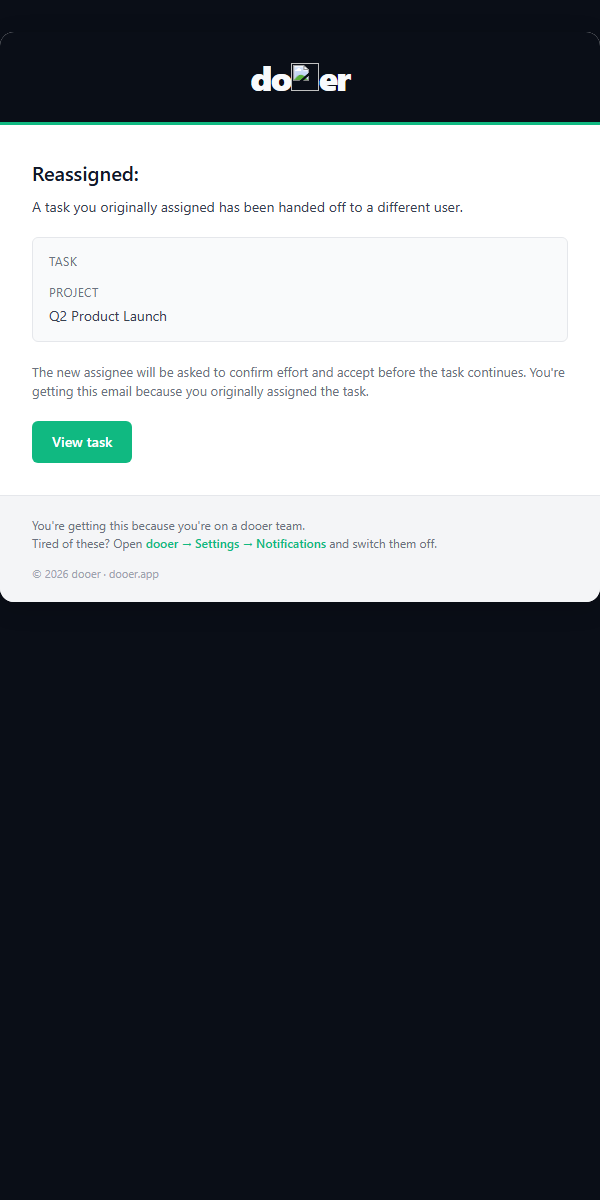
Task reassigned away
Triggered by: a task that was yours being reassigned to someone else.
No action needed. This just tells you so you're not left wondering where it went.
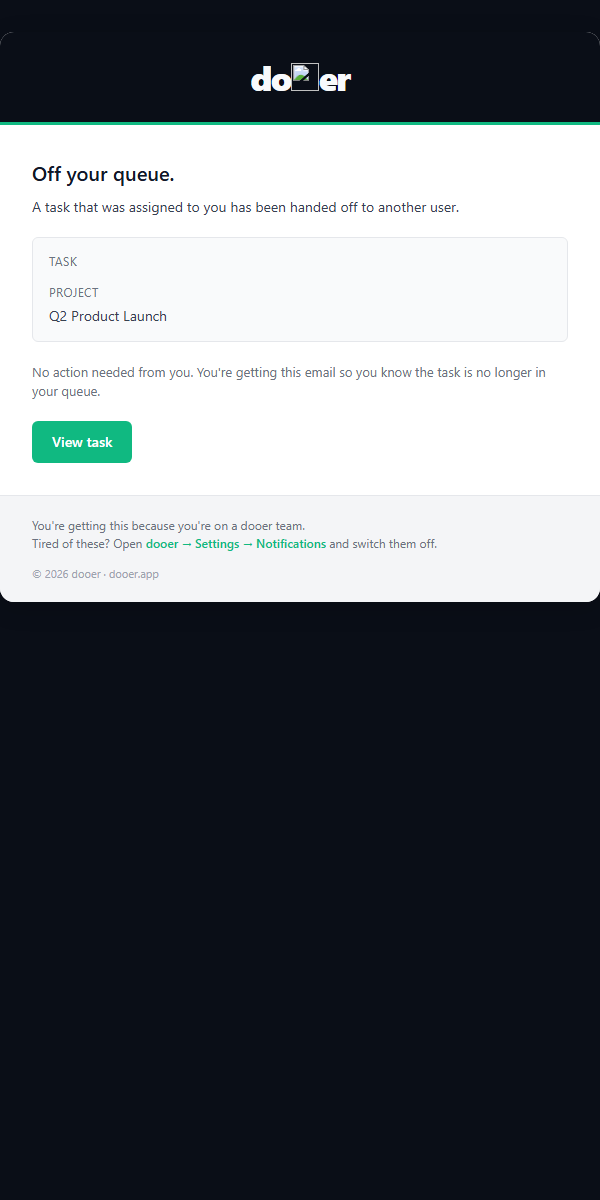
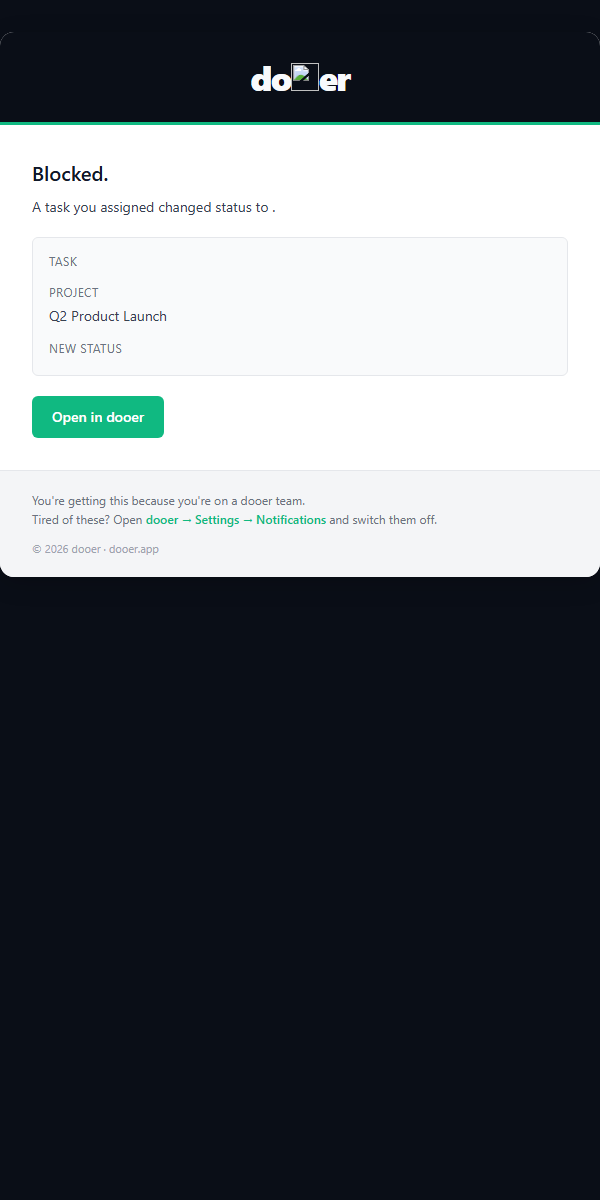
Status changed
Triggered by: a task you're assigned to or watching changing status.
No action required unless you're the project owner. Check the new status and decide if anything is blocking next steps.
Project + content emails
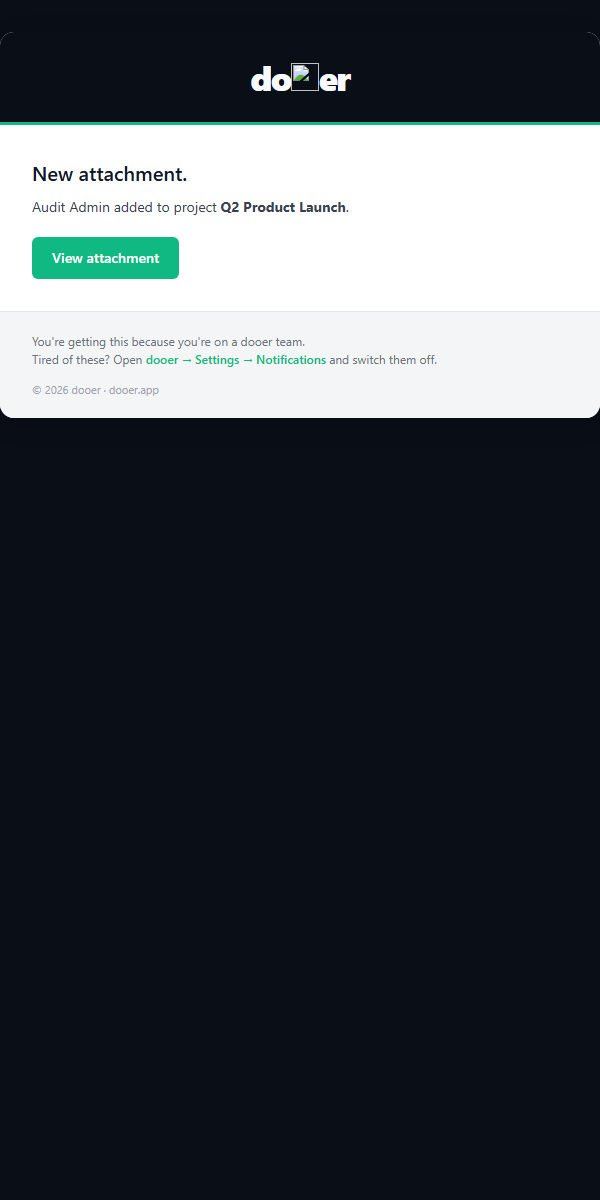
Project assigned
Triggered by: being made the owner of a project.
Open the project, set the start and end dates, and add the first tasks. A project without dates won't appear on scheduling views.
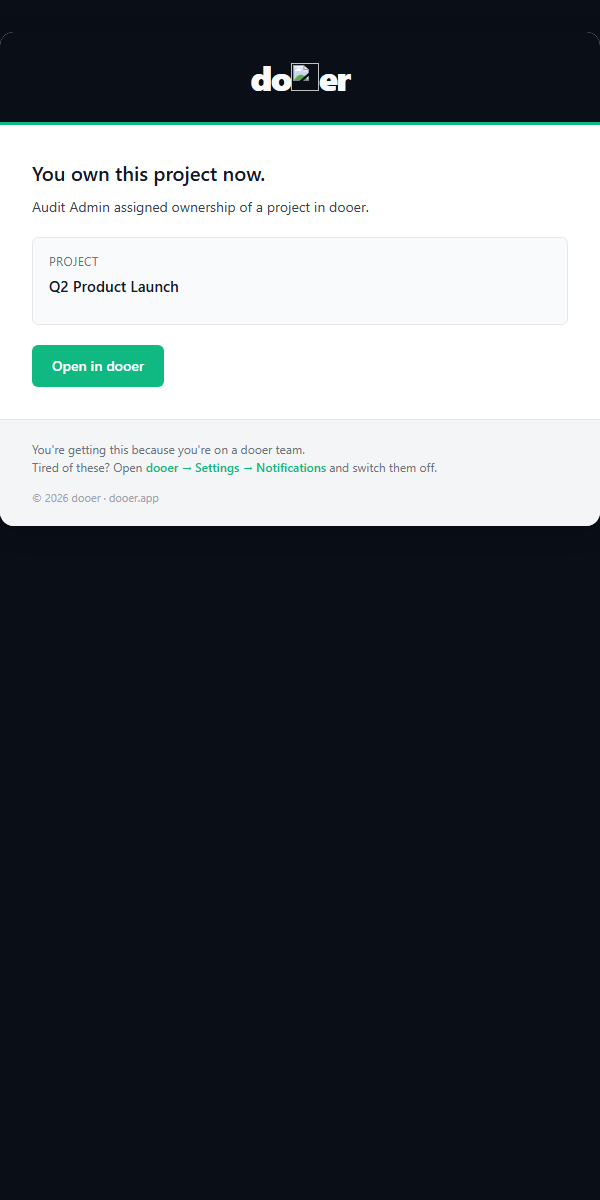
Comment added
Triggered by: someone commenting on a task you're assigned to or watching.
Read it. Reply if a decision or answer is needed. The comment lives in the task's activity feed permanently.
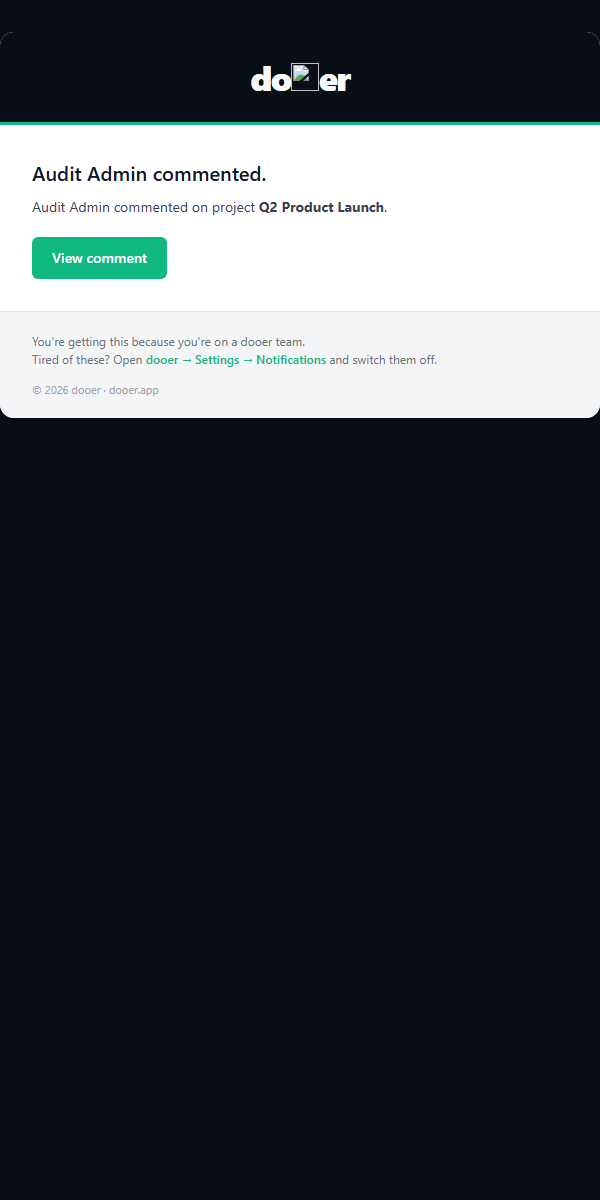
Attachment added
Triggered by: a file being attached to a task you're on.
Open the task's Attachments tab to see it. No action required unless the file is for your review.
Admin emails
These two go to workspace admins only.
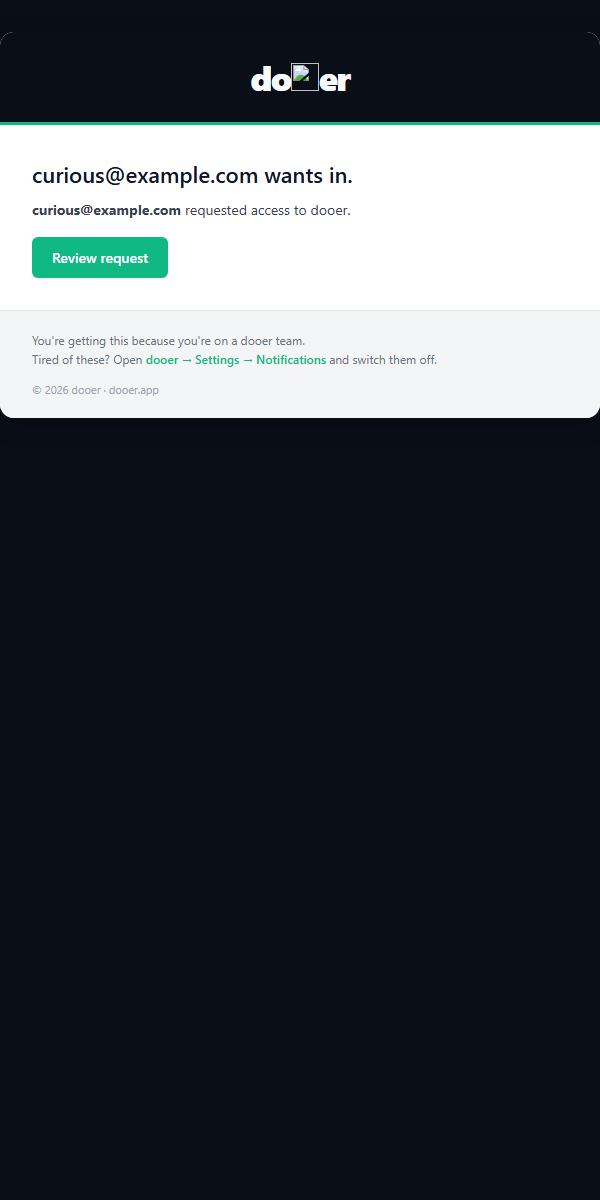
Invitation admin alert
Triggered by: someone submitting an access request to your workspace.
Go to Settings → Invitations and approve or reject. Don't leave requests sitting — there's no auto-expiry.
Join request notification
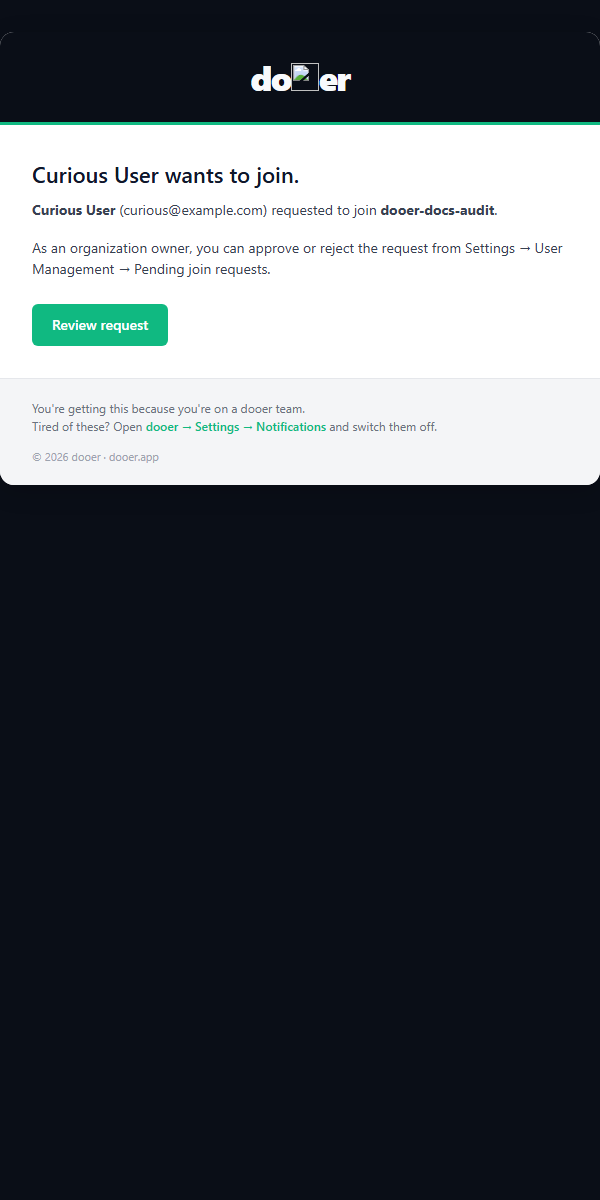
Triggered by: someone with a recognized domain requesting to join automatically.
Same action: Settings → Invitations. Approve or reject.
Trial emails
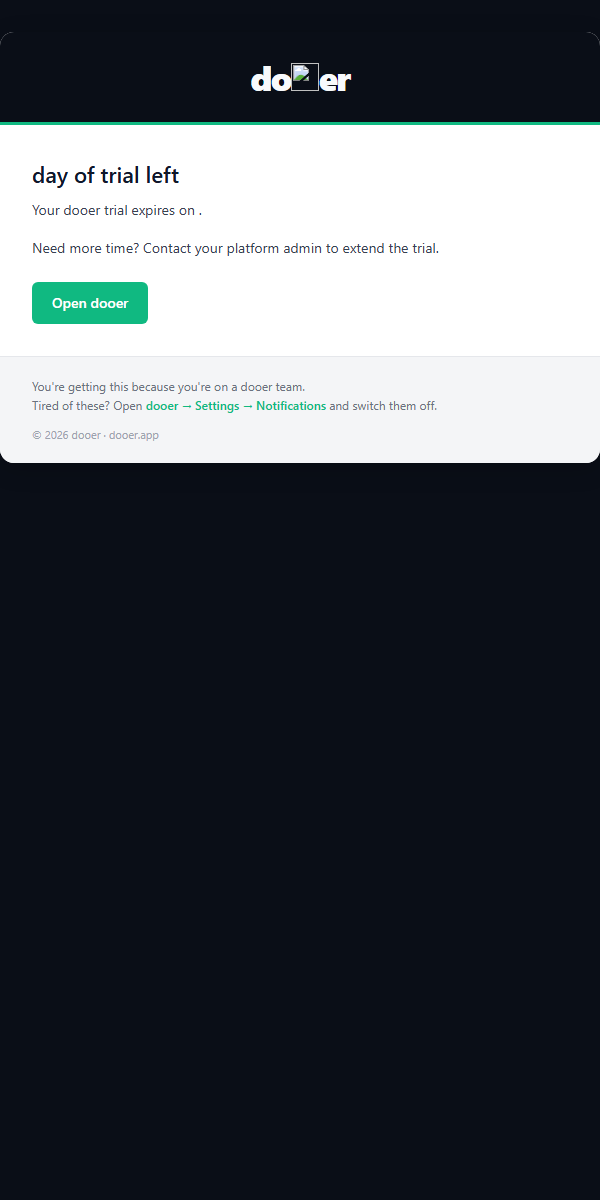
Trial reminder
Triggered by: your workspace trial approaching its end (default: 30 days).
Regular members: talk to your admin. Admins: contact sales before the trial ends so work doesn't get locked.
Trial expired
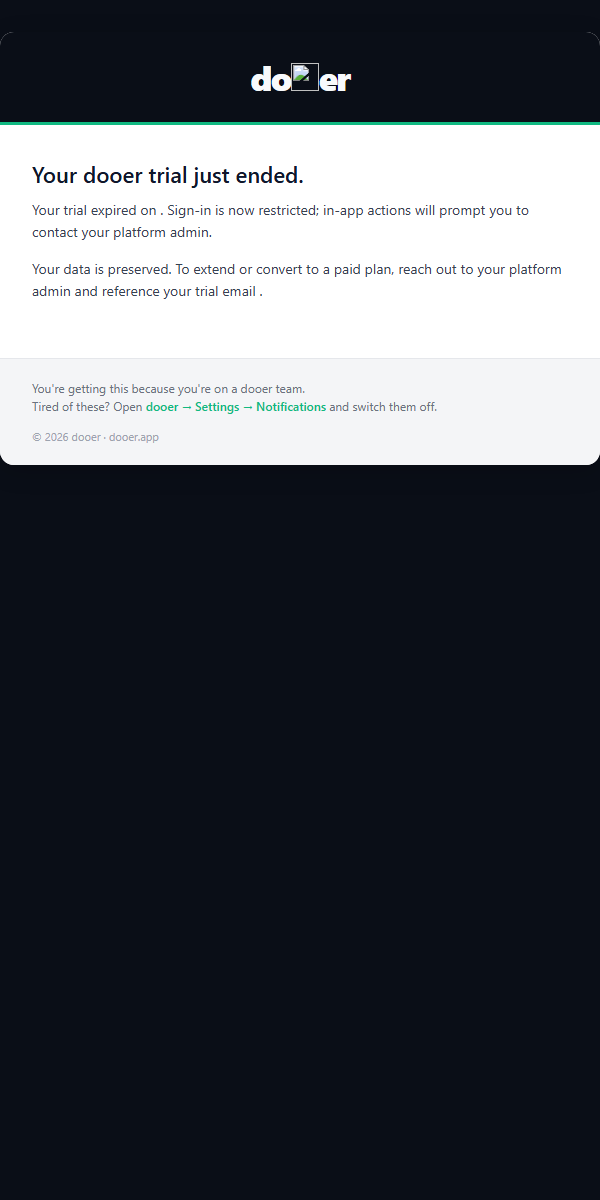
Triggered by: the trial period ending.
Work in dooer is locked until the account converts to a paid plan. Contact your admin or sales to unlock it.
What's NOT in your inbox
dooer doesn't send marketing emails, weekly digests, or "you might also like" nudges. Every email is transactional — one event, one email.
If task emails stop arriving, check your spam folder first. If they're not there, ask your admin to verify that notification settings are enabled for your account.
What's next
Quickstart → New to dooer? Sign-in to first task done in ten minutes.
Your daily flow → How the Dashboard and Priority Planner work together to answer "what am I actually doing today."