Meetings
Meetings in dooer are calendar events tied to your workspace. Each one has notes you write during or after. Notes can link back to a project or a task so the decisions don't get lost between the calendar and the board.
The calendar view
Click Meetings in the left sidebar to open the calendar.
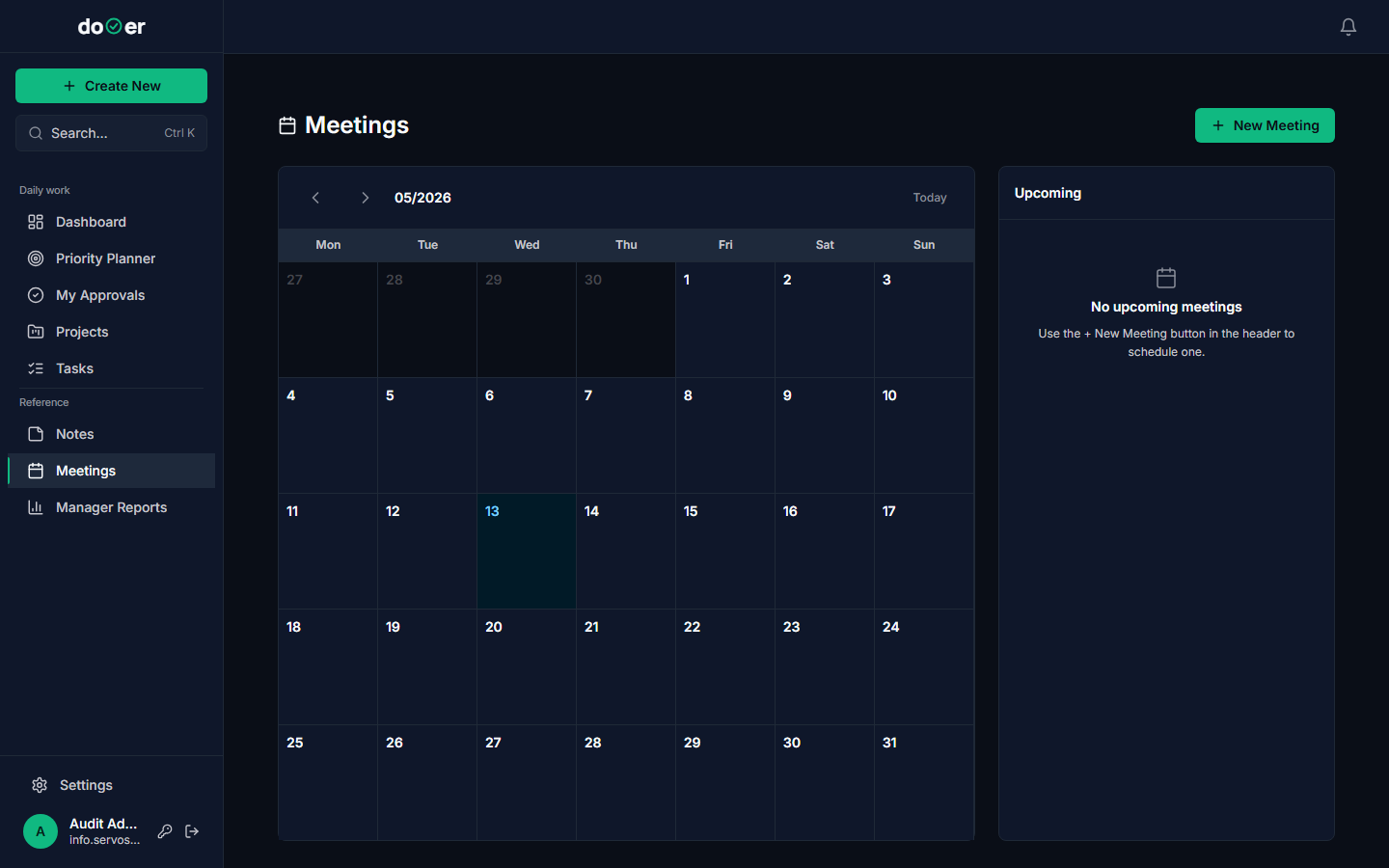
The calendar shows past, today, and future meetings in a single view. Nothing is hidden by default. Click any date to see the meetings scheduled for that day — they appear in a list on the right side of the screen.
Click New meeting to create one. It appears on the date you clicked.
Remember
Past meetings stay on the calendar. They are not archived or removed. Use them to get back to notes you wrote last week without hunting through a separate list.
Creating a meeting
From the calendar, click a date and then click New meeting. A form opens.
Fill in the following:
| Field | Notes |
|---|---|
| Title | Be specific enough that the agenda is obvious at a glance — "Q3 budget review" beats "Finance meeting". |
| Start time / End time | Required. dooer uses these to display the meeting in Today's meetings on the Dashboard. |
| Location | Optional. Paste a Zoom URL, a Google Meet link, or a room name — whatever the attendees need to show up. |
| Attendees | Pick from members of your workspace. They receive no automatic notification in the current version, but their name is attached to the meeting record. |
| Description | Optional. Use it for a pre-meeting agenda so attendees know what to prepare. |
Click Save. The meeting appears on the calendar and in the Today's meetings card on the Dashboard for anyone whose day matches the date.
Tiny rule
Title, start time, and end time are required. Everything else is optional and can be edited after you save.
Meeting notes — capture decisions
Open any meeting from the calendar. The meeting detail screen has a notes section below the meeting header.
![The meeting detail screen showing the meeting title, date, attendees, and a notes section below with an existing note titled "[note title]" linked to a project, with a status badge reading Open](/docs/assets/captures/admin-meeting-detail.png)
Click Add note to create a note inside this meeting. Each note has:
- Title — one line that names the decision or topic.
- Body — the detail. What was decided, who owns it, any blocking question still open.
- Link to a project — optional. Ties this note to a specific project so the project record carries context from the meeting.
- Link to a task — optional. Ties this note directly to the task the decision affects.
- Area of Interest — optional. A broader tag for notes that span multiple tasks or belong to a strategic theme.
- Status — every note starts as Open. Mark it Resolved when the decision is implemented or the action is no longer pending.
Tiny rule
You do not have to fill in every link field. If the decision only affects one task, link just that task. If it is a project-wide direction change, link the project. The fields are optional because not every meeting decision maps neatly to a single object.
A meeting can hold as many notes as the meeting produced decisions. One note per decision keeps them linkable and resolvable independently.
Meeting note vs. task comment — which one?
dooer gives you two places to write things down in the context of a task: a meeting note linked to that task, and a comment added directly inside the task. They do different jobs.
Use a meeting note when:
- A decision was made in a meeting and you need it attached to both the calendar event and the task.
- Multiple people need to know the decision came out of a specific meeting, not just a chat.
- The note will need a status — Open while you wait for something, Resolved once it is done.
Use a task comment when:
- The exchange is happening entirely inside one task — a question, a clarification, a back-and-forth between the assignee and a reviewer.
- There is no meeting. It is just ongoing thread-of-thought on that task.
- You do not need to mark it resolved as a separate action from closing the task itself.
The short version: discussion that decided something goes in a meeting note, with a link to the affected task. Back-and-forth on a single task goes in the task's comments.
When in doubt
If you need to tell someone "we agreed on this in Thursday's standup," that belongs in a meeting note. If you need to tell the assignee "please make this one change," that belongs in a task comment.
What's next
Working with your team → Assignees, task acceptance, and how to hand work off without it disappearing into someone's backlog.
Your daily flow → How Today's meetings shows up on the Dashboard alongside your tasks, and how to use both cards to plan your morning.