Capturing work — tasks and projects
Every piece of work in dooer is either a task or a project. The first question to ask before you click Create New is: is this one thing, or is it a bunch of related things? That question answers itself once you know the rule.
Tasks vs. Projects — which one to make
A task is one thing one person finishes. A project is a container for many tasks that share a goal, an owner, and a deadline.
Concrete example: "Email the supplier about lead times" is a task. One person. One action. Done in fifteen minutes. "Q2 Product Launch" is a project — it has a design brief, a stakeholder review, a pricing sign-off, and twenty other tasks that all have to land before the launch date.
When you click Create New, the modal opens on the Task tab by default.
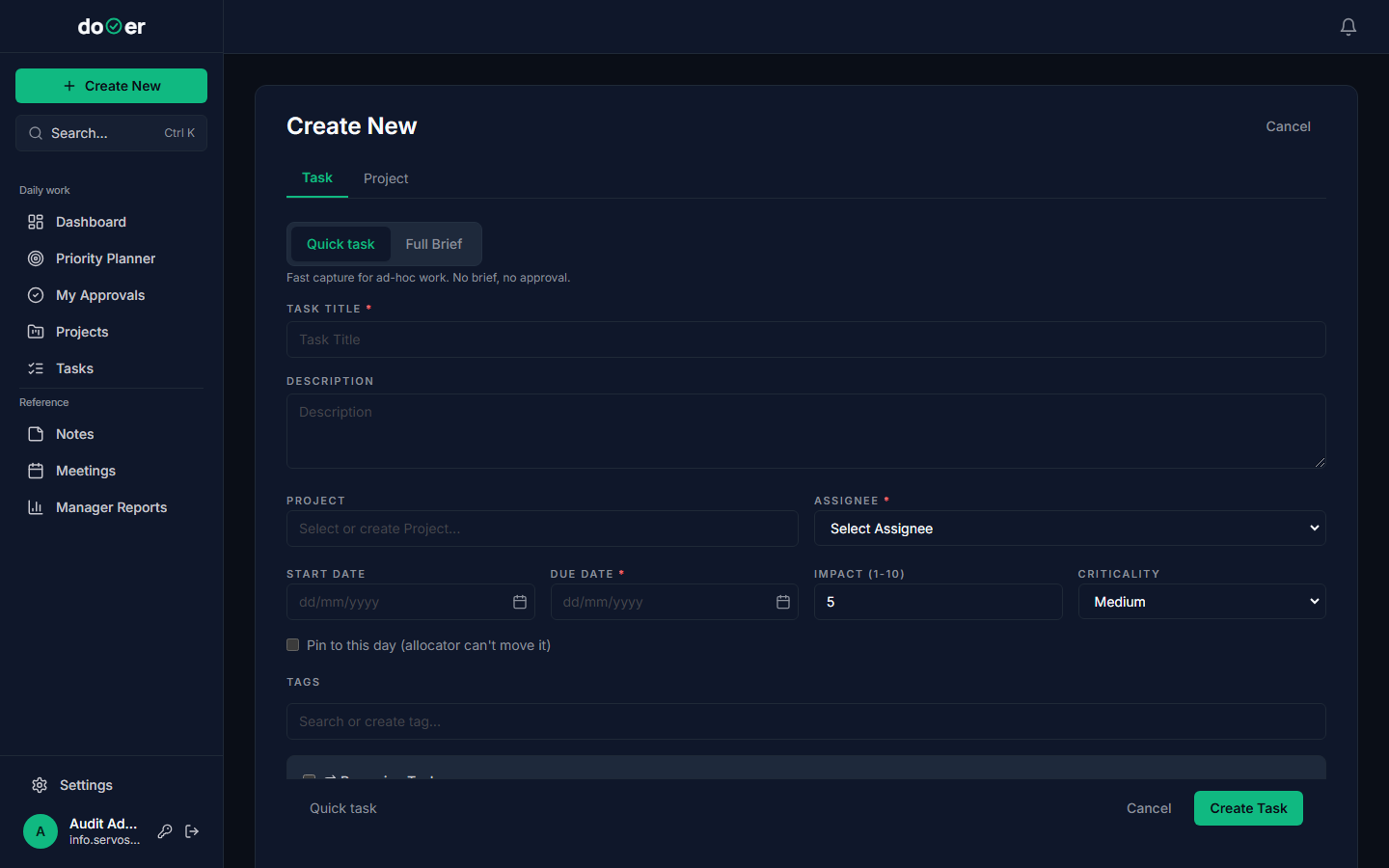
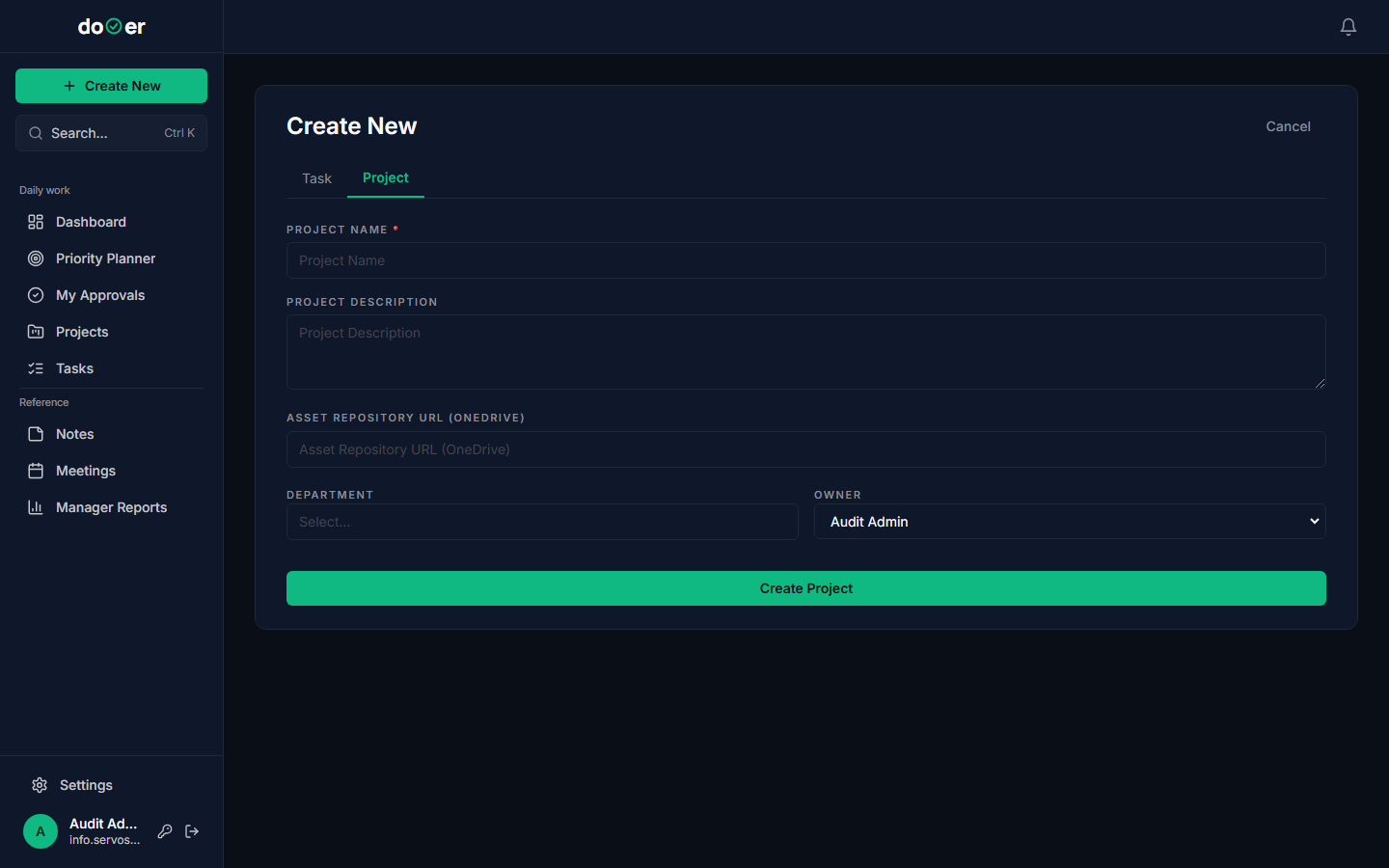
To make a project instead, click the Project tab at the top of the same modal. The URL stays /tasks/new — it's the same screen, different tab.
Tiny rule
Task = one thing. Project = a group of related things. When in doubt, start with a task. You can always attach it to a project later.
The minimum a task needs
Three fields are required. Everything else is optional.
| Field | Why it matters |
|---|---|
| TASK TITLE | How everyone refers to it — be specific. "Stakeholder review of brief" beats "review stuff". |
| ASSIGNEE | dooer won't put work on someone's plate without a name attached. |
| DUE DATE | This is what drives the scheduling. Use the real date. |
If you try to save without one of these, dooer tells you exactly which field is missing.
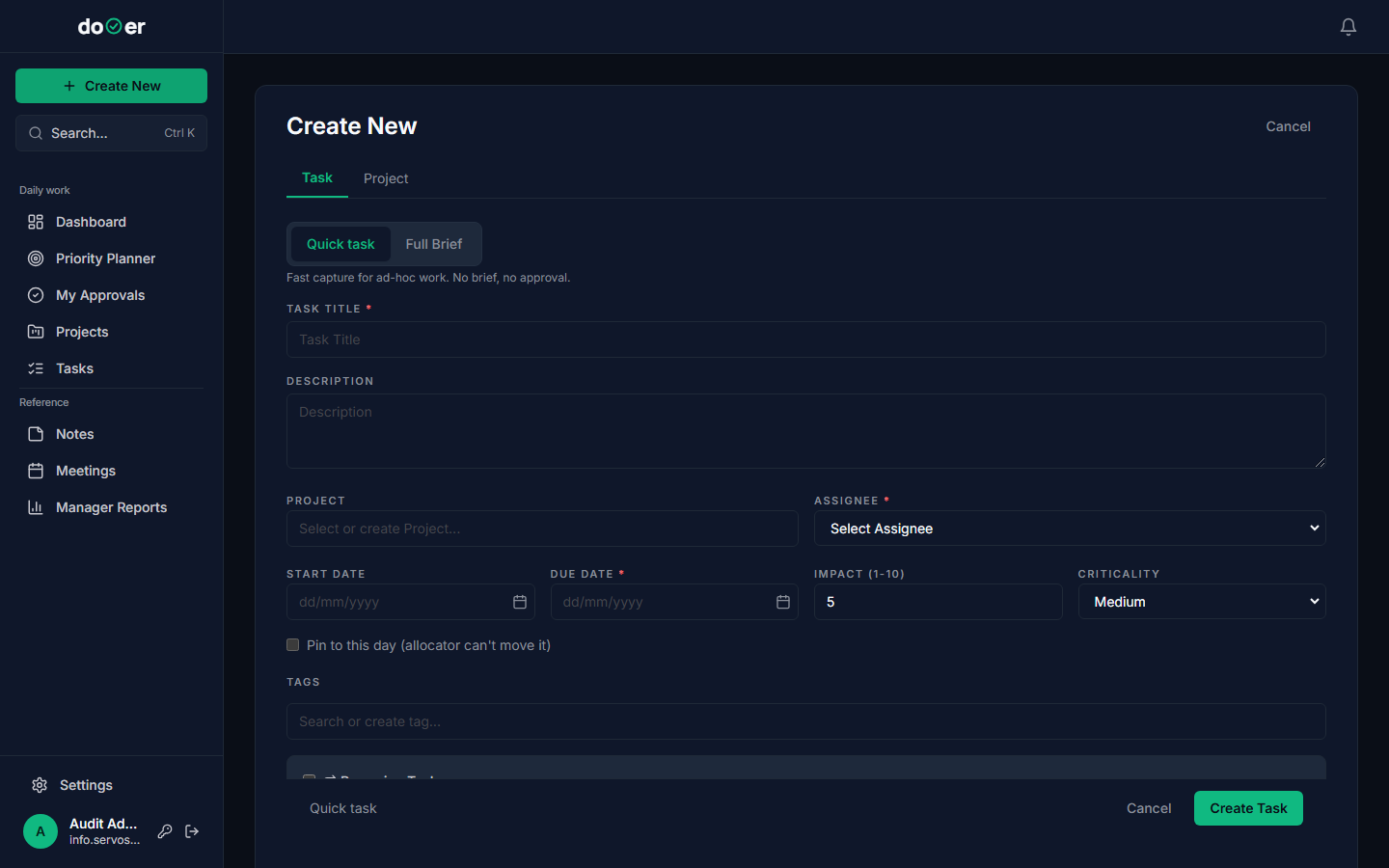
Everything else — description, project, impact score, start date, criticality — can be filled in after the task exists. Open the task card and edit it there.
Remember
The Create Task button stays grey until all three required fields have a value. If the button won't go blue, one field is still empty.
Quick task vs. Full Brief
Inside the Task tab, two sub-tabs appear at the top: Quick task and Full Brief. The default is Quick task.
Quick task is for work that doesn't need sign-off. Capture it, assign it, move on. Most day-to-day tasks live here. The task goes straight to To Do once it's accepted.
Full Brief is for work that needs formal approval before anyone starts. It adds an acceptance-criteria field and routes the task through an approval step first. Use it for work that has real consequences if it goes in the wrong direction — a "Stakeholder review of brief" on a new product, for instance, or an "Engineering capacity plan" that will affect headcount.
The approval flow itself is covered in a separate page. For now, the rule is: if someone needs to sign off before work begins, pick Full Brief.
One thing
When in doubt, use Quick task. The choice is made at creation time — pick Full Brief from the start if someone needs to sign off before work begins.
Making a subtask
A subtask is a task that lives inside another task. Use subtasks when a task is almost a project, but not quite — "Engineering capacity plan" might have "Gather headcount data" and "Model three scenarios" as subtasks.
To create a subtask, open the parent task and scroll to the Subtasks section. Click Add Subtask. dooer opens the Create New screen with the parent already set.
One thing
Subtasks inherit the project of their parent. You don't need to set it twice.
Making a project
Click Create New, then switch to the Project tab.
A project needs three things:
| Field | Notes |
|---|---|
| PROJECT NAME | Make it specific — "Q2 Product Launch" not "Launch". |
| DEPARTMENT | Which team owns this work. |
| OWNER | One person. The person accountable for the deadline. |
Status defaults to Planning. You can change it once the project is active.
After you save the project, it shows up in the Projects board.
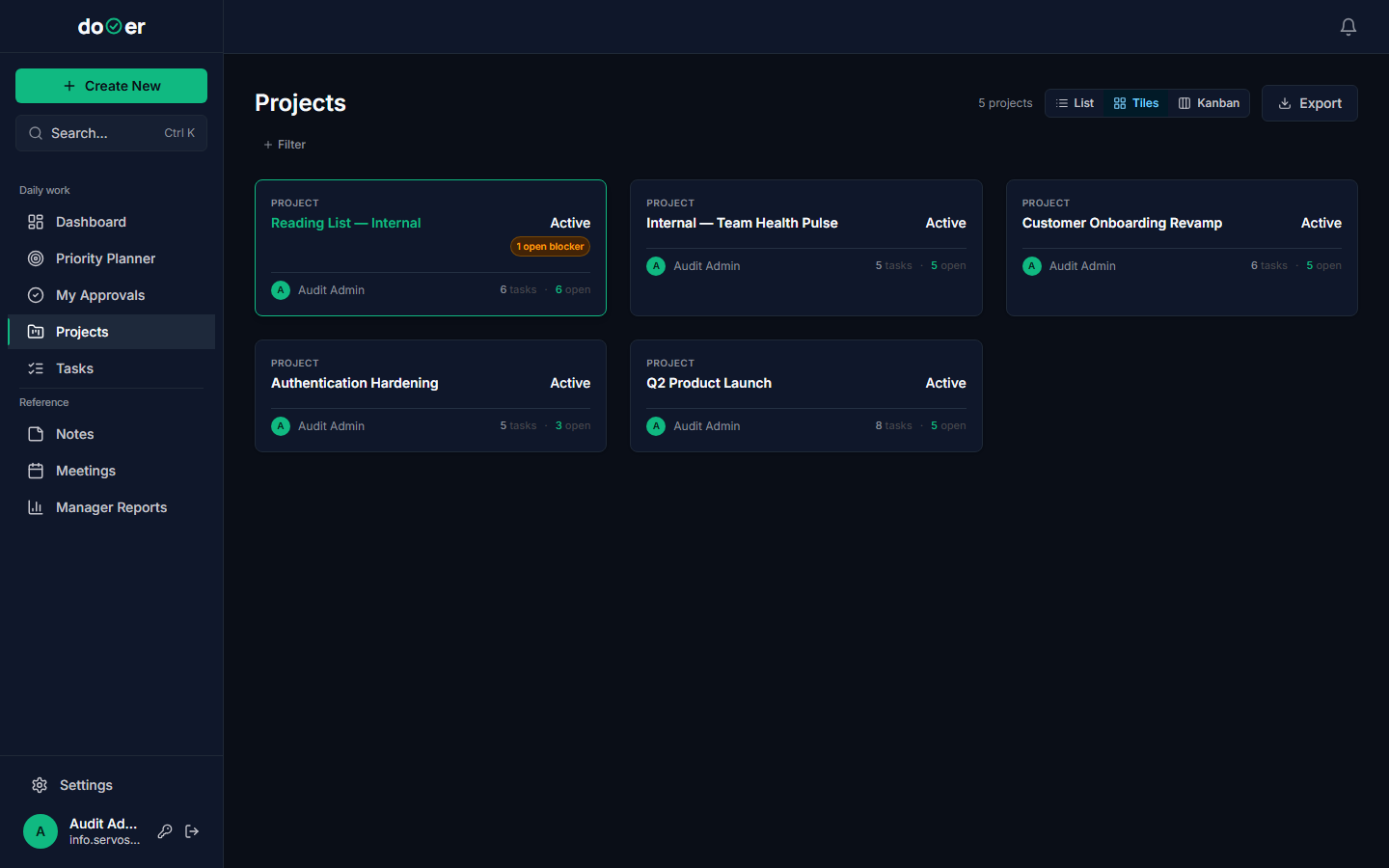
To add tasks to it, create tasks normally and set the PROJECT field on each one to the project you just made. dooer groups them together automatically.
Tiny rule
Projects don't hold tasks by default — tasks point at projects. Set the PROJECT field on a task to connect it.
What's next
Working a task → How to move a task through its statuses, add comments, attach files, and mark it complete.
Your daily flow → How the Dashboard and Priority Planner work together so you always know what to do next.