Solo Proficient — operate like a one-person PMO
Goal: see your own life as a portfolio. Use projects, the audit log, and the reports to govern your own cadence — the same way a Programme Management Office governs a portfolio of work across an enterprise.
You arrive here after Advanced. You can plan a week. Now you start thinking in months and quarters, and you start using dooer's data to make decisions instead of going on gut feel.
Why this tier matters
A real PMO does three things: it gives leaders visibility, standards, and cadence. Visibility means everyone sees the same data. Standards means work follows a common format. Cadence means there are scheduled reviews.
You can do this for yourself. The benefit is the same as it is for a Fortune 500: you stop being surprised. Reviews catch problems while they are cheap. The audit log replaces the "I don't remember why I did that" guess with a fact.
This is also the tier where the work changes character. You stop measuring yourself by tasks done. You start measuring yourself by patterns — am I shipping briefs that turn out well? Am I closing more feedback than I open? Am I drifting toward urgent-firefighting again?
The 8 journeys
S-3.1 — Create personal projects to group multi-week initiatives
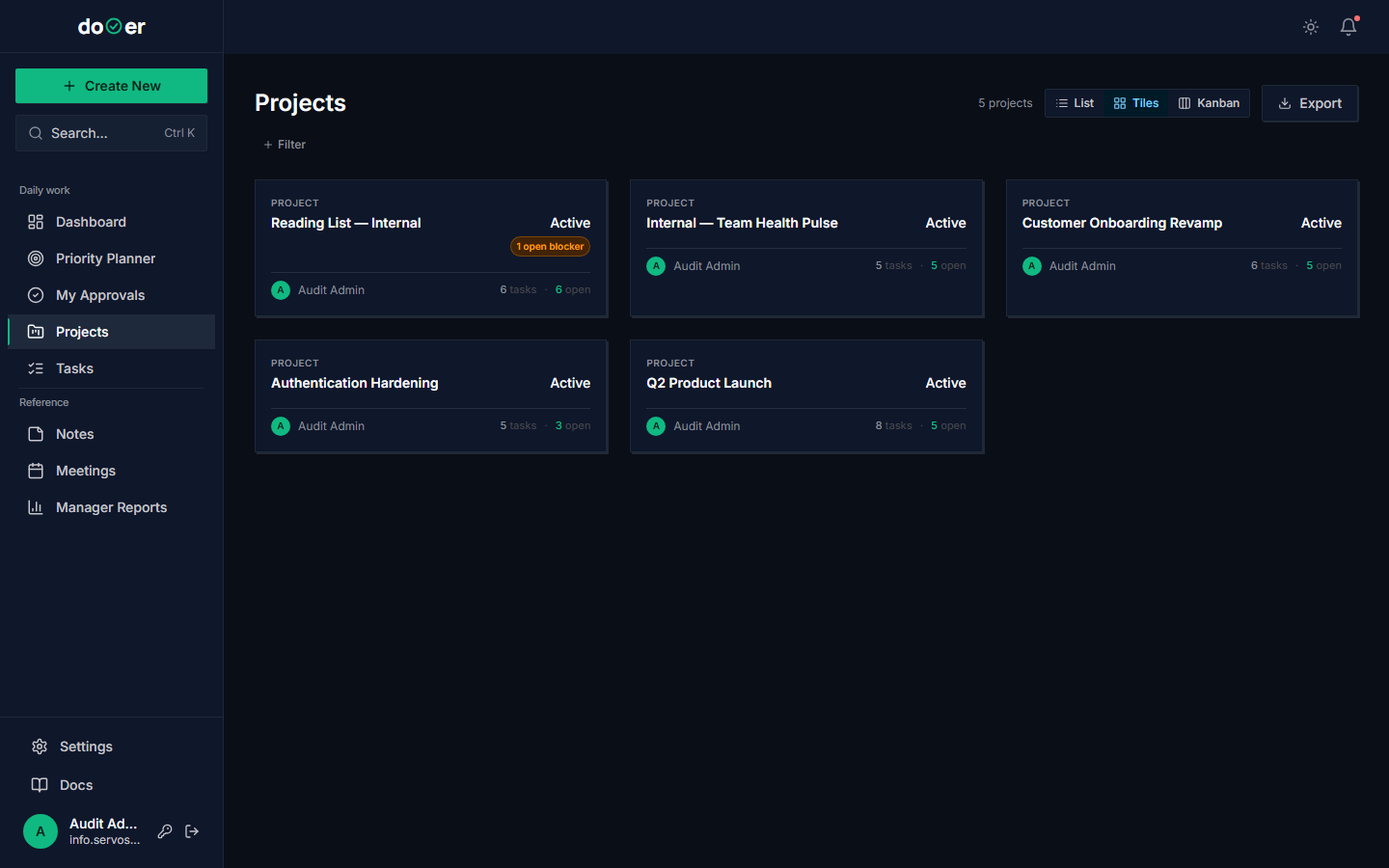 Projects are containers. Use them whenever a goal needs more than a week.
- Open Projects (
/projects). - Click + New project. Examples: "Learn German", "Apartment renovation", "Q3 fitness goals".
- Pick the status: Planning if you're scoping, Active if you're working, On Hold if it's paused.
- For each project, link all the open tasks that belong to it.
What just happened
- A
Projectrow got created, with a slug likelearn-german. - Every linked task now carries
project_id, which makes it filterable, reportable, and aggregatable. - The project shows up in the kanban on
/projects.
Concept: programme management at the personal scale. A programme is "a group of related projects managed in a coordinated way" (PMI, 2017, Standard for Program Management). For a solo operator, "programme" is your year — and projects are the months-long efforts inside it.
S-3.2 — Maintain a Feedback Register per project
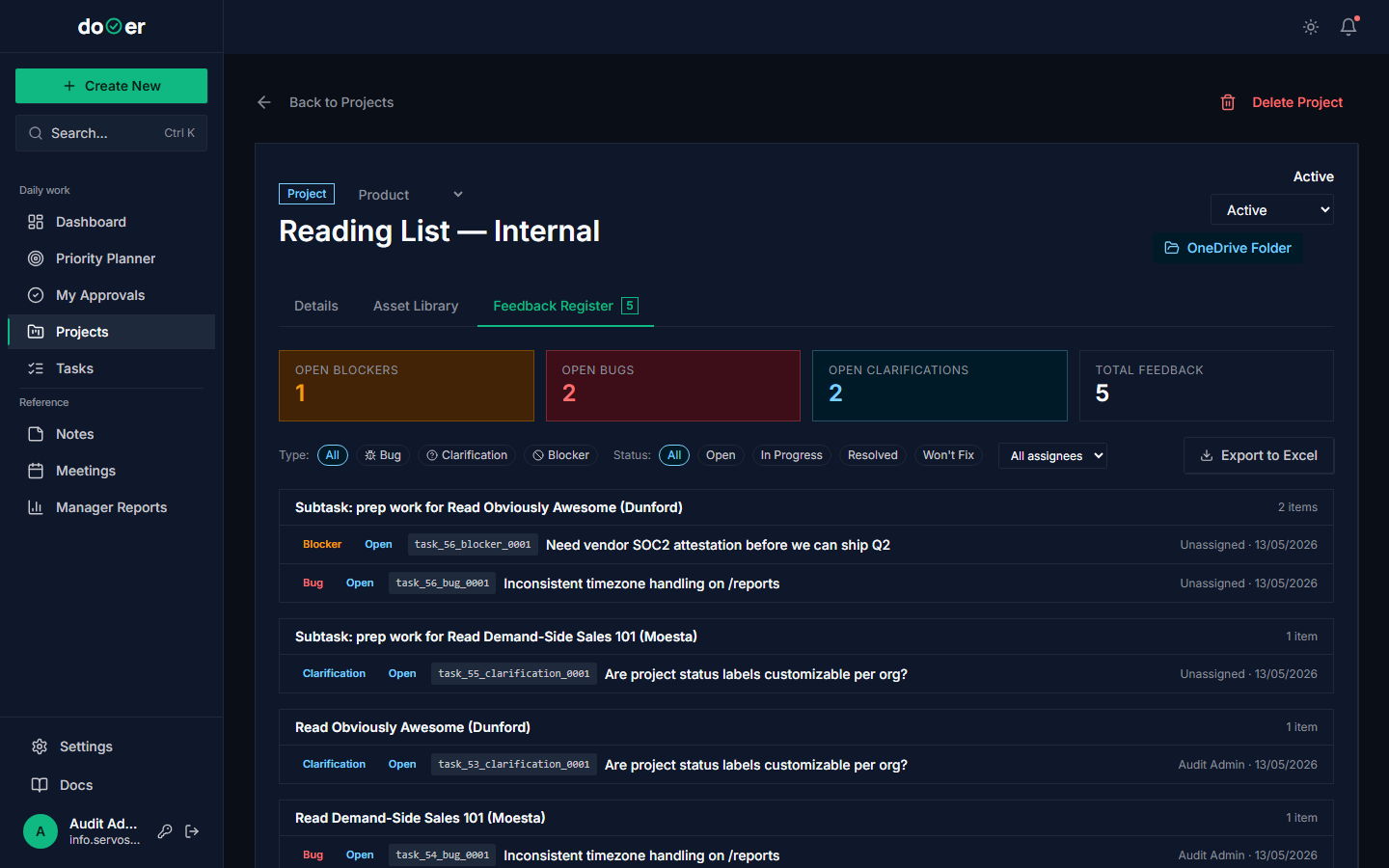 Every project keeps its own feedback log. Open items are work to do; closed items are lessons learned.
- Open a project. Click the Feedback tab.
- Whenever something doesn't go as planned (on any task in this project), add feedback.
- Each month, walk the open feedback. Convert items to follow-up tasks where action is needed. Close the rest with a one-line "what I learned" note.
The register is your lessons learned
PMBOK calls this the "lessons learned register" (PMI, 2021). The discipline is not in capturing the feedback — that's easy. It's in closing the loop at a scheduled cadence. Without that, the register becomes a graveyard nobody reads.
Concept: single-channel feedback. dooer enforces only one pending feedback per task per author (a database-level constraint). The reason: scattering feedback across channels is how it gets lost. One place, one loop.
S-3.3 — Run monthly retros using the Audit Log
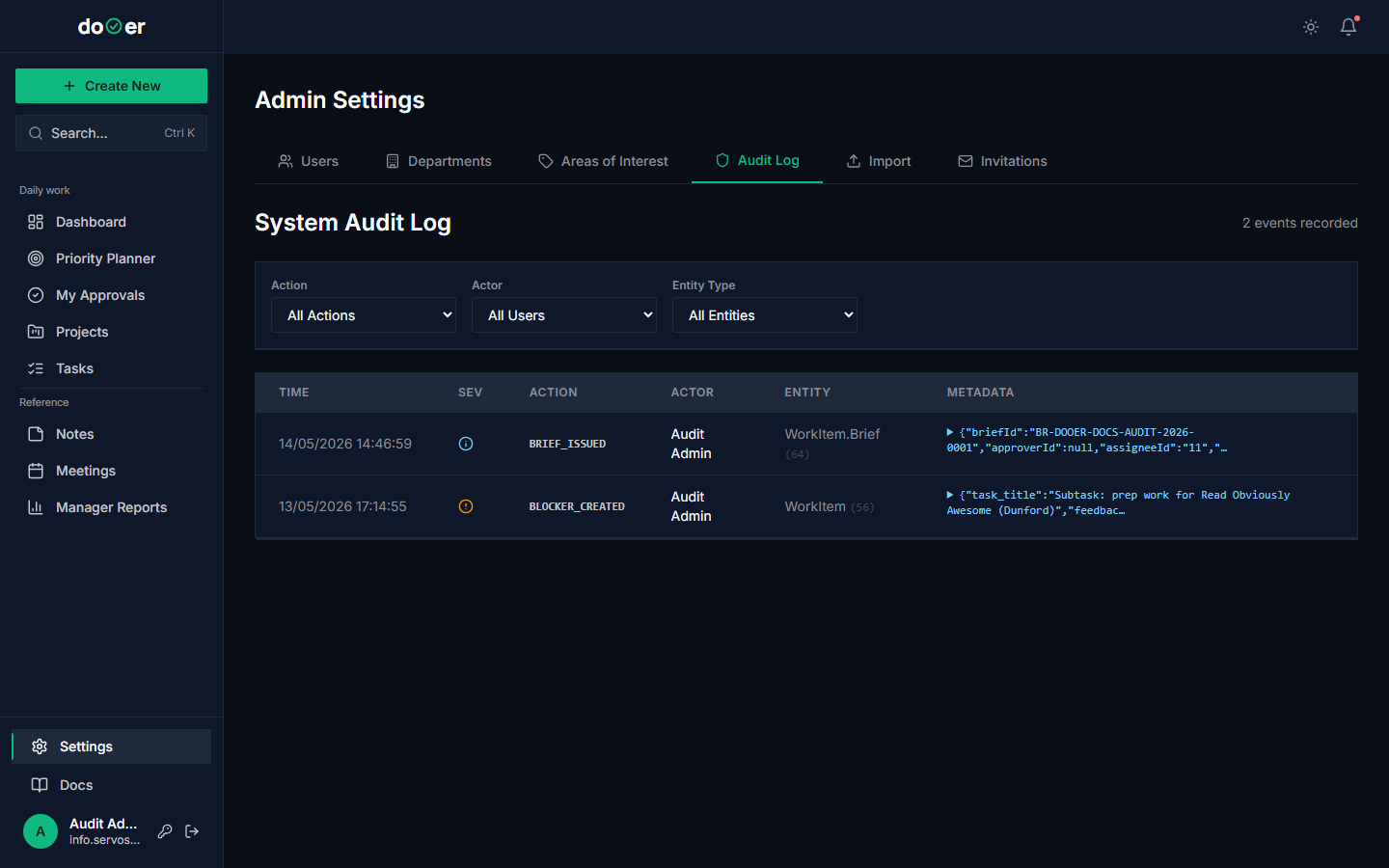 The audit log is the closest thing you have to a flight recorder. Use it.
Once a month:
- Open Settings → Audit.
- Filter the date range to the last 30 days.
- Scroll through. Look for patterns. Which projects got the most updates? Which had a long gap? Where did you reassign work to yourself a lot (a signal that the original plan was wrong)?
- Pick one pattern. Add it as feedback on the relevant project.
Why the audit log matters
- Every state change in dooer creates an immutable
AuditLogrow with the before/after. - You cannot edit history. That's the point.
- PMBOK 7 calls this a "configuration baseline" — the artifact you compare reality against later. See Configuration baseline.
S-3.4 — Build a personal level-of-effort baseline
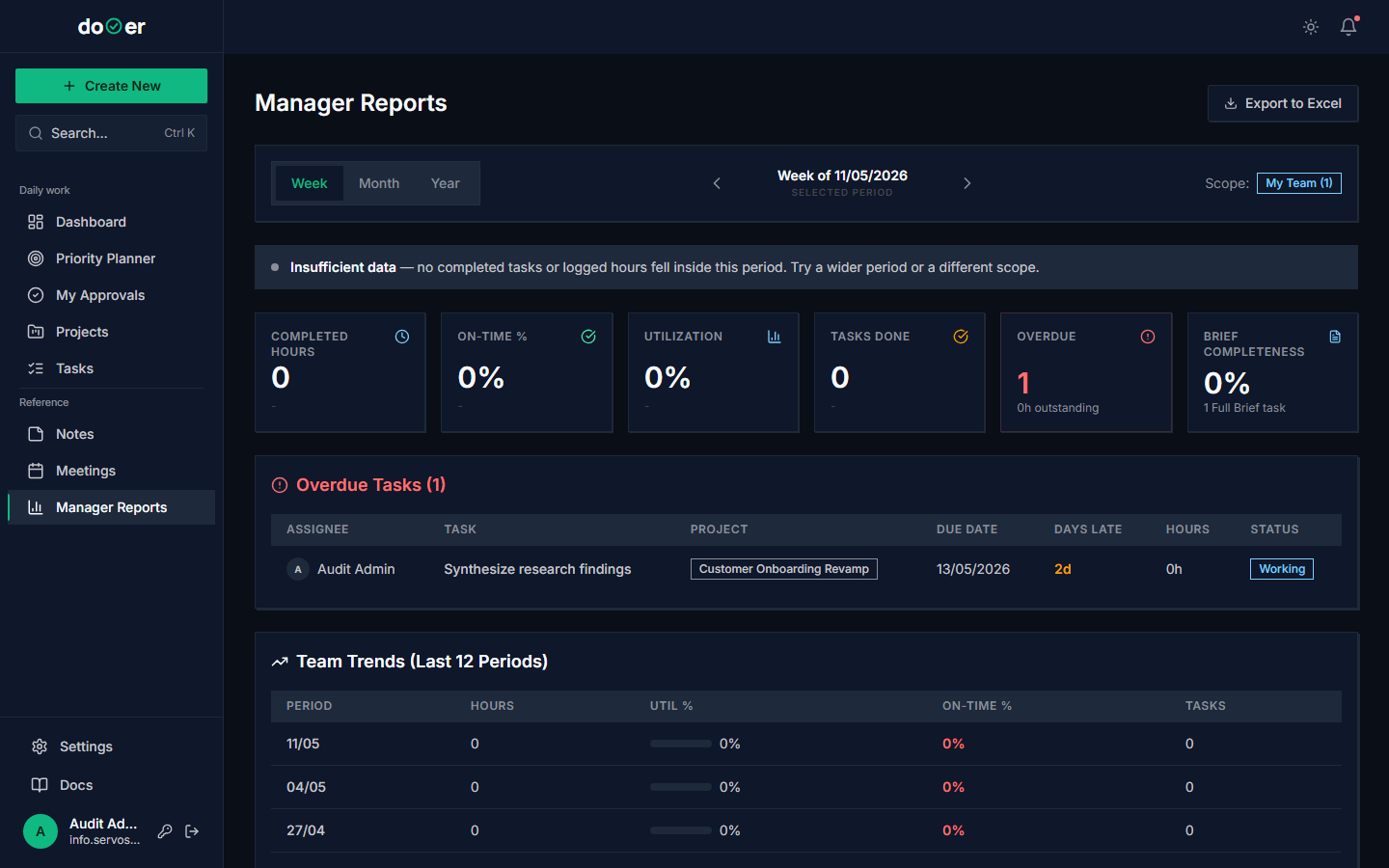 Plot your effort_hours by week. The shape tells you whether you are sustainable.
- Open Manager Reports (if you have access; otherwise export to Excel and use a spreadsheet).
- Filter to yourself. Group by week.
- Sum
effort_hoursper week. Plot. - Find your sustainable line — the number you can deliver week after week without breaking.
- From now on, that's your weekly cap on new commitments.
Concept: level of effort (LOE). In project management, LOE is the steady drumbeat work — meetings, ops, recurring tasks. PMBOK 7 lists it as one of three work types (along with discrete and apportioned effort). Knowing your LOE is the foundation of saying no with confidence.
S-3.5 — Use Manager Reports for personal throughput
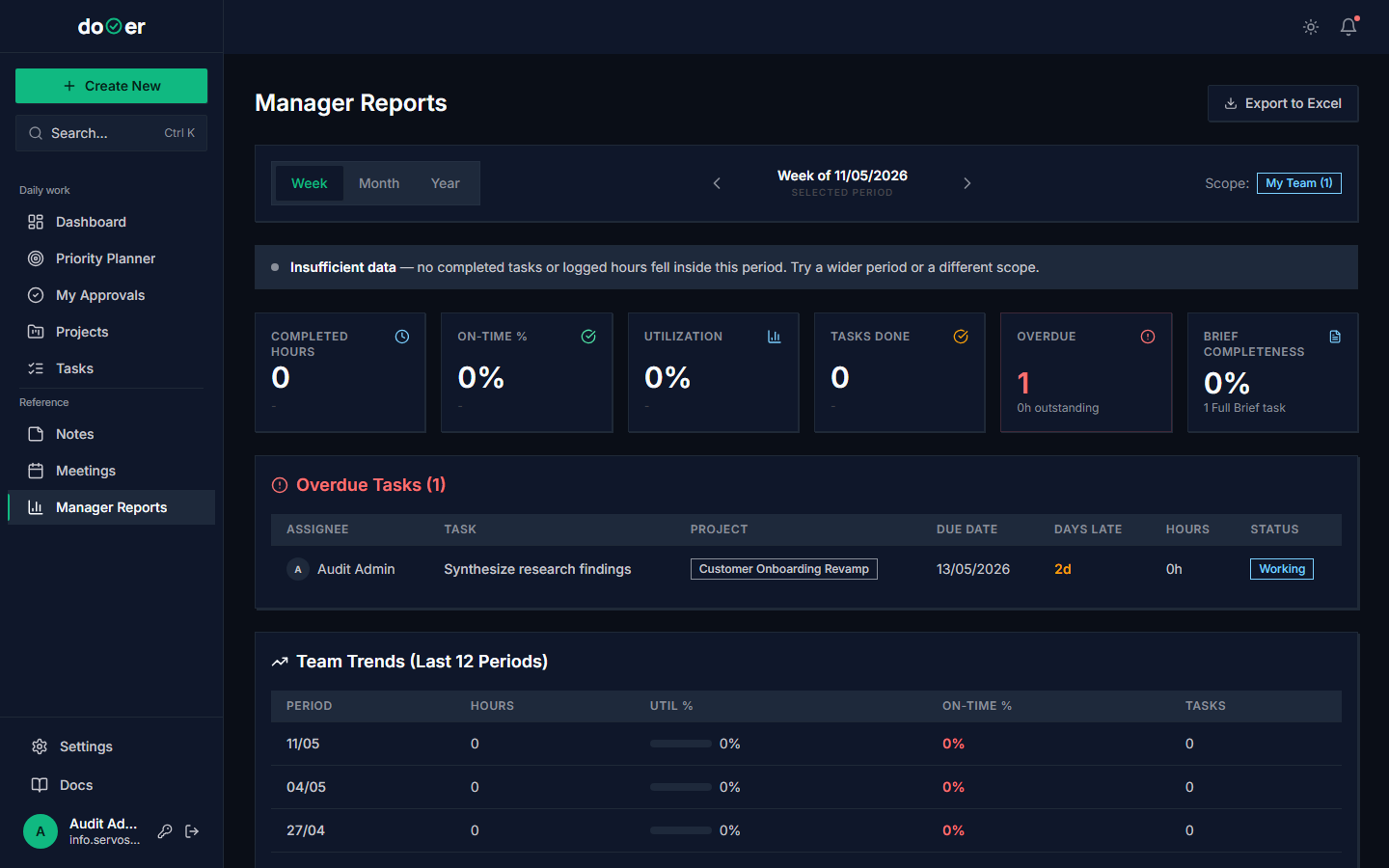 The same dashboard a team lead uses for direct reports — pointed at yourself.
- Open Manager Reports.
- Filter to yourself.
- Note: tasks closed per week, average effort estimate vs actual, oldest open task age.
- If "oldest open task age" creeps above 30 days, something is rotting. Investigate.
Concept: leading vs lagging indicators. Completion velocity is lagging — it tells you what already happened. Oldest open task age is leading — it tells you what's about to go bad. The PMO craft is paying attention to the leading ones. Kaplan and Norton invented the framing in their Balanced Scorecard (Kaplan & Norton, 1996). See Leading vs lagging.
S-3.6 — Tune notification policy
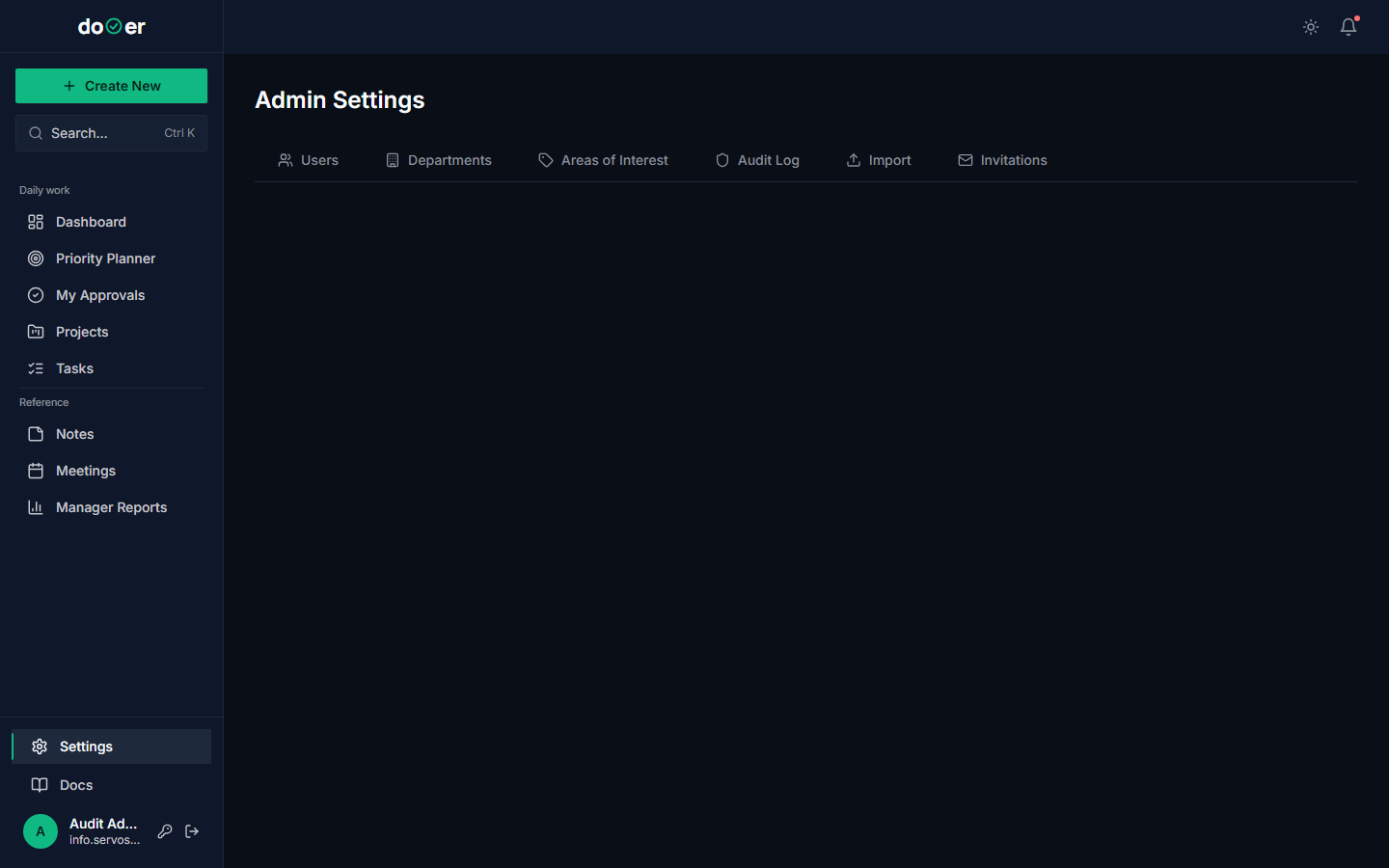 Pick which kinds you want by email vs in-app vs nothing.
- Open Settings → Account → Notifications.
- Walk through each notification kind. Decide: email, in-app, or off.
- Common pattern: keep TASK_ASSIGNED and EFFORT_REVISION emails on; turn COMMENT_ADDED to in-app only; turn RESOURCE_UPLOADED off.
If your inbox is screaming
The cure for too many notifications is not to ignore the bell. It is to turn off the kinds you don't actually act on. If you never open RESOURCE_UPLOADED emails, they are noise.
S-3.7 — Export tasks and feedback to XLSX
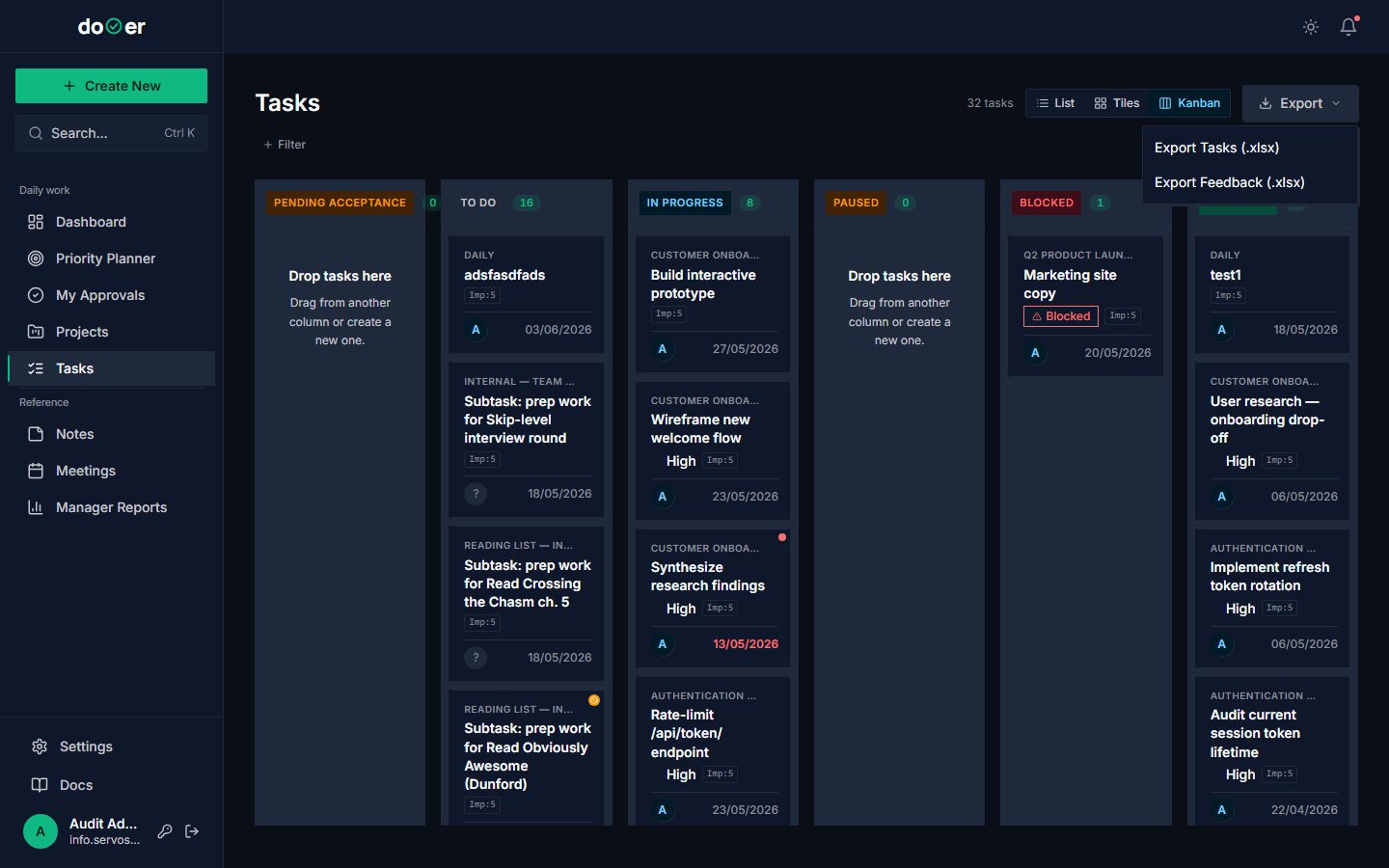 The exports are the dooer-to-spreadsheet bridge for ad-hoc analysis.
- From the task board, click Export → Tasks.
- Repeat for Feedback.
- Open both in Excel/Numbers/Google Sheets.
Now you have two flat tables. You can do anything: pivot by month, build a custom chart, share with someone outside dooer.
Concept: data portability. PMOs that depend on a single tool for analysis end up locked in. Exporting on a regular schedule (monthly) gives you a snapshot you can use anywhere — and a hedge against tool changes.
S-3.8 — Use bulk import for backfill or batch capture
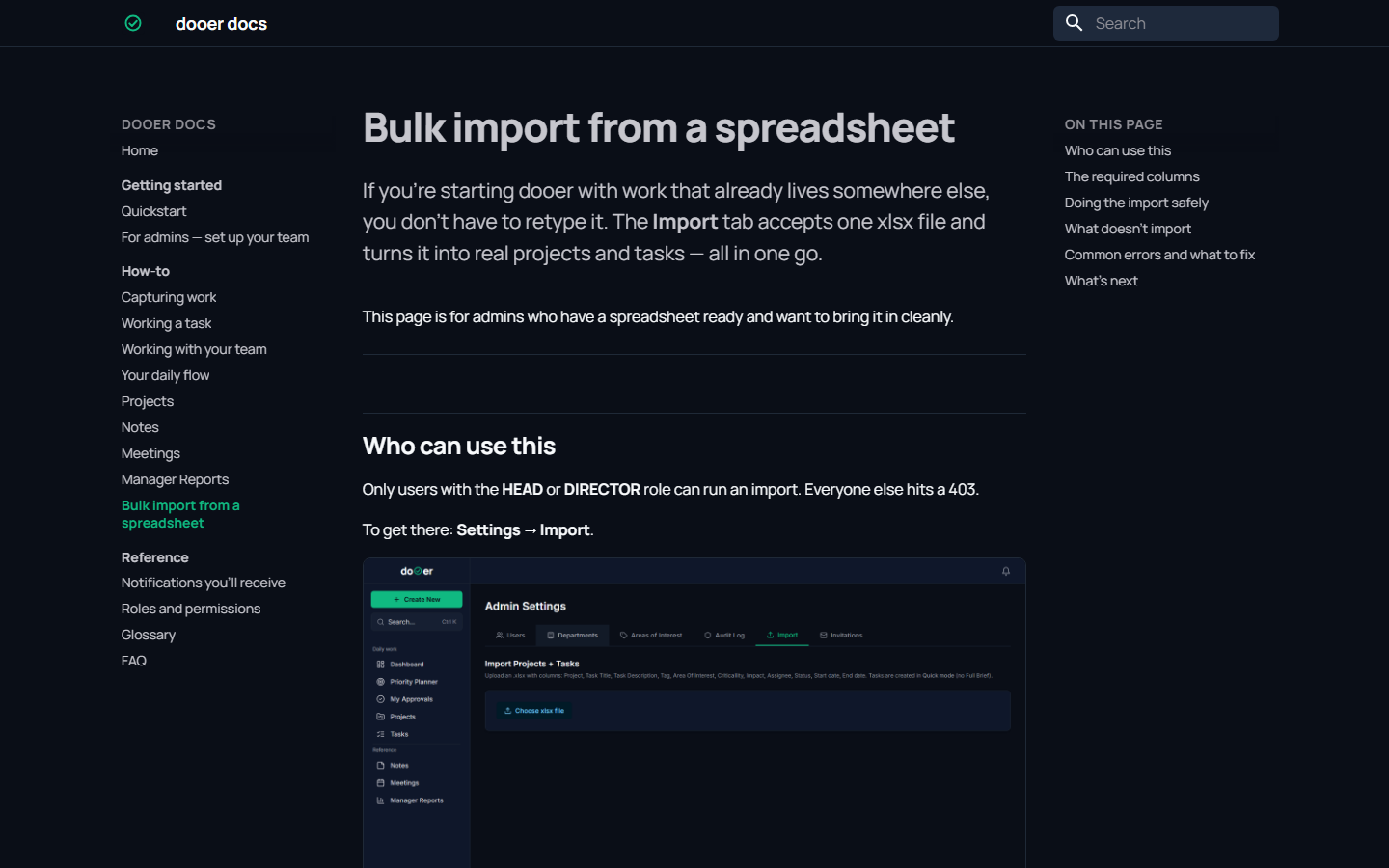 The fastest way to get historical data or batch-capture commitments into dooer.
- Open the Bulk import how-to page in
/docs/how-to/bulk-import/. - Prepare a spreadsheet with rows: title, status, target_date, priority, project.
- Upload. Map columns. Import.
Used at the start of using dooer: backfill your existing task list. Used periodically: batch-capture a brain dump of all the things you've been putting off.
At this point you are running a portfolio of one
You have: - Multiple active projects, each with an explicit status (S-3.1). - A live feedback loop per project (S-3.2). - A monthly retro using immutable history (S-3.3). - A personal capacity baseline (S-3.4). - A throughput dashboard (S-3.5). - A clean notification stream (S-3.6). - An export discipline (S-3.7).
This is how a real PMO operates, scaled down to one person. The same primitives — projects, registers, retros, baselines, dashboards — at a much smaller scale.
If you stop here, you are already running your own life better than 90% of "productivity" content suggests. If you want to go further, you can pick up the Team Lead track the moment you start delegating.
Where the ideas come from
- PMI (2017). The Standard for Program Management, 4th Edition. — programme vs project.
- PMI (2021). PMBOK Guide, 7th Edition. — lessons learned register, configuration baseline, level of effort.
- Kaplan, R. & Norton, D. (1996). The Balanced Scorecard: Translating Strategy into Action. Harvard Business Review Press. — leading vs lagging indicators.
- Edmondson, A. (2018). The Fearless Organization. Wiley. — psychological safety in feedback loops (yes, even with yourself).
Full bibliography: bibliography.